Typography plays an important role in how people read, understand, and experience digital content. From website interfaces and brand identities to editorial layouts and product packaging, the right typeface can make a design more recognizable and communicate its message more effectively. While thousands of ready-made fonts are available, designers sometimes need something more distinctive: a custom font that reflects a particular creative vision, brand personality, or design requirement.
Creating a typeface from scratch requires more than drawing attractive letters. It involves shaping individual glyphs, maintaining consistent proportions, adjusting spacing and kerning, and ensuring that characters work naturally together. This is where font design software becomes essential. The right tools provide an environment for developing letterforms, refining outlines, managing font families, and exporting usable font files.
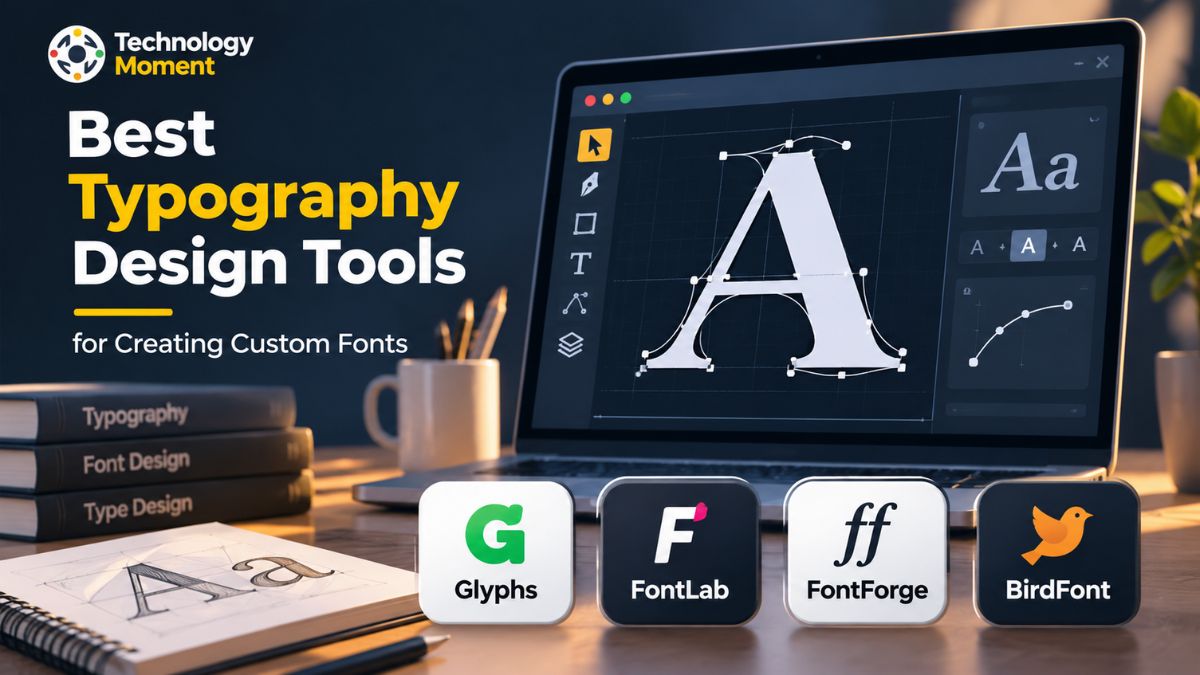
Several typography design tools offer different approaches to this process. Glyphs is designed for professional type design on macOS, while FontLab provides an extensive environment for drawing, editing, spacing, and producing fonts. FontForge offers an open-source option for creating and modifying typefaces, and BirdFont provides vector-based tools for designing custom fonts across multiple desktop platforms.
At Technology Moment, we explore practical design software, creative technologies, and digital tools that help designers make informed decisions. In this guide, we look at these four font creation tools, their notable features, and their potential uses. Whether you are exploring typeface design for the first time or refining an established design workflow, understanding what each application offers can help you choose the right software for your creative projects.
What Is Font Design Software and How Does It Work?
Font design software refers to specialized applications that allow designers to create, edit, customize, and export digital typefaces. Unlike ordinary graphic design programs, font creation software is built to manage individual letters, numbers, symbols, and other characters as a complete, functional font family. These applications provide tools for drawing letterforms, adjusting proportions, refining curves, and organizing glyphs into a consistent typeface. Whether someone wants to develop a completely original font or modify an existing one, the right font editor software makes the process more manageable.
The process generally begins with designing individual characters using vector-based drawing tools. Each character is represented by an outline that defines its shape, thickness, and proportions. Designers can then use glyph editing tools to refine these outlines, maintain visual consistency, and create additional characters. Once the basic letterforms are ready, font metrics, spacing, and kerning settings help determine how letters appear together in words and sentences. These details are essential because even attractive individual characters may look unbalanced when placed next to one another.
Modern type design software also supports technical features such as OpenType functionality, TrueType outlines, font family management, and different font export formats. Some advanced applications offer variable font design capabilities, allowing multiple styles and weights to exist within a single font file. Depending on the intended use, designers can export fonts for desktop applications, websites, and other digital environments.
Font design software is useful for graphic designers, branding professionals, independent type designers, and businesses that need distinctive typography. It provides the creative and technical foundation for transforming simple letterform ideas into usable digital fonts.
Best Typography Design Tools for Creating Custom Fonts
Choosing the best typography design tools depends on the type of fonts you want to create, your design experience, and the level of control you need over the creative process. Professional font design tools offer more than basic letter drawing. They help designers develop complete typefaces, refine individual glyphs, manage font spacing, and prepare files for different publishing environments. For anyone interested in custom font creation, selecting suitable software can make a significant difference to both productivity and design quality.
Several applications are available for different experience levels and operating systems. Glyphs is a popular option for macOS users who want a dedicated environment for professional typeface development. FontLab provides advanced font editing and production features for designers working on complex typography projects. BirdFont offers vector-based drawing tools for people who want to design their own characters and turn them into functional font files.
When comparing font creation software, it is worth looking beyond the appearance of the interface. Consider whether the application supports the font formats you need, provides reliable glyph editing tools, and offers suitable controls for kerning and spacing. Advanced projects may also require OpenType features, variable font support, and font family management capabilities.
The following typography design tools have different strengths, making them useful for different creative workflows. Understanding their features and intended audiences will help you identify the right font editor for your projects rather than choosing software based only on popularity or price.
1. Glyphs – Professional Font Design for macOS
Glyphs is professional font design software developed specifically for macOS users who want to create, edit, and produce custom typefaces. It provides an integrated workspace where designers can develop individual letterforms, organize glyph collections, and manage complete font families. Rather than treating every character as an isolated drawing, Glyphs helps users build consistent relationships between letters through reusable components and structured design workflows. This makes it a useful choice for professional type designers as well as graphic designers exploring font creation.
One of its important capabilities is vector-based glyph editing. Users can draw letter outlines, adjust Bézier curves, refine anchor points, and maintain consistent shapes across different characters. Its component system also allows frequently reused shapes to be linked across multiple glyphs. For example, a designer can reuse a basic letter structure when developing accented characters, reducing repetitive work and helping maintain visual consistency. The application also provides tools for managing spacing, kerning, and different font styles.
Glyphs supports advanced typography workflows, including multiple-master interpolation and variable font production. These features are particularly valuable when developing font families with different weights or widths. Designers can work on several master designs and generate intermediate variations while maintaining compatible outlines. The software also supports OpenType font production and exports formats such as OTF, TTF, WOFF, and WOFF2, depending on the project requirements.
Glyphs is particularly suitable for designers who primarily work on Mac and need dedicated professional font creation tools. Its specialized workflow makes it worth considering for independent type designers, branding professionals, and creative studios developing original typography.
2. FontLab – Advanced Font Creation and Editing Software
FontLab is advanced font creation software designed for professionals who need detailed control over typeface development and font production. Available for both macOS and Windows, it provides an integrated environment for drawing, editing, spacing, kerning, and exporting custom fonts. The software is suitable for projects ranging from individual display typefaces to large font families containing multiple weights, styles, and language characters. Its extensive collection of font editing tools makes it a strong option for designers who require flexibility throughout the type design process.
One of FontLab’s main strengths is its glyph editing and vector drawing functionality. Designers can create letter outlines, adjust Bézier curves, refine shapes, and correct inconsistencies using precise editing controls. The application also includes tools for managing font metrics, adjusting character spacing, and applying kerning between individual glyphs or groups of characters. These capabilities help maintain balanced typography across different combinations of letters. Users can also work with components, add accented characters, and develop OpenType features such as ligatures and small capitals.
For more advanced projects, FontLab supports variable font design, color fonts, and professional font family development. It can create, modify, and export several formats, including OpenType, TrueType, WOFF, and WOFF2. It also supports workflows involving other font editors, including Glyphs and FontForge, making it useful for designers working across different applications.
FontLab is particularly suitable for professional type designers, typography studios, and experienced graphic designers who need comprehensive font development tools. Although beginners may require time to understand its extensive features, its broad capabilities make it a practical choice for complex custom font projects.
3. FontForge – Free and Open-Source Font Design Software
FontForge is a free and open-source font design software that allows users to create, edit, convert, and customize digital typefaces. It is a practical option for designers who want access to professional font creation tools without purchasing an expensive commercial application. Available for Windows, macOS, and GNU/Linux, FontForge provides a flexible environment for developing custom fonts across different desktop platforms. Its open-source nature also makes it accessible to independent designers, students, developers, and typography enthusiasts who want greater control over their font development workflow.
One of the main strengths of FontForge is its glyph editor, which provides tools for drawing and modifying individual characters. Designers can create vector outlines, adjust control points, refine letter shapes, and manage character spacing. The application also supports font metrics, kerning, and OpenType layout features, helping users produce more consistent and functional typefaces. These capabilities are useful when building complete font families or modifying existing font files for specific design requirements.
FontForge supports several font formats, including OpenType, TrueType, UFO, and other specialized formats. Users can import existing fonts, make adjustments, and export the finished designs for different applications. Its scripting capabilities can also help automate repetitive font editing tasks, particularly in larger projects. Although its interface may take time to understand, FontForge remains a valuable choice for anyone looking for free font creation software. It is especially suitable for users who prioritize flexibility, open-source access, and extensive control over custom typeface development.
4. BirdFont – Simple Tool for Creating Custom Fonts
BirdFont is a font editor designed for creating custom typefaces through vector-based drawing tools. It offers a visual approach to font creation, allowing users to draw individual characters, adjust their outlines, and turn their designs into usable digital font files. For designers who want to experiment with original lettering without immediately investing in complex professional software, BirdFont provides an approachable starting point. It is available for Windows, macOS, and Linux, making it accessible to users working across different desktop environments.
The software focuses on character drawing and glyph customization. Users can create letterforms using vector paths, modify curves, resize shapes, and refine individual design elements. Its editing environment also includes tools for managing spacing and kerning, which help maintain consistent relationships between characters. Designers can import SVG artwork and use it as a starting point for developing custom fonts. This is particularly useful for those who prefer creating letter illustrations in vector graphics applications before converting them into a complete typeface.
BirdFont supports TTF, OTF, and SVG font export, while its available features depend on the edition being used. It also provides functionality for color fonts and variable font creation in supported editions. The software offers different licensing options, so users should check the relevant edition before choosing it for commercial font projects. BirdFont is a useful option for independent creators, beginners, and designers interested in vector-based font creation. Its straightforward drawing approach makes experimenting with custom typography more accessible without requiring a complicated professional workflow.
Key Features to Look for in Font Design Software
Choosing the right font design software involves more than comparing interfaces or prices. A good font editor should provide the essential tools needed to create accurate letterforms, maintain consistent typography, and produce font files that work across different platforms. Before selecting any font creation software, designers should evaluate the following capabilities according to their project requirements.
Glyph Editing and Vector Drawing: A reliable glyph editor should allow users to draw, reshape, and refine individual characters using vector-based editing tools. Accurate control over curves, anchor points, and outlines is important for producing professional typefaces.
Font Spacing and Kerning Controls: Font spacing tools help maintain appropriate distances between characters, while kerning controls allow designers to adjust specific letter combinations. These features improve readability and create a more balanced appearance across different text sizes.
OpenType and TrueType Support: OpenType and TrueType are widely used font technologies. Software that supports these formats makes it easier to create, edit, and distribute fonts for different desktop and digital applications.
Variable Font Design: Variable font capabilities allow designers to develop multiple weights, widths, or other stylistic variations within a single font file. This can provide greater flexibility for modern typography projects.
Font Import and Export Options: Check whether the software supports formats such as OTF, TTF, WOFF, and WOFF2. These options are particularly useful when preparing fonts for desktop publishing and websites.
Font Preview and Testing: Previewing characters, testing kerning, and checking font behavior in different applications help identify design inconsistencies before distribution.
Glyphs vs FontLab vs FontForge vs BirdFont
Glyphs, FontLab, FontForge, and BirdFont are four different approaches to custom font creation. Although all four applications provide tools for designing and editing typefaces, they differ in platform availability, licensing, technical capabilities, and intended users. Comparing these differences can help designers identify the most suitable font editor for their workflow.
| Comparison Factor | Glyphs | FontLab | FontForge | BirdFont |
|---|---|---|---|---|
| Primary purpose | Professional type design | Advanced font production | Open-source font editing | Vector-based font creation |
| Operating systems | macOS | macOS, Windows | Windows, macOS, Linux | Windows, macOS, Linux |
| Pricing model | Paid | Paid | Free and open-source | Free and paid editions |
| Beginner suitability | Moderate | Moderate | Requires learning | Relatively approachable |
| Glyph editing | Advanced | Advanced | Comprehensive | Vector-based |
| Kerning and spacing | Yes | Yes | Yes | Yes |
| OpenType support | Yes | Yes | Yes | Supported features vary |
| Variable fonts | Yes | Yes | Workflow-dependent | Supported editions |
| Color fonts | Yes | Yes | Limited workflow support | Supported editions |
| Font import | Yes | Yes | Yes | Yes |
| Font export | OTF, TTF, web formats | Multiple professional formats | Multiple formats | TTF, OTF, SVG |
| Best suited for | Mac-based type designers | Professional font developers | Open-source users | Independent font creators |
Comparison is based on published product and documentation information. Exact capabilities, licensing, and export options may vary by software version and edition.
How to Choose the Right Font Design Software for Your Needs
Selecting the right font design software depends on your creative goals, technical experience, budget, and preferred operating system. With several font creation tools available, choosing an application simply because it offers many features may not always be the best approach. Some designers need a straightforward font editor for creating basic letterforms, while others require advanced typography software for developing complete font families. Understanding your requirements before making a decision can help you find software that fits your workflow.
One of the first things to consider is your experience with typeface design. Beginners may prefer an application with an accessible interface, clear drawing tools, and simple font export options. BirdFont can be a useful starting point for exploring vector-based font creation, while Glyphs also offers Glyphs Mini for users who want to begin with a more lightweight Mac-based font editor. Experienced designers may prefer FontLab because of its extensive glyph editing, spacing, kerning, and font production capabilities. FontForge is another option worth considering if you want free and open-source font design software.
Operating system compatibility is equally important. Glyphs is designed for macOS, whereas FontLab supports both macOS and Windows. FontForge and BirdFont are available across multiple desktop platforms, including Linux. Checking compatibility before installation can prevent unnecessary changes to your existing design setup.
You should also compare the font formats supported by each application. If your projects involve desktop publishing, look for OpenType and TrueType support. For website projects, check whether the software can export web font formats such as WOFF and WOFF2. Designers interested in creating multiple font weights should also evaluate variable font design capabilities.
Finally, consider pricing, learning resources, updates, and licensing conditions. Free font creation software may provide everything needed for personal experiments, while professional font editing tools can offer more advanced production features. The best choice is the application that meets your actual design requirements without adding unnecessary complexity to your workflow.
How to Create Your Own Custom Font Using Font Design Software
Creating your own font involves several stages, from planning the visual style to exporting a finished font file. The process requires attention to letter shapes, character spacing, consistency, and technical compatibility. Using suitable font design software makes it easier to manage these elements and turn original lettering ideas into a functional typeface.
Step 1: Plan Your Typeface Design
Start by deciding what kind of font you want to create. Consider whether your project requires a serif, sans-serif, handwritten, decorative, or display typeface. Define its intended purpose, visual personality, and target audience. Planning the basic style before opening a font editor helps maintain consistency throughout the design process.
Step 2: Sketch and Create Letterforms
Begin by sketching important characters such as uppercase letters, lowercase letters, and numbers. Pay attention to proportions, stroke thickness, curves, and letter structure. You can draw directly inside font creation software or prepare vector artwork in another design application before importing it.
Step 3: Draw and Refine Individual Glyphs
Use the glyph editor to create the outlines of individual characters. Adjust anchor points, Bézier curves, and vector paths to achieve smooth and consistent letterforms. Make sure related characters share similar design characteristics so the finished typeface looks like a unified family.
Step 4: Adjust Font Spacing and Kerning
Once the basic glyphs are ready, work on their spacing and kerning. Spacing controls the distance around individual characters, while kerning adjusts specific letter combinations. Test different combinations to identify uneven gaps and improve readability.
Step 5: Add Additional Characters and Typography Features
Expand your font by including punctuation, accented characters, symbols, and other necessary glyphs. Depending on your requirements, you can also add OpenType features such as ligatures and stylistic alternatives.
Step 6: Test Your Typeface
Preview your font using words, sentences, and paragraphs rather than evaluating characters individually. Check how the typeface performs at different sizes and in different applications. Correct inconsistent outlines, spacing problems, and other visual issues.
Step 7: Export Your Custom Font Files
Finally, generate the appropriate font files, such as OTF or TTF for desktop use and WOFF or WOFF2 for web projects. Review the exported font, test its installation, and check that its characters display correctly. A properly completed font development workflow ensures your custom typography is ready for practical use. FontForge 20251009 documentation+3
Frequently Asked Questions About Font Design Software
What Is the Best Software for Creating Custom Fonts?
The best software for creating custom fonts depends on your experience and design requirements. Glyphs is a strong choice for macOS users, while FontLab offers advanced font editing and production capabilities for Windows and Mac. FontForge is suitable for designers looking for free, open-source software, and BirdFont provides accessible vector-based font creation tools for independent creators.
Which Font Design Software Is Best for Beginners?
Beginners should look for font design software with an understandable interface and straightforward drawing tools. BirdFont offers a visual approach to creating custom typefaces, while Glyphs Mini provides a simplified entry point for macOS users. FontForge is another free option, although its interface and extensive features may require additional learning and practice.
Is FontForge Good for Creating Custom Fonts?
Yes, FontForge is a capable font editor for creating and modifying custom typefaces. It includes tools for glyph editing, vector outlines, spacing, kerning, and font generation. It supports several font formats, including TrueType and OpenType. Its open-source licensing makes it particularly attractive to designers who want flexible font creation software without paying for a commercial application.
Is Glyphs Better Than FontLab?
Glyphs and FontLab serve different typography workflows, so neither is universally better. Glyphs is designed for macOS and provides a specialized environment for professional typeface development. FontLab supports both macOS and Windows and offers extensive font editing, production, and export capabilities. Your preferred operating system, project complexity, and working style should determine which application is more suitable.
Is BirdFont Free to Use?
BirdFont offers free and paid editions, with available features and licensing conditions depending on the edition. It provides vector-based drawing tools for designing glyphs and creating custom fonts. Before using it for commercial projects, check its current pricing, export restrictions, and licensing terms on the official website. This helps ensure the software meets your intended requirements.