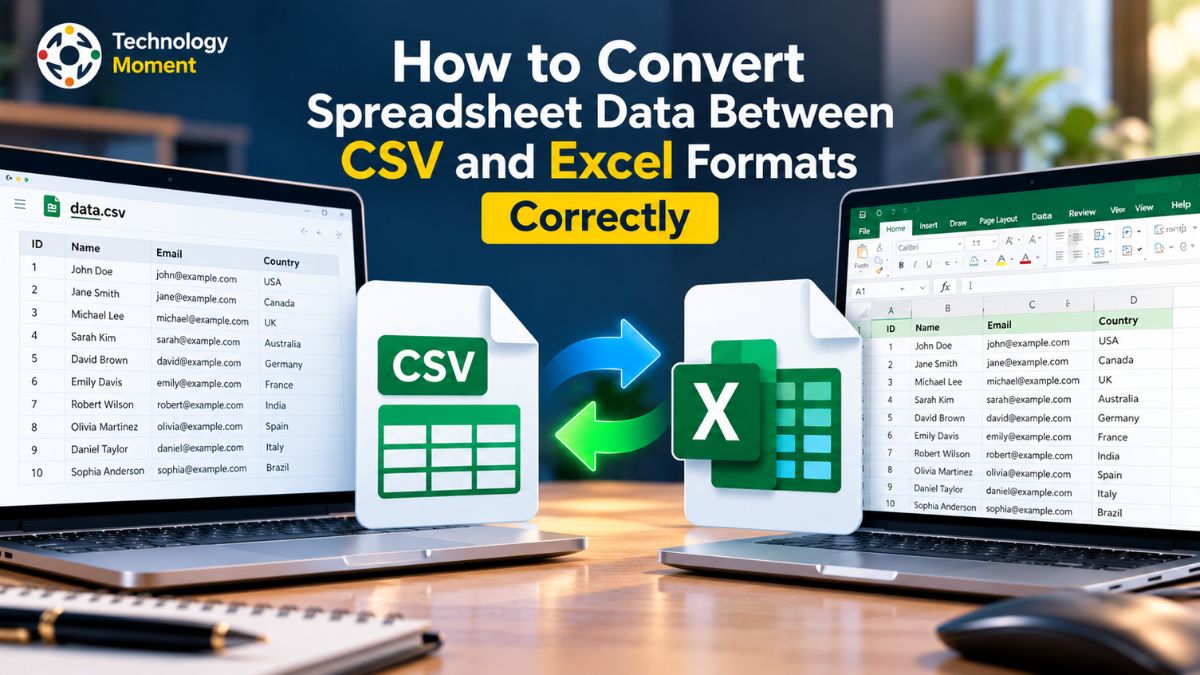
Spreadsheet data plays an important role in everyday business operations, from tracking sales and managing customer records to preparing financial reports and analyzing performance. CSV (Comma-Separated Values) and Excel are two widely used formats for handling this information. However, converting files between them is not always as simple as opening a document and clicking Save As. A small mistake during conversion can remove leading zeros, change date formats, display special characters incorrectly, or alter long numbers.
Knowing how to convert CSV to Excel without losing data helps you maintain accurate records and avoid errors that could affect reporting, analysis, or business decisions. Excel may automatically interpret imported values as numbers or dates, while character encoding and delimiter settings can influence how information appears in your worksheet. Microsoft’s guidance explains that importing data with the appropriate settings can help preserve leading zeros, large numbers, and international characters.
At Technology Moment, we focus on practical technology guides that help readers solve everyday digital problems with greater confidence. In this guide, you’ll learn how to import CSV files into Excel correctly, choose the right encoding and delimiters, preserve dates and data types, and export Excel spreadsheets to CSV when needed. We’ll also cover common conversion problems and show you how to check your data before using or sharing the converted file.
Whether you’re an analyst preparing a report, an office worker organizing records, or a small business owner managing spreadsheets, these steps will help you convert files more reliably and keep your data consistent.
How Do CSV Files Differ from Excel Spreadsheets?
CSV and Excel are two widely used formats for storing, organizing, and sharing spreadsheet data, but they serve different purposes. CSV stands for Comma-Separated Values and stores information as plain text, with commas or another delimiter separating individual fields. An Excel workbook, commonly saved in the XLSX file format, supports a more advanced spreadsheet structure, including multiple worksheets, formulas, cell formatting, charts, and other features. Understanding the difference between CSV and Excel formats helps you choose the right file type for your workflow.
A CSV file is useful when you need to exchange structured data between applications, databases, reporting tools, or business systems. For example, a small business might export customer records from its CRM as a CSV file before importing them into another platform. However, CSV does not preserve Excel cell formatting, formulas as working formulas, or multiple worksheets. When you export an Excel workbook to CSV, Excel saves the values from the active worksheet rather than the entire workbook.
Excel offers greater flexibility when working with calculations, financial reports, data analysis, and business dashboards. The XLSX format can retain worksheet structures, formulas, and formatting that a CSV file cannot represent. However, converting between these formats requires care because Excel may automatically interpret dates, numbers, and text during CSV import.
For example, a product code such as 00125 might become 125 if Excel treats it as a number. Similarly, international date formats may be interpreted incorrectly when regional settings differ. Therefore, CSV to Excel conversion should involve checking character encoding, delimiters, and column data types. Use CSV when plain-text data exchange is your priority, and choose Excel when you need to maintain a structured, editable spreadsheet.
How to Convert CSV to Excel Without Losing Data
To convert CSV to Excel without losing data, use Excel’s import tools instead of relying entirely on automatic file opening. Directly opening a CSV file may cause Excel to interpret certain values as dates or numbers, potentially removing leading zeros or changing long numeric identifiers. Importing the file through the Data tab gives you more control over how the spreadsheet data is interpreted.
First, open Microsoft Excel and create a blank workbook. Navigate to Data → From Text/CSV, select your CSV file, and click Import. Excel displays a preview of the file, allowing you to check how the information is divided into columns. Choose the correct delimiter, such as a comma, semicolon, or tab, depending on how your source file separates its fields. If the delimiter is incorrect, multiple values may appear in one column, or data may be split incorrectly.
Next, check the character encoding and column data types. UTF-8 is commonly used for files containing international characters, although the correct choice depends on the source file. Set columns containing product codes, phone numbers, or other identifiers to Text when their exact characters must be preserved. Review date columns carefully and select the appropriate date format rather than allowing Excel to guess.
Once the preview looks correct, load the data into your worksheet. Check several rows, important identifiers, dates, and numeric values against the original CSV file. Finally, select File → Save As and choose Excel Workbook (.xlsx) as the file format. This process helps preserve data accuracy while giving you access to Excel’s spreadsheet features. For recurring imports, Power Query can also help standardize conversion settings and reduce repeated manual work.
How to Convert CSV to Excel Without Losing Leading Zeros
Leading zeros are important in many business datasets, including postal codes, employee IDs, customer numbers, product codes, and telephone numbers. For example, a code such as 001234 may be a valid identifier even though it looks like a number. When Excel automatically interprets this value as a numeric quantity, it may remove the leading zeros and display 1234 instead. This can create matching errors when you compare records, upload customer information, or transfer data between business systems.
The safest way to convert CSV to Excel without losing leading zeros is to import the affected columns as text. Open Excel, navigate to Data → From Text/CSV, select your file, and inspect the import preview. Depending on your Excel version, you can use the available transformation options or Power Query to select the relevant column and set its data type to Text before loading it. Microsoft documents options for retaining leading zeros by storing these values as text rather than converting them into numbers.
Consider a CSV file containing the following product codes: 00125, 00480, and 00901. If these identifiers are imported as numbers, the zeros may disappear. When imported as text, the original values remain intact. This distinction is especially important for identifiers that require an exact character-for-character match.
You should also treat phone numbers and long numeric identifiers carefully. Telephone numbers are generally identifiers rather than quantities, so importing them as text can prevent unwanted changes. For numbers containing more than 15 significant digits, text storage also helps avoid Excel’s numeric precision limitations. Before saving the converted spreadsheet, compare the imported codes with the original CSV file. Do not assume that changing a cell’s format to Text after the zeros have disappeared will restore them automatically. If necessary, reimport the original data using the correct column data types.
How to Convert CSV to Excel Without Changing Date Formats
Date formats can cause problems when importing CSV files into Excel because different countries and applications represent dates differently. For example, 04/05/2026 may mean April 5, 2026, in one regional convention and May 4, 2026, in another. If Excel interprets the source data using the wrong date order, the resulting spreadsheet may contain incorrect dates even though the original CSV values were correct.
To convert CSV to Excel without changing date formats, start by identifying the date format used in the source file. Then open Excel and select Data → From Text/CSV. Choose the CSV file and inspect the preview before loading it. If the file contains ambiguous dates, use Power Query or the available import settings to specify the correct column data type and date interpretation. Excel’s Text Import Wizard supports selecting a date format, including year-month-day ordering, where applicable.
For example, if your source data uses 2026-10-16, confirm that Excel recognizes the year, month, and day in that order. For dates such as 16/10/2026, make sure the import settings match the day-month-year arrangement. Avoid assuming that your computer’s regional settings will interpret every international date correctly.
It is also important to distinguish between a date’s underlying value and its displayed format. Excel can store a date as a numeric value while showing it in a format such as 16 Oct 2026. CSV, by contrast, stores text values and does not preserve Excel’s cell formatting. If you export the worksheet back to CSV, the saved date representation may differ from the original. After importing, verify representative dates against the source file and save the result as XLSX. For recurring reports, document the expected date format and use consistent import settings. This approach helps analysts, office workers, and small businesses maintain reliable records across international workflows.
How to Preserve Character Encoding and Special Characters
Character encoding plays an important role when converting CSV files to Excel, especially when your spreadsheet contains international names, accented letters, currency symbols, or non-English text. If the character encoding is interpreted incorrectly, some values may appear as question marks, unusual symbols, or unreadable characters. These problems can affect customer records, product descriptions, addresses, and other business information. To avoid such issues, check the encoding of your source file before importing it into Excel.
UTF-8 encoding is commonly used for CSV files because it supports a wide range of languages and special characters. However, Excel may not always identify a UTF-8 CSV file correctly when it is opened directly. Microsoft recommends importing the file through Power Query or the Text Import Wizard when necessary. A UTF-8 file saved with a Byte Order Mark (BOM) can also be opened directly in supported Excel workflows.
To import a CSV file correctly, open Excel and select Data, Get Data, From File, and From Text/CSV. Choose your file and check the File Origin or encoding option in the import preview. Select the encoding that matches the original file, such as UTF-8, and review the displayed text before loading it. If your data contains names such as José, Müller, or François, confirm that the accented characters appear correctly. Do not change the encoding randomly, because the wrong setting can make the text less readable.
After importing the data, save the spreadsheet in XLSX format to preserve the imported values and workbook structure. If you later export it to CSV, select an appropriate CSV encoding option where available and check the resulting file again. These precautions help prevent CSV encoding problems in Excel and keep international spreadsheet data consistent across different applications.
How to Correct CSV Separator Issues When Opening Files in Excel
A delimiter is the character that separates individual fields in a CSV or other delimited text file. Although commas are commonly used in CSV files, some applications and regional settings use semicolons, tabs, pipes, or other separators. If Excel selects the wrong delimiter during import, the entire record may appear in one column, or individual values may be split across several incorrect columns. Understanding delimiter settings is essential when you want to convert CSV to Excel correctly.
For example, consider a file containing the values Product ID;Product Name;Price. If the file uses semicolons but Excel expects commas, the three fields may appear together in a single column. To correct this problem, open Excel, navigate to Data, Get Data, From File, and From Text/CSV, and select the source file. In the import preview, locate the delimiter selection and choose the separator actually used in your data. Microsoft Power Query supports several delimiter options, including commas, semicolons, tabs, spaces, and custom delimiters.
Review the preview after changing the delimiter. Each field should appear under the correct column heading, and the number of columns should match the structure of the original data. Pay particular attention to text containing commas, such as "New York, USA". Properly quoted fields should remain together in one cell rather than being split at the comma inside the quotation marks.
If your CSV file opens in one column, do not immediately edit the data manually. Also check whether the source application uses a regional separator. Once the preview is correct, load the data and compare a few records with the original file. This simple verification step helps prevent shifted columns, incorrect values, and spreadsheet conversion errors.
How to Preserve Data Types When Importing CSV Into Excel
Preserving data types during CSV import is essential because Excel may automatically interpret text as numbers, dates, or other value types. Although automatic data type detection can make spreadsheet work faster, it may also change information that must remain exactly as it appears in the original file. Common examples include product identifiers, telephone numbers, postal codes, long numeric references, and dates written in international formats. Choosing the correct column data types before loading a CSV file can help prevent these problems.
To preserve data types, import the file using Excel’s Data tab and the From Text/CSV option. In the Power Query preview, examine how Excel identifies each column. Depending on your version and workflow, you can use Transform Data to review or change the detected data types before loading the information. Set identifier columns to Text when leading zeros or exact character sequences must be preserved. For genuine numerical values, choose an appropriate numeric type, and check date columns against the format used in the source file.
Power Query also provides options for controlling automatic data type detection. Microsoft documents the ability to base detection on an initial sample of rows, examine the entire dataset, or turn off automatic detection so that columns default to Text. Because automatic detection can be incorrect, review the settings before importing. For example, an identifier such as 0000456789 should generally remain text if the leading zeros are meaningful. Similarly, long numeric identifiers may lose precision when treated as numbers, so text storage can be safer.
However, do not convert every column to Text automatically if you need calculations on quantities, prices, or dates. Select data types according to how the information will be used. After loading the spreadsheet, verify representative values, blank cells, and column contents. For recurring reports, a saved Power Query workflow can help standardize CSV imports and reduce repeated manual adjustments.
How to Convert Excel to CSV Without Losing Important Data
Converting Excel to CSV is useful when you need to upload spreadsheet records to a database, transfer information between applications, or share structured data with another business system. However, converting an Excel workbook to CSV is different from saving it as another Excel workbook. CSV stores plain-text field values rather than the full spreadsheet structure, so formulas, cell formatting, charts, and multiple worksheets cannot all be preserved in the exported file. Preparing your workbook before conversion helps you avoid losing important information.
Start by opening the Excel workbook and reviewing the worksheet you intend to export. Confirm that the required rows and columns are present, formulas have produced the expected results, and identifiers, dates, and numeric values are correct. If the workbook contains several worksheets, remember that the standard CSV export saves only the active worksheet. If you need data from multiple sheets, export each required worksheet separately or combine the relevant data into an appropriate worksheet before saving.
Next, select File, Save As, and choose CSV (Comma delimited) or another suitable CSV option available in your Excel version. If the receiving application requires UTF-8 encoding, select a UTF-8 CSV format when available. Excel may display a warning that some workbook features are not compatible with CSV. This is expected because CSV does not support Excel’s complete formatting and worksheet functionality.
After exporting, reopen or inspect the CSV file using a suitable text editor or import preview. Remember that CSV stores exported values rather than the full Excel formulas and formatting. If you need to preserve the original workbook, keep a separate XLSX copy and use that as your editable master file. A final validation against the original worksheet is especially important before uploading CSV data to another system. This process helps ensure that the exported file contains the intended records and can be interpreted correctly by the receiving application.
Common CSV-to-Excel Conversion Problems and How to Fix Them
Converting CSV files into Excel spreadsheets can sometimes produce unexpected results, especially when the source data contains dates, long numbers, special characters, or different delimiters. Understanding common CSV-to-Excel conversion problems helps you identify errors early and maintain accurate records. To prevent this, import the affected columns as Text instead of allowing Excel to interpret them as numbers. Microsoft also provides options for controlling automatic data conversions in supported Excel versions.
Another common problem is incorrect date format conversion. A date such as 04/05/2026 can be interpreted differently depending on regional settings. Import the CSV through Excel’s Data tab and check the date format and locale before loading the data. If the file contains international characters that appear incorrectly, review the character encoding and select the encoding that matches the original file, such as UTF-8 when appropriate.
Delimiter errors can cause another frustrating problem: the CSV file opens in one column instead of several. This usually means Excel has selected the wrong separator. Use the From Text/CSV import option to choose the correct comma, semicolon, or tab delimiter and inspect the preview. Quoted text containing commas should also remain in a single field when the file is structured correctly.
Finally, watch for long numbers displayed in scientific notation or rounded to fewer digits. Identifiers that require exact values should generally be imported as text. After correcting these issues, compare several rows with the original file and save the verified result as XLSX. A careful import process is more reliable than repeatedly fixing converted data after errors have already occurred.
How to Verify Data Integrity After Conversion
Verifying the accuracy of spreadsheet data after transferring a CSV file into Excel is essential for maintaining reliable records. During the import process, Excel may automatically modify certain entries or interpret values differently because of its default formatting rules and import configurations. Reviewing the converted worksheet and comparing key data points with the original file can help identify discrepancies early. This precaution ensures that your information remains accurate and dependable when preparing reports, managing business records, or performing financial calculations.
Start by comparing the total number of data rows and columns in the original CSV file with the imported Excel worksheet. Confirm that the column headings are correct and that records appear under the appropriate fields. If the row counts differ, investigate whether blank lines, filters, skipped rows, or incorrect delimiters affected the import. For larger datasets, use Excel functions or Power Query to compare records systematically rather than checking every row manually.
Next, inspect important values, including leading zeros, dates, phone numbers, product codes, and long numeric identifiers. Compare representative entries against the original CSV file. Check that special characters and international names remain readable and that decimal separators have not changed the meaning of numerical values. Because Power Query can automatically detect data types in unstructured sources such as CSV files, review the detected types when exact preservation matters.
You should also check blank cells, duplicate records, and unexpected changes in the number of unique identifiers. For critical business data, consider calculating record counts or comparing selected columns with the original source using formulas or a separate validation process. Save the verified workbook in XLSX format and reopen it to ensure that the data remains intact. If you need to export it back to CSV, repeat the validation after export because CSV does not preserve the full Excel workbook structure or cell formatting. Keeping an untouched copy of the original file provides a reliable reference if any discrepancy appears.
Frequently Asked Questions About Converting CSV and Excel Files
How do I keep leading zeros when opening a CSV in Excel?
Import the CSV using Power Query and set the relevant column’s data type to Text before loading. This preserves values such as 00123 instead of converting them to 123. Always check the imported values against the original file before saving your spreadsheet.
Why does Excel change dates when opening a CSV?
Excel may automatically interpret dates according to your regional settings and default data conversion rules. For example, 04/05/2026 can represent different dates in different countries. Import the CSV through the Data tab and select the appropriate date format and locale to avoid incorrect conversions.
How do I preserve UTF-8 encoding in Excel?
Use Data → From Text/CSV to import the file and check the character encoding in the preview. Select UTF-8 when it matches the source file, then verify that international characters display correctly. Excel can also open UTF-8 CSV files directly when they include a Byte Order Mark (BOM).
Why does my CSV file open in one column?
This usually happens when Excel uses the wrong delimiter. Import the file through Data → From Text/CSV and select the correct separator, such as a comma, semicolon, or tab. Check the preview to confirm that each field appears in its intended column before loading the data.
What is the difference between CSV and XLSX?
CSV files present tabular data in a simple text-based format, making them ideal for transferring information across different software platforms. In contrast, XLSX files offer a richer spreadsheet environment with built-in calculations, cell styling, and support for multiple sheets within a single file. While CSV is well suited for lightweight data sharing, XLSX is a more practical choice for detailed data analysis, spreadsheet customization, and managing complex workbooks.
How can I verify that CSV conversion did not change my data?
Compare the original and converted files by checking row counts, column headings, dates, leading zeros, numeric values, and special characters. Inspect important identifiers and investigate discrepancies before using the spreadsheet. Reopen the saved file to confirm that the data remains consistent.