Moving large files between devices should not be a time-consuming task, especially when you work with high-resolution photos, 4K videos, creative projects, or important business documents. A portable solid-state drive (SSD) offers a convenient way to transfer files quickly, carry your data wherever you go, and maintain additional copies of valuable information. However, choosing the right drive involves more than simply looking at the highest advertised transfer speed.
The Best Portable SSDs for large file transfers depend on how you plan to use it, how much storage you need, and which devices you own. Some drives are designed for everyday backups and document storage, while others offer faster interfaces and sustained performance for photographers, video editors, and content creators working with large project files. Durability, encryption, cable compatibility, and long-term reliability are equally important considerations.
At Technology Moment, our goal is to help readers make informed technology decisions through practical guides, clear explanations, and useful comparisons. Rather than focusing on specifications alone, this buying guide explores what portable SSD performance means in real-world situations, including how transfer speeds can change with different USB connections, file sizes, and workloads.
We will also examine storage capacities, protection against physical damage, security features, and compatibility with Windows and macOS. Whether you need a dependable drive for regular backups, a rugged storage solution for travel, or a high-performance SSD for editing large video files, understanding these factors can help you narrow down your options. By the end of this guide, you will have a clearer understanding of which portable SSD features matter most for your workflow, helping you choose storage that balances speed, capacity, portability, and value.
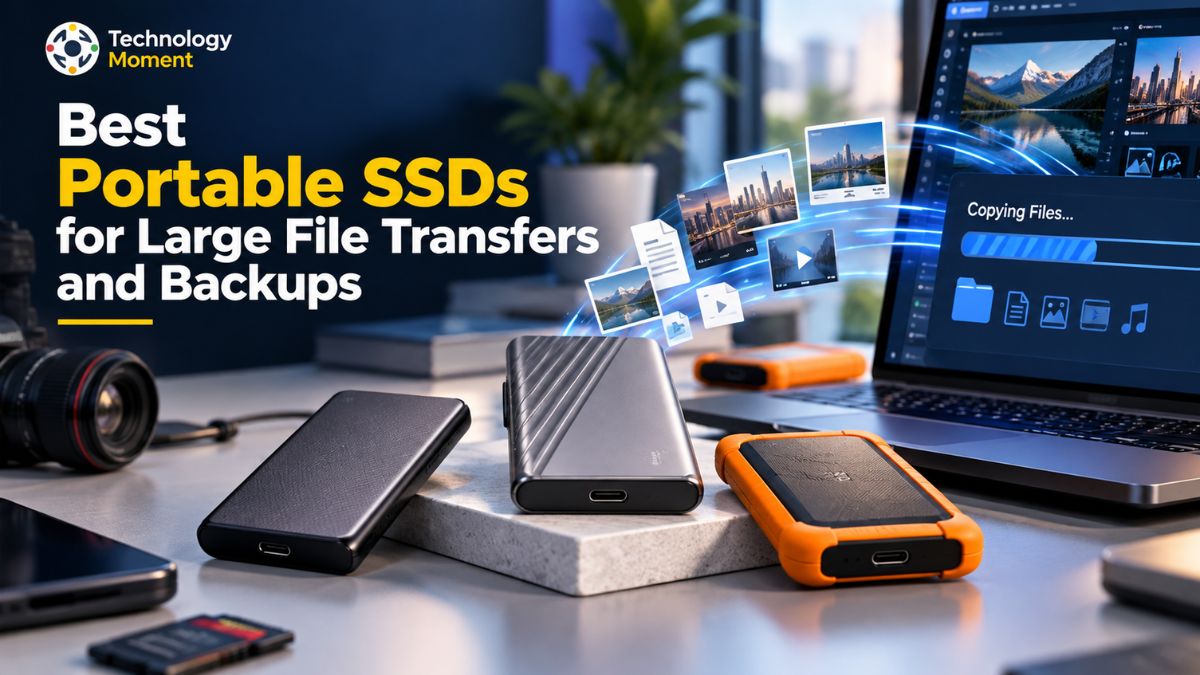
Best Portable SSDs for Large File Transfers and Backups
Choosing the best portable SSD for file transfer requires more than comparing advertised read and write speeds. The right external SSD should offer enough capacity for your files, consistent performance during large transfers, dependable construction, and compatibility with your computer. Photographers may prioritize fast RAW image transfers, while video editors often need sustained write performance for large 4K footage and active projects. Users focused on backups may benefit more from reliability, capacity, and straightforward file management than from the highest possible speed.
Several portable SSDs are worth considering for different workflows. The Samsung T9 is a strong option for compatible computers that support USB 3.2 Gen 2×2. It offers capacities up to 4TB, advertised sequential speeds of up to 2,000MB/s, and hardware encryption. However, computers without the required interface may not achieve its maximum performance. The Samsung T7 Shield is a practical alternative for photographers and professionals who need rugged portable storage, with USB 3.2 Gen 2 connectivity and IP65-rated dust and water resistance. Its advertised transfer speeds reach approximately 1,050MB/s for reading.
For everyday transfers and backups, the Crucial X9 Pro provides a compact option with advertised sequential read speeds of up to 1,050MB/s and capacities up to 4TB. Professionals seeking higher bandwidth can also investigate USB4 drives such as the LaCie Rugged SSD4, provided their computers support the appropriate connection.
| Portable SSD | Best use | Interface | Advertised read speed |
|---|---|---|---|
| Samsung T9 | Fast transfers and general professional use | USB 3.2 Gen 2×2 | Up to 2,000MB/s |
| Samsung T7 Shield | Rugged storage and travel | USB 3.2 Gen 2 | Up to 1,050MB/s |
| Crucial X9 Pro | Everyday file transfers and backups | USB 3.2 Gen 2 | Up to 1,050MB/s |
| LaCie Rugged SSD4 | High-speed creative workflows | USB4 | Up to approximately 4,000MB/s, depending on model specifications |
Before purchasing, check the exact model, capacity, warranty, encryption features, and regional availability. Advertised speeds are manufacturer ratings rather than guaranteed results for every workload.
How Fast Are Portable SSDs in Real-World File Transfers?
Real-world SSD transfer speed depends on several factors, including the drive’s interface, the computer’s USB port, file sizes, cable quality, temperature, and the amount of data being written continuously. A portable SSD advertised at 2,000MB/s will not necessarily maintain that speed throughout a long transfer. Small files often take longer to copy than one large sequential file because the drive must process more individual file operations.
The gap between a drive’s stated speed and its everyday performance becomes particularly noticeable when transferring high-resolution video footage, extensive RAW image collections, or entire system backups. Even a high-speed SSD cannot deliver its full potential if the computer’s USB interface restricts data flow. During prolonged write operations, excess heat may trigger automatic speed reductions, while exhausting the drive’s write cache can also cause transfer rates to fall.
The following table provides illustrative estimates for transferring large files. These are calculations based on assumed average transfer rates, not benchmark results for any particular SSD.
| File size | At 400MB/s | At 900MB/s | At 1,800MB/s |
|---|---|---|---|
| 100GB | About 4 min 10 sec | About 1 min 51 sec | About 56 sec |
| 500GB | About 20 min 50 sec | About 9 min 16 sec | About 4 min 38 sec |
| 1TB | About 41 min 40 sec | About 18 min 31 sec | About 9 min 16 sec |
For video editing, sustained write performance can matter more than a short peak-speed result. A drive that starts quickly but slows significantly during a large project transfer may be less suitable for frequent professional workloads. For routine backups, however, a reliable 10Gbps external SSD may provide sufficient performance without the added cost of a faster interface.
When comparing portable SSDs, look for independent tests involving large files and extended writes. Also consider whether the drive will be used mainly for reading existing files, writing new footage, or repeatedly moving data between computers. Matching the drive to the actual workflow is more useful than choosing the highest number on the product box.
Which USB Connection Do You Need for Maximum SSD Speed?
USB compatibility is one of the most important considerations when buying a high-speed portable SSD. The connector’s shape does not determine its data-transfer capability. USB-C describes a connector type, while USB 3.2 and USB4 identify connection standards with different bandwidth limits. A USB-C port may support only 5Gbps, or it may support a much faster connection, depending on the computer.
USB 3.2 Gen 1 supports a theoretical link rate of 5Gbps, while USB 3.2 Gen 2 supports 10Gbps. USB 3.2 Gen 2×2 increases the theoretical link rate to 20Gbps, and USB4 can support 40Gbps or higher in applicable versions and configurations. These figures are measured in gigabits per second, not megabytes per second. Protocol overhead means practical file-transfer speeds are lower than the raw theoretical limits.
| Connection standard | Theoretical bandwidth | Approximate practical SSD speed | Suitable use |
|---|---|---|---|
| USB 3.2 Gen 1 | 5Gbps | Around 400–450MB/s | Documents and routine backups |
| USB 3.2 Gen 2 | 10Gbps | Around 800–1,000MB/s | Everyday transfers and photo libraries |
| USB 3.2 Gen 2×2 | 20Gbps | Around 1,500–2,000MB/s | Large projects and faster transfers |
| USB4 40Gbps | 40Gbps | Around 3,000–4,000MB/s on capable drives and systems | High-speed editing and professional workflows |
Practical speeds are approximate and depend on the drive, host hardware, cable, workload, and testing conditions.
Before choosing a USB4 or USB 3.2 Gen 2×2 SSD, confirm that your computer supports that specific standard. Not every USB-C or Thunderbolt port supports USB 3.2 Gen 2×2, and some drives may fall back to a slower compatible mode. Check the manufacturer’s specifications for both the computer and the SSD.
USB-A compatibility also matters when transferring files between older and newer devices. A compatible cable or adapter may allow the drive to connect, but it cannot increase the port’s available bandwidth. For Mac and Windows users sharing the same drive, the exFAT file system can be a useful cross-platform option, provided it suits the intended workflow and backup requirements. Choose the connection your computer can actually use. A well-matched 10Gbps SSD can be more practical than an expensive USB4 drive if your existing hardware cannot take advantage of the additional bandwidth.
How Much Portable SSD Storage Do You Need?
Choosing the right portable SSD capacity depends on the amount of data you work with, how often your files change, and whether the drive will be used for transfers, active projects, or backups. A 1TB portable SSD may be sufficient for everyday documents and a modest photography library, while professional creators working with large RAW images and 4K footage may benefit from 2TB or 4TB. Instead of choosing the largest drive automatically, estimate your current storage requirements and allow room for future projects.
| Capacity | Best suited for | Main consideration |
|---|---|---|
| 500GB | Documents, small projects and occasional transfers | Limited room for large media libraries |
| 1TB | Everyday backups, photography and general file transfers | May fill quickly with high-resolution video |
| 2TB | Regular content creation and larger project libraries | A useful balance between capacity and portability |
| 4TB | Professional video editing and extensive photo libraries | Higher upfront cost |
| 8TB | Very large collections and demanding storage needs | Compare portable SSDs with desktop storage alternatives |
These are general recommendations, not fixed requirements. Your actual needs depend on file sizes, project count, and backup settings.
Photographers should consider the size of their RAW image collections, exported photographs, and catalog files. Video editors should account for original footage, proxy files, previews, project files, and final exports. High-bitrate 4K and 8K workflows can consume substantially more space than compressed video, so recording bitrate and codec matter as much as resolution.
For example, a creator who keeps several active projects may find a 2TB external SSD more practical than repeatedly moving files to free up a 1TB drive. Someone maintaining a large archive may prefer 4TB or more, depending on budget and accessibility requirements. Remember that advertised capacity and usable space are not identical. Formatting and differences in how operating systems display storage can reduce the capacity shown by your computer. Leave room for new files and temporary project data instead of planning to fill every available gigabyte.
For backup purposes, calculate the size of the data you need to protect and consider whether you want multiple versions of files or backups from several devices. Keep another copy of important information on a separate drive or backup service. The best high-capacity portable SSD is one that fits your current workload, expected growth and overall backup plan.
Portable SSD Durability, Reliability and Data Protection
A portable SSD needs to withstand more than repeated file transfers. Photographers, travelling professionals and content creators may carry their drives between offices, studios and outdoor locations. For these users, durability, data protection and long-term reliability deserve as much attention as transfer speed. Unlike traditional hard drives, portable SSDs have no spinning platters or moving read/write heads. This design generally makes them more resistant to physical shock during everyday handling. However, not every external SSD has the same level of protection. Rugged models may include reinforced enclosures, specified drop resistance, and dust or water-resistance ratings.
For example, the Samsung T7 Shield advertises IP65-rated dust and water resistance and drop resistance under specified test conditions. These ratings should not be interpreted as permission to expose the drive to every environment or type of impact. Always follow the manufacturer’s handling instructions. Encryption is particularly important when a portable SSD contains client files, business documents,s or personal photographs. Some models support AES 256-bit hardware encryption, but the availability and activation process vary. A password-protected SSD can reduce the risk of unauthorized access if the device is lost, provided its security features are configured correctly. Encryption also does not replace secure password management or a backup of the recovery information.
Reliability requires a broader approach. SSDs can fail because of electronic faults, controller problems, wear,r or physical damage. A durable enclosure cannot eliminate these risks, and a warranty does not necessarily recover lost data. For valuable projects, maintain multiple copies and verify that backed-up files can be restored.
A practical backup strategy includes keeping one copy on your working device, another on an external drive, and an additional copy in a separate location or cloud service. Disconnecting a backup drive when it is not being used can also reduce exposure to accidental deletion, malware, and some electrical incidents. When comparing rugged portable SSDs, consider the environment, encryption requirements,s and recovery plan alongside speed and capacity. The most reliable storage setup combines appropriate hardware with consistent backup practices.
Portable SSD vs. External HDD: Which Is Better for Your Needs?
Choosing between a portable SSD and an external hard disk drive (HDD) depends on whether you prioritize speed, portability, storage capacity, or cost. Both can store files and support backup workflows, but they serve different needs. A portable SSD is generally better for frequently transferring large files and working directly with active projects. An external HDD is often more economical when you need substantial capacity for archives and routine backups.
| Comparison factor | Portable SSD | External HDD |
|---|---|---|
| Transfer speed | Generally faster | Generally slower |
| Moving parts | No moving mechanical parts | Contains moving mechanical components |
| Portability | Usually compact and lightweight | Often larger or heavier at higher capacities |
| Physical shock | Generally more resistant to everyday shocks | More vulnerable to impacts, especially while operating |
| Cost per terabyte | Usually higher | Usually lower |
| High-capacity storage | Available, but can be expensive | Often economical at larger capacities |
| Active video editing | Suitable for many workflows | May be limiting for demanding workflows |
| Long-term backups | Useful for frequently accessed copies | Practical for large local backup collections |
Actual performance and cost vary by model, interface, and capacity.
For photographers and video editors, an external SSD can reduce waiting during file transfers and provide responsive access to active projects. The benefit depends on the SSD’s interface and the host device, so a fast drive connected to a slower port may not deliver its full potential.
For users who mainly want to preserve large collections of documents, photographs,s or completed projects, an external HDD can offer more storage for the same budget. It may be a sensible choice for a backup drive that stays on a desk and is accessed periodically. However, mechanical drives require careful handling because their moving components can be damaged by impacts.
A portable SSD vs. HDD decision should also consider how frequently you access the data. If you regularly carry files between locations, edit directly from external storage, or need fast restores, an SSD may justify its higher cost. If you are building a large archive and transfer speed is less important, an HDD may offer better value.
Neither technology should be treated as permanently reliable. SSDs can suffer electronic failures, while HDDs can experience mechanical problems. Both can be lost, damaged, or affected by accidental deletion and malware. For important data, use a separate backup rather than relying on one drive. A practical combination is a portable SSD for active projects and transfers, an external HDD for larger local backups, and another copy stored separately. This approach balances performance, capacity, and cost without making a single device responsible for protecting every file.
Best Portable SSD for Backup vs. High-Speed Editing Workflows
The best portable SSD for backups is not necessarily the best drive for high-speed editing. Both workflows require dependable storage, but their performance priorities are different. Backup users generally need sufficient capacity, consistent file transfers, compatibility with their computers, and a straightforward way to protect important data. Video editors, photographers, and other creative professionals may need faster sustained write speeds, responsive access to large files, and enough bandwidth to work directly from an external SSD without unnecessary delays.
For routine backups, a portable SSD with a USB 3.2 Gen 2 interface can be a practical choice. It provides enough bandwidth for many everyday file transfers, photo libraries, documents, and scheduled backups. A 1TB or 2TB model may suit individual users, while larger collections may require 4TB or more. However, users with extensive archives should compare the cost per terabyte of portable SSDs and external HDDs before deciding where to store older files.
High-speed editing workflows have different requirements. When working with 4K footage, RAW photographs, or large creative projects, sustained write performance and consistent read speeds can matter more than a short peak-speed benchmark. A USB4 or USB 3.2 Gen 2×2 SSD may offer an advantage when the computer supports the same interface. Nevertheless, the performance of the complete system also depends on the media format, editing software, cable, host port, and drive temperature. Adobe’s storage guidance recommends fast SSD or NVMe storage for media files and cache to support responsive editing workflows.
| Comparison factor | Portable SSD for backups | Portable SSD for editing |
|---|---|---|
| Main priority | Data protection and adequate capacity | Sustained speed and responsive access |
| Recommended interface | USB 3.2 Gen 2 is sufficient for many users | USB 3.2 Gen 2×2 or USB4 when supported |
| Storage capacity | 1TB–4TB or more, depending on the archive | 2TB–4TB or more, depending on project size |
| Sustained write speed | Important for large initial and recurring backups | Particularly important for large media transfers and recording |
| Durability | Useful for drives carried between locations | Important for mobile production and fieldwork |
| Encryption | Valuable for personal and confidential data | Valuable for client files and professional projects |
| Backup strategy | Keep another independent copy | Back up active projects separately from working media |
| Best use case | Documents, photos and long-term file copies | Active video projects, RAW photo libraries and creative assets |
A practical approach is to use one drive for active projects and a separate device for backups. This reduces the risk of losing both working files and their only backup in the same incident. For important professional data, consider an additional off-site or cloud copy. A portable SSD is a useful storage tool, but it should not be treated as a complete backup strategy by itself.
Frequently Asked Questions About Portable SSDs
What Is the Best Portable SSD for File Transfer?
The best portable SSD for file transfer depends on your computer, budget, and workload. A USB 3.2 Gen 2 drive is suitable for many everyday transfers, while USB 3.2 Gen 2×2 and USB4 models can offer higher bandwidth on compatible systems. Compare sustained write speeds, capacity, durability, and warranty rather than choosing solely by advertised peak performance. Always verify that your computer supports the drive’s interface.
What Is the Real-World Speed of an External SSD?
Real-world external SSD speed depends on the drive, USB interface, cable, computer, file sizes, and workload. A 10Gbps USB connection can deliver approximately 800–1,000MB/s under favorable conditions, although actual results vary. Copying thousands of small files may be slower than transferring one large video file. Extended writes can also slow down because of cache limitations or heat, so independent sustained-transfer tests are useful when comparing drives.
Is a Portable SSD Better Than an External HDD for Backups?
A portable SSD is generally faster, quieter, and more resistant to everyday physical shocks than an external HDD. However, an HDD often provides more storage capacity for the same budget, making it attractive for large archives. For frequent backups and quick file restoration, an SSD is convenient. For extensive collections that do not require frequent access, an HDD may offer better value. Both require additional copies of important data.
Can You Edit Videos Directly From a Portable SSD?
Yes, you can edit videos directly from a portable SSD if its performance and connection meet your software and media requirements. A fast USB 3.2 Gen 2 drive can support many editing projects, while higher-bandwidth drives may benefit demanding workflows. Performance depends on resolution, codec, bitrate, and simultaneous workloads. Keep sufficient free space available, and maintain a separate backup of your project files and original footage.
Do Portable SSDs Work With Both Mac and Windows?
Many portable SSDs work with both Mac and Windows computers, but compatibility depends on the file system and device configuration. exFAT is commonly used for sharing files between these operating systems. NTFS and APFS are generally associated with Windows and macOS, respectively, and may have different write-support limitations on other systems. Before reformatting a drive, back up its contents because formatting can erase existing data.
Do Portable SSDs Need Hardware Encryption?
Hardware encryption is valuable when a portable SSD stores confidential business documents, client projects, or personal information. Some models offer AES 256-bit hardware encryption and password protection, while others rely on software-based security or provide no built-in encryption. Check the manufacturer’s specifications and recovery procedures before purchasing.
Why Does an External SSD Slow Down During File Transfers?
An external SSD can slow down when its write cache fills, its temperature rises, or the computer’s USB connection limits bandwidth. Large numbers of small files, background applications, and a nearly full drive can also affect performance. If the slowdown persists, check firmware, available storage, and manufacturer troubleshooting guidance.
How Much SSD Storage Do Photographers Need?
Photographers may find 1TB sufficient for a smaller collection, while 2TB or 4TB can be more practical for extensive RAW image libraries and ongoing projects. The right capacity depends on camera resolution, shooting frequency, video recording, and how long files remain on the drive. Estimate your current library size, allow room for future work, and maintain a separate backup. Avoid using one portable SSD as the only copy of valuable photographs.