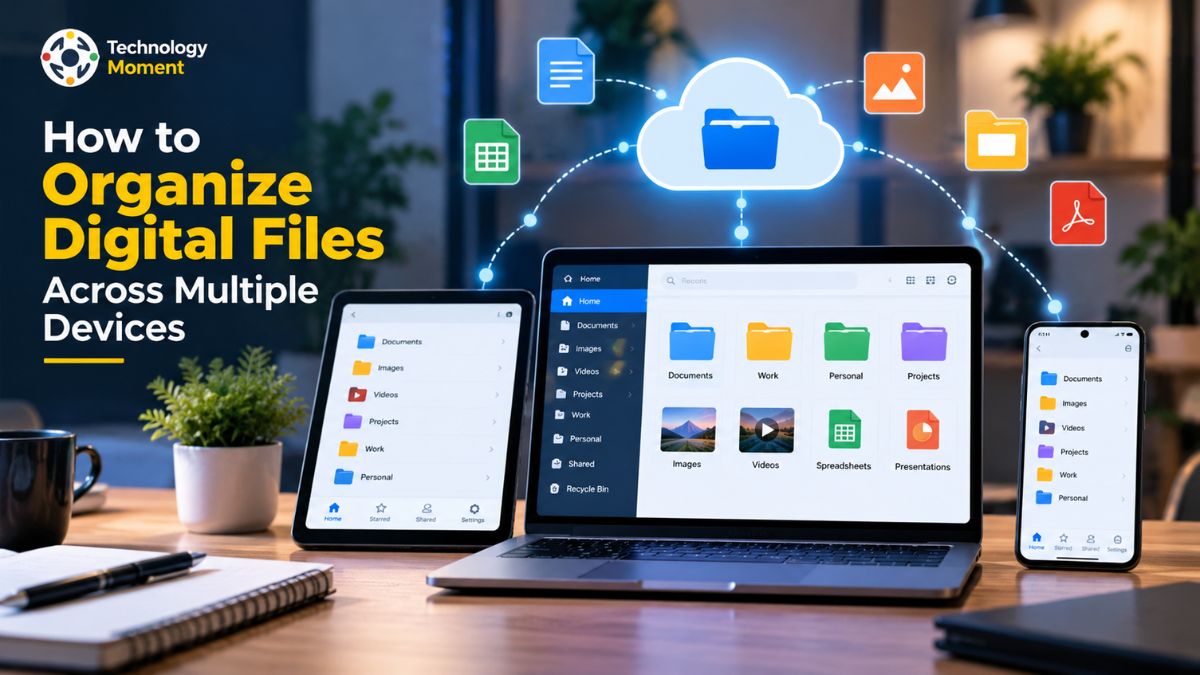
Managing digital files across multiple devices can quickly become frustrating. You might save an important document on your laptop, download another copy on your phone, or store project files in different cloud accounts. When you need a specific file, finding the correct version can take longer than expected. Over time, scattered folders, unclear filenames, duplicate documents, and inconsistent storage habits can make your digital workspace difficult to manage.
Learning how to organize digital files is a practical way to improve productivity, reduce clutter, and make important information easier to access. Whether you are a professional managing work documents, a student organizing assignments, or a remote worker switching between devices, a simple and consistent file management system can make everyday tasks more efficient.
The good news is that you do not need complicated software or an elaborate folder hierarchy to get started. You can create a clear folder structure, use descriptive file naming conventions, synchronize important documents through cloud storage, and take steps to prevent duplicate files. A reliable backup routine also helps protect important information against accidental deletion or device failure.
At Technology Moment, we help readers understand technology through practical guides, useful tutorials, and straightforward explanations. Our goal is to make everyday technology easier to use, whether you are improving your digital workflow or learning how different tools fit into your routine. In this guide, you will learn how to organize digital files across computers, smartphones, and tablets, establish a folder system that works across devices, keep documents synchronized, and maintain an organized digital workspace over time. By the end, you will have a practical approach you can adapt to your personal, academic, or professional needs.
Why Is It Important to Organize Digital Files Across Multiple Devices?
Managing digital files becomes challenging when documents, images, spreadsheets, and other important information are scattered across computers, smartphones, tablets, and cloud storage accounts. You might save a report on your laptop, download its attachment again on your phone, and later discover that you have several copies with different changes. This kind of digital clutter makes everyday tasks unnecessarily complicated.
Learning how to organize digital files helps you create a reliable system for storing, finding, and accessing information whenever you need it. Instead of searching through countless folders or repeatedly downloading documents, you can follow a consistent structure that makes file retrieval easier. This is particularly useful for professionals managing project documents, students keeping track of assignments, and remote workers collaborating with colleagues across different devices.
A well-planned digital file organization system also reduces the risk of losing track of important information. Clear folder names help you understand where documents belong, while descriptive filenames make individual files easier to identify. Consistent cloud synchronization allows supported devices to access updated files, and a separate backup strategy helps protect against accidental deletion or hardware failure.
Another important advantage is improved productivity. When your digital workspace follows predictable rules, you spend less time managing files and more time completing meaningful work. You can also share documents more confidently because their names, locations, and versions are easier to understand. At Technology Moment, our goal is to help readers make better use of everyday technology through practical guides and straightforward explanations. Organizing your digital files is a useful starting point for building a more efficient digital workflow.
Choose the Right Digital File Organization System
Before moving files into folders, decide how you want to organize and access them. The best digital file management system is not necessarily the most complicated one. It is the system that matches your daily activities, works across your devices, and remains easy to maintain as your collection grows.
Start by identifying the main types of files you handle regularly. Professionals might need separate areas for clients, projects, reports, and administrative documents. Students may prefer folders for courses, lecture notes, assignments, and research. Remote workers can organize shared resources, meeting documents, and active projects separately from personal files. These categories provide a practical foundation for a consistent digital filing system.
Next, choose a folder organization method that reflects how you usually search for information. A project-based system works well when documents belong to specific assignments or clients. A category-based system is useful for personal records, such as receipts, insurance documents, and financial statements. A date-based system can help organize recurring reports, meeting notes, and historical records. You can also combine these approaches when necessary.
Consider where your files should be stored. Local storage gives you direct access to files on a particular device, while cloud storage can make supported documents available across multiple devices. Choose a primary location for active files and avoid saving independent copies in several unrelated places. For collaboration, consider access permissions and whether other people need to edit the same documents. Finally, establish simple rules for saving, renaming, sharing, and archiving files. Your file organization system should be easy enough to follow without constant decision-making. A small set of clear rules is usually more effective than an elaborate structure that becomes difficult to maintain.
Create a Simple Folder Structure That Works Across Devices
A consistent folder structure makes digital documents easier to locate, whether you are using a desktop computer, laptop, smartphone, or tablet. Instead of creating folders whenever you need somewhere to save a file, establish a simple hierarchy that gives frequently used documents a predictable home.
Begin with a few broad categories, such as Work, Personal, Education, Finance, Projects, and Archive. Adapt these categories to your needs rather than copying a structure that does not match your activities. Inside Work, for example, you might create folders for Active Projects, Meetings, Reports, and Reference Materials. A student could organize Education into separate course folders, with subfolders for Notes, Assignments, and Reading Materials.
Keep your folder hierarchy reasonably shallow. Too many nested folders can make navigation frustrating, especially on a phone with a smaller screen. Add a subfolder only when it helps separate a meaningful group of files. If you frequently struggle to decide where something belongs, your folder structure may be more complicated than necessary. A temporary folder called To-Sort can help you manage new downloads, email attachments, and scanned documents. However, treat it as a holding area rather than permanent storage.
When organizing files across multiple devices, use the same basic categories in your primary cloud storage location wherever the service supports synchronization. This creates a familiar structure regardless of which device you use. Remember that some mobile applications display cloud folders differently, so test the arrangement before moving your entire collection. Before reorganizing existing files, review what you already have and identify important documents, outdated material, and possible duplicates. Move files in manageable batches and verify that essential documents remain accessible. A practical folder structure should make finding information easier, not turn organization into another complicated project.
Use File Naming Conventions to Find Documents Faster
A clear folder structure helps you browse your digital files, but descriptive filenames make individual documents easier to recognize and search for. Names such as Document1.pdf, Report-New.docx, or Final-Final-Version.xlsx provide little information about a file’s contents. When you have several similar documents across different devices, these vague names can quickly create confusion.
The solution is to establish consistent file naming conventions. Choose a simple pattern that identifies the subject, project, document type, or date whenever that information is useful. For example, a file named 2026-10-15_Client-Proposal_Draft-v01.docx immediately communicates its date, purpose, and draft status. A personal document might use a name such as 2026-10-15_Insurance-Policy.pdf.
Use dates in the year-month-day format, YYYY-MM-DD, when chronological sorting matters. This format helps files appear in the correct order and avoids ambiguity between different regional date conventions. Separate words with hyphens or underscores, and keep names descriptive without making them unnecessarily long. Version control is equally important. When revising a document, use a consistent version number, such as v01, v02, or v03, if your workflow requires separate drafts. For collaborative documents, a shared file with built-in version history may be more practical than creating a new copy after every edit. Mark a file as final only when it has genuinely been approved.
Avoid relying exclusively on folder locations to explain what a document contains. Files may appear in search results, email attachments, recent-file lists, or shared folders without their original context. A meaningful filename remains useful even when the document is moved. Apply the same naming rules to your computers and phones wherever possible. Consistent filenames improve search, simplify collaboration, and reduce the likelihood of confusing similar documents. Once you adopt a practical naming convention, make it part of your normal saving routine rather than a task you postpone until your folders become cluttered.
Sync and Access Files Across Computers, Phones, and Tablets
Keeping files accessible across your devices becomes much easier when you use a consistent cloud synchronization system. When synchronization is enabled, changes made in one location can be reflected in other connected locations, depending on the service settings and connection status.
Start by choosing a cloud storage service that fits your existing devices and workflow. Google Drive, Microsoft OneDrive, Dropbox, and iCloud Drive are common options, but their features, storage limits, and platform integrations differ. Before choosing one, consider how much storage you need, whether you collaborate with others, and which devices you use regularly. The goal is to establish a reliable digital file management system rather than spread active documents across several unrelated services.
Next, identify which folders need synchronization. You might sync active work documents, study materials, and essential personal records while keeping large archives or rarely accessed files in separate storage. This approach can help manage storage space and make important documents easier to locate. Remember that cloud synchronization is not the same as an independent backup, so maintain a separate recovery plan for important files.
Create a sample folder, edit a document on one device, and verify that the updated version appears where expected. Check offline access settings if you need to work without an internet connection. Also pay attention to synchronization errors, account permissions, and conflicting edits. These can prevent files from updating correctly or create multiple versions. A clear folder structure, one primary location for active documents, and regular sync checks will help you keep files organized across devices with less manual effort.
Prevent Duplicate Files and Conflicting Document Versions
Duplicate files can accumulate when you download the same document several times, transfer files manually, or edit documents on different devices before synchronization finishes. You may eventually find files named Report.pdf, Report (1).pdf, and Report-final.pdf without knowing which contains the correct information. These duplicates can waste storage space, complicate collaboration, and make it easier to share an outdated document.
To prevent duplicate files across devices, choose one primary location for active documents. This could be a designated cloud storage folder or another location that fits your workflow. Keep your folder structure consistent, so you know where each document belongs. Avoid saving separate working copies on your laptop, phone, and cloud drive when automatic synchronization already provides access to the same file.
File synchronization conflicts require additional care. If you edit a document offline on one device while another device contains different changes, your synchronization service may preserve multiple versions instead of automatically merging them. Allow synchronization to finish before switching devices, and avoid editing the same document independently in two locations whenever possible. When duplicate files appear, do not delete them immediately. Compare filenames, modification dates, file sizes, and actual contents to determine whether they are identical copies or different document versions. A file with a similar name might contain important revisions, comments, or corrections that another version does not include.
You can also use a temporary review folder to compare suspicious files before deciding which to retain. For documents that change frequently, adopt a consistent file naming convention or use version history when your application supports it. Finally, review high-clutter locations such as Downloads, Desktop, and transfer folders regularly. A simple monthly cleanup routine helps prevent unnecessary copies from accumulating. The objective of duplicate file management is not simply to delete files; it is to maintain one clearly identifiable working version while preserving important historical records and backups.
Organize Downloads, Documents, Photos, and Shared Files
An effective digital document organization system should account for more than work documents. Downloads, photos, scanned records, email attachments, and shared files can quickly become disorganized when every device saves information in a different location. Creating a few consistent categories makes these files easier to manage without requiring an overly complicated folder hierarchy.
Start with your Downloads folder. Treat it as a temporary inbox for files received through browsers, email, messaging applications, and cloud links. When you download a document, check its contents, give it a descriptive filename if necessary, and move it to the appropriate permanent folder. For example, an invoice can go into Finance, while a project brief belongs in its relevant project folder. This simple file management workflow reduces clutter and makes repeated downloads easier to identify.
Next, organize documents according to their purpose. Keep contracts, receipts, educational materials, reports, and scanned documents in clearly named folders. If you frequently work with PDFs, use descriptive filenames that identify the document and, when useful, its date. Avoid creating separate folders for every individual file when a broader category would work just as well. Photos and screenshots also benefit from a consistent organization system. You might group personal photos by year or event and keep work screenshots in a separate project-related folder. Before importing photographs from a phone, check whether they already synchronize with your chosen storage service to avoid unnecessary duplicates.
For shared files, establish clear folder ownership, sensible permissions, and predictable naming rules. Separate collaborative documents from private records, and avoid creating multiple independent copies of the same shared document unless there is a specific reason. A consistent approach to organizing downloads, documents, photos, and shared folders helps you find information faster and maintain a more manageable digital workspace across computers and phones.
Set Up File Backup, Security, and Recovery
Keeping digital files organized is important, but organization alone cannot guarantee their safety. Essential data may disappear because of accidental removal, hardware malfunctions, corrupted storage devices, or unintended edits that affect multiple synced locations. Creating a dependable backup routine adds an extra layer of protection and makes it easier to restore valuable information when unexpected problems occur.
It is also important to recognize that cloud syncing and data backup serve different purposes. Syncing automatically updates files between connected devices or folders, which means unwanted deletions and modifications can sometimes spread to every linked location. A backup, when properly configured, preserves an additional copy of your data for recovery. Its effectiveness depends on factors such as storage independence, version history, and retention settings. For this reason, relying exclusively on synchronization may leave your files vulnerable to permanent loss.
Identify the files you cannot afford to lose, including personal records, financial documents, important photographs, work projects, and educational materials. Choose a backup method that suits your needs, such as an external drive, a dedicated cloud backup service, or a combination of both. For critical files, keep a separate copy that is not continuously exposed to the same accidental deletions or account problems as the original.
Security is equally important. Protect cloud storage accounts with strong, unique passwords and multifactor authentication where available. Review shared links and access permissions, particularly when handling confidential work documents or personal information. Remove access for devices you no longer use, and avoid synchronizing sensitive files to devices that other people can access.
Create a regular backup schedule and check that backups complete successfully. Occasionally test file recovery by restoring a sample document to a separate location. This helps confirm that your backup process works before an emergency occurs. Finally, be careful when restoring older files. Place recovered documents in a temporary review folder, compare them with current versions, and move only the necessary files into active folders. A dependable combination of organized storage, secure access, independent backups, and tested recovery procedures helps protect your digital files over time.
Build a File Management Workflow for Work, Study, and Remote Teams
A reliable file management workflow helps you organize digital files according to your daily responsibilities instead of repeatedly searching through folders. Whether you are a professional, student, freelancer, or remote worker, establishing consistent rules for saving, naming, sharing, and archiving documents can make your digital workspace easier to maintain.
Professionals can organize files by client or project, while students can create folders for individual subjects, assignments, lecture notes, and research materials. Remote teams should maintain shared project folders so everyone can locate the correct documents without relying on email attachments or personal storage locations.
Next, establish a simple process for handling new files. Save incoming documents in their appropriate folders whenever possible. If you are unsure where a file belongs, place it in a temporary inbox and review it regularly. Apply consistent file naming conventions that include descriptive subjects, dates, or version numbers when necessary. These habits improve document retrieval and help prevent duplicate files from accumulating across devices.
Cloud storage can make collaboration easier by allowing authorized team members to access shared documents. However, everyone should understand which location contains the authoritative working version and how changes should be managed. Use appropriate sharing permissions and avoid creating unnecessary copies of documents that are already available in a shared workspace. Schedule a weekly or monthly review to organize downloads, archive completed projects, and check important backups. A manageable routine is more effective than reorganizing everything only when problems arise.
Step-by-Step Checklist to Organize Digital Files Across Multiple Devices
Organizing digital files becomes more manageable when you follow a clear sequence instead of moving everything randomly. Use this checklist to create a consistent file organization system that works across your computers, phones, and tablets.
Step 1: Review your existing files. Identify where documents are currently stored, including Desktop, Downloads, local folders, external drives, and cloud accounts. Note which locations contain important work, personal records, photographs, and educational materials. Start with the files you use most frequently rather than attempting to organize everything immediately.
Step 2: Create a practical folder structure. Establish a few top-level folders, such as Work, Personal, Education, Projects, and Archive. Add subfolders according to your needs, keeping the hierarchy simple enough to navigate easily on a smartphone or computer.
Step 3: Apply consistent file naming conventions. Rename important documents with clear descriptions.
Use specific details such as dates, project titles, or version identifiers to differentiate related files. Choose clear, descriptive names instead of generic labels so documents are easier to locate through search.
Step 4: Choose your primary storage location. Decide which files should remain on your device and which should be available through cloud storage. Configure synchronization for the folders you need across devices, then test that files open and update correctly.
Step 5: Review duplicate files carefully. Compare suspicious copies before deleting them. Preserve important revisions and make sure you do not remove the only usable version of a document.
Step 6: Set up backups and security. Protect important information with a separate backup strategy, strong account security, and appropriate sharing permissions. Test file recovery periodically.
Step 7: Establish a maintenance routine. Clear temporary downloads, archive completed projects, and review your folder structure weekly or monthly. Consistency matters more than perfection.
Following these steps helps you build a digital filing system that remains practical as your documents, projects, and devices change. Start small, confirm that each step works, and gradually extend the system to the rest of your digital workspace.
Frequently Asked Questions About Digital File Organization
What Are the Best Practices for Managing Digital Documents?
An effective digital filing system starts with grouping documents into clearly defined categories, such as personal records, work materials, study resources, and ongoing projects. Give each file a meaningful name so you can identify its contents without opening it. Store frequently used documents in easy-to-find folders and move outdated or finished items into an archive. Apply the same organizational approach across your devices and periodically remove unnecessary files. A straightforward system that you can maintain consistently is more practical than a complicated folder structure.
How Do I Keep My Files Synced Across Multiple Devices?
Select a cloud-based storage platform that works smoothly across your devices. Download the required apps, then activate automatic syncing for the directories you access most often. To verify that everything is working correctly, make a small change to a test file and confirm that the revised version is available on your other devices. If synchronization fails, review your internet connection, account access, and sync settings. For extra protection, keep an independent backup of your essential documents.
What Is the Best Folder Structure for Digital Documents?
A practical folder structure begins with broad categories such as Work, Personal, Education, Finance, Projects, and Archive. Create subfolders for clients, subjects, or document types when necessary. Keep the hierarchy shallow enough to navigate easily and use consistent names across devices. Adapt the structure to your needs instead of creating unnecessary folders for individual files.
How Should You Organize Digital Files Into Folders?
Use one primary location for active documents and rely on a properly configured synchronization service rather than repeatedly transferring independent copies. Check whether files already exist before downloading or importing them. When duplicates appear, compare their contents, dates, and versions before deleting anything. For frequently edited documents, use version history or a consistent version naming convention to identify the correct file.
Is It Better to Sort Your Digital Files by Project or by Date?
Choose the method that matches how you normally search for information. Project-based folders work well for client work, assignments, and ongoing tasks, while date-based organization suits reports, receipts, and chronological records. You can combine both methods by creating project folders and using dates in filenames. The most important principle is consistency, so you can predict where documents belong without repeatedly reconsidering your system.
Is Cloud Storage Better Than Local Storage for File Organization?
Cloud storage is useful when you need to access files across multiple devices or collaborate with others. Local storage can provide convenient access without an internet connection and may suit large files or sensitive workflows. Consider storage limits, privacy, access requirements, synchronization behavior, and backup options before choosing a setup.