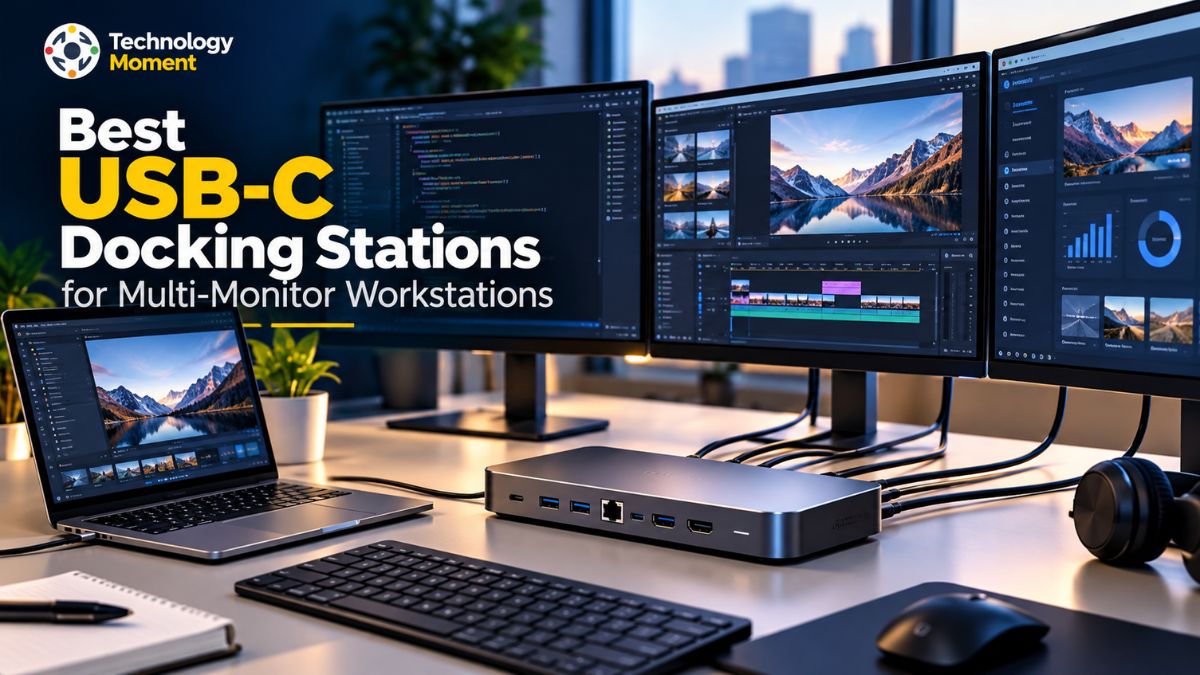
A multi-monitor workstation can make everyday work more comfortable, organized, and productive. Whether you are a remote professional managing multiple applications, a developer working across code editors and documentation, or a business user handling spreadsheets and video calls, connecting several displays to a laptop can help simplify your workflow. However, choosing the right docking station is not always straightforward. Different models offer different display capabilities, connectivity options, charging speeds, and operating-system compatibility.
The Best USB-C docking stations for multi-monitor setups are not necessarily the ones with the most ports or the highest price. It is the one that meets your specific requirements without creating compatibility issues. Before buying, you need to consider how many monitors you want to connect, whether you need Full HD or 4K resolution, and whether your laptop supports the required display configuration. Power delivery is another important factor, especially if you want to charge your laptop while connecting external displays and other peripherals through a single cable.
At Technology Moment, our goal is to make technology easier to understand and buying decisions more straightforward. This guide explores the key features to compare when choosing a USB-C docking station for a multi-monitor workstation. We will cover display support, Thunderbolt and USB4 connectivity, DisplayLink technology, laptop charging, essential ports, and compatibility with popular operating systems.
Whether you are upgrading a home office or building a workstation for demanding professional tasks, understanding these factors can help you narrow down your options. By the end of this guide, you will have a clearer idea of which docking station features matter most and how to choose a solution that fits your laptop, monitors, workspace, and budget.
Quick Picks — Best USB-C Docking Stations For Multi-Monitor
Selecting a suitable USB-C docking station for a multi-monitor workstation requires more than simply checking how many ports it offers. The right choice depends on your laptop’s specifications, the number and resolution of your displays, and the tasks you perform regularly. A basic office setup may only need support for two screens during meetings and document work, whereas a more advanced workstation might benefit from dual 4K output, fast USB connectivity, Ethernet access, and dependable laptop charging. Before purchasing, verify the dock’s display technology, supported connection standards, power delivery capacity, and compatibility with your laptop and operating system.
For a premium workstation, the CalDigit TS4 is worth considering if you need Thunderbolt 4 connectivity, extensive peripheral support, and high-power laptop charging. The Plugable TBT4-UD5 is another option for compatible systems that need Thunderbolt connectivity and dual-monitor support. If your priority is connecting multiple displays on a laptop with limited native display support, a DisplayLink docking station, such as the Plugable UD-6950PDZ, may be a practical alternative. Budget-conscious users can also explore USB-C docks from brands such as Anker and UGREEN, but they should verify the exact display configuration before purchasing. These models represent options to investigate rather than a universal ranking; actual suitability depends on the host laptop and intended setup.
For MacBook owners, checking the exact Mac model and chip is especially important because external-display support varies between generations. Windows laptop users should verify USB-C DisplayPort Alt Mode, MST, or Thunderbolt compatibility, depending on the dock. Buyers planning a triple-monitor workstation should also confirm that all intended displays can operate simultaneously at their required resolutions and refresh rates.
A useful comparison table should list each docking station’s connection type, maximum supported displays, resolution and refresh rate, laptop power delivery, available ports, operating-system compatibility, and intended use. Include current prices only after checking reliable retailer listings. This approach helps readers compare the best dual monitor docking station, the best USB-C dock for dual 4K monitors, and higher-end multi-monitor solutions according to their actual needs.
How to Choose the Best USB-C Docking Station for Multiple Monitors
Selecting the best USB-C docking station for multiple monitors starts with understanding the connection between your laptop and the dock. Although USB-C describes the physical connector, it does not guarantee that every port supports video output, multiple independent displays, or the same data-transfer speeds. Check your laptop manufacturer’s specifications to confirm support for DisplayPort Alt Mode, USB4, or Thunderbolt before comparing docking stations.
Display support should be your next priority. If you plan to use two external monitors, determine whether you need Full HD, 1440p, or dual 4K displays at 60Hz. A dock may advertise multiple video outputs without supporting every resolution simultaneously. Check the manufacturer’s display configuration table, including any limitations caused by bandwidth, compression, or the laptop’s graphics hardware. For three-monitor setups, confirm the maximum number of independent displays rather than simply counting HDMI and DisplayPort sockets.
You should also understand the difference between native display output and DisplayLink technology. Native Thunderbolt or DisplayPort connections can deliver video directly through supported hardware, while DisplayLink uses software and drivers to provide additional display outputs. DisplayLink can be useful for office work and certain multi-monitor configurations, but it may introduce additional processing overhead and is not always ideal for demanding gaming or colour-critical workflows.
Power delivery is another essential consideration. Compare the dock’s actual laptop charging output with your laptop’s recommended power requirement. A dock advertised with a high-wattage power adapter may deliver less power to the connected computer. Next, evaluate HDMI and DisplayPort outputs, USB-A and USB-C data ports, Ethernet, SD card readers, and downstream Thunderbolt connections.
Finally, consider desk space, cable management, operating-system support, warranty, and price. A compact USB-C hub may suit a portable workstation, while a powered Thunderbolt docking station is often more appropriate for a permanent professional setup. Matching these specifications to your needs helps avoid compatibility problems and unnecessary spending.
Best USB-C Docking Stations for Different Needs
The best docking station for multiple monitors varies according to how you work and which devices you own. Remote workers who mainly use documents, spreadsheets, messaging applications, and video conferencing may benefit from a dependable dual-monitor dock with laptop charging, Ethernet, and enough USB ports for everyday peripherals. They may not need the advanced bandwidth or extensive connectivity offered by premium Thunderbolt models.
For professionals working with large spreadsheets, design applications, or high-resolution content, a docking station for dual 4K monitors deserves closer attention. Look for confirmed support for two independent 4K displays at your preferred refresh rate, together with sufficient bandwidth and compatible video outputs. Thunderbolt 4 docking stations can be strong candidates when the laptop supports Thunderbolt, although the complete host-device configuration still needs verification. For even more demanding workflows, Thunderbolt 5 may be worth evaluating if both the laptop and dock support the required capabilities.
For developers and professionals, choosing the right docking station means looking beyond the number of available ports. A suitable model should offer support for multiple monitors, high-speed data transfer, Ethernet connectivity, dependable USB connections, and sufficient charging capacity. Additional ports also make it convenient to attach peripherals such as keyboards, mice, and external SSDs without dealing with a tangle of cables. If your workstation requires three or more external screens, consider a DisplayLink-based dock or a native multi-display option that works with your device.
Before buying a dual-monitor docking station for a MacBook, check whether your particular model supports two external screens through its built-in display capabilities or requires DisplayLink technology. Windows users should also review their laptop’s specifications to ensure the dock can deliver two separate displays rather than simply offering two HDMI connectors. Similarly, Chromebook owners should verify compatibility with their ChromeOS version, display requirements, and connected accessories to avoid unexpected limitations.
Budget also influences the decision. A basic USB-C hub may provide sufficient connectivity for a simple setup, whereas a powered docking station offers more comprehensive workstation features. Before buying, compare the actual simultaneous display modes, laptop charging output, port selection, driver requirements, warranty, and current price. The right choice is the dock that meets your display and connectivity requirements reliably, rather than the model with the longest feature list.
USB-C Dock vs. Thunderbolt Dock vs. USB-C Hub
A USB-C hub, a USB-C docking station, and a Thunderbolt dock may look similar, but they serve different purposes. Understanding these differences helps you choose the right connection for a multi-monitor workstation without paying for features you do not need. A USB-C docking station may support native DisplayPort video, MST, DisplayLink, or a combination of technologies, depending on its design.
A USB-C hub is generally a compact accessory that adds a few ports, such as HDMI, USB-A, USB-C data, and sometimes an SD card reader. It is suitable for portable setups and occasional monitor connections. However, not every USB-C hub supports two independent external displays, and some models mirror the same image across both outputs. A full-size docking station typically provides a wider selection of connections, laptop power delivery, Ethernet, and a dedicated power adapter. A Thunderbolt docking station is designed for compatible hosts that need high-bandwidth data, display connectivity, and a more comprehensive single-cable workstation.
| Feature | USB-C Hub | USB-C Docking Station | Thunderbolt Dock |
|---|---|---|---|
| Main purpose | Basic port expansion | Complete desk connectivity | High-bandwidth workstation connectivity |
| Connection | USB-C | USB-C | Thunderbolt-compatible port |
| Multiple monitors | Depends on model and host | Depends on display technology | Depends on dock and host capabilities |
| Dual 4K support | Model-specific | Model-specific | Available on compatible configurations |
| Video technology | Native video or other specified technology | Native video, MST, DisplayLink, or combinations | Usually native DisplayPort tunnelling |
| Laptop charging | May support limited or no charging | Often supports USB-C Power Delivery | Often supports higher-power charging |
| USB-A and USB-C ports | Usually limited | Often more extensive | Often extensive |
| Ethernet | Optional | Common on full-size docks | Common on many models |
| Driver requirements | Usually none for native video | Depends on technology | Usually none for native video |
| Portability | Usually highest | Moderate | Usually lower |
| Typical cost | Lowest | Mid-range | Often highest |
| Best for | Travel and simple setups | Home offices and everyday work | Developers and demanding professional workstations |
Before buying, check the exact display configuration rather than relying on the number of video ports. For example, a Windows laptop may support two extended displays through MST, while a Mac may require native display support or a DisplayLink docking station to achieve the desired configuration. Thunderbolt also cannot override the laptop’s built-in external-display limit. For everyday office work, a suitable USB-C dock may offer the best value; for high-resolution displays and fast peripherals, a compatible Thunderbolt dock may be worth the extra cost.
Laptop Compatibility: How to Choose the Right Docking Station
A docking station may offer limited benefits if it is incompatible with your laptop’s hardware or operating system. When selecting a USB-C dock for a multi-monitor setup, first verify your laptop’s model, port specifications, graphics support, and maximum number of displays it can handle. Although two laptops may feature the same USB-C connector, their capabilities can vary significantly. Some ports support display output and power delivery, whereas others are designed exclusively for data transfer.
For Windows laptops, including many Dell XPS, Lenovo ThinkPad, and HP models, look for USB-C DisplayPort Alt Mode, Thunderbolt 4, Thunderbolt 5, or compatible USB4 support. If you want to connect two independent monitors through an MST docking station, confirm that the laptop and operating system support MST. Also check the maximum number of displays supported by the graphics hardware. A dock with three HDMI or DisplayPort outputs does not guarantee that all three monitors can operate independently at your preferred resolution.
MacBook compatibility requires particular attention. External-display support varies by Mac model, processor, and chip generation. Some models support multiple external monitors natively, while others have more restrictive limits. Because macOS does not support MST for multiple independent extended displays in the same way Windows does, a conventional MST-based USB-C dock may mirror displays instead of extending the desktop. A compatible Thunderbolt dock or DisplayLink docking station may be a better option, depending on the Mac’s capabilities and the number of screens required.
ChromeOS users should check the Chromebook’s USB-C video support, display limits, and compatibility with the selected dock. DisplayLink products may require software and operating-system support, so verify the manufacturer’s current requirements before purchasing.
Before purchasing a docking station, make sure its charging capacity matches your laptop’s power needs. Check whether the required power supply comes in the box or must be purchased separately. You should also verify monitor resolution limits, refresh-rate support, cable compatibility, Ethernet connectivity, available USB connections, and whether additional software or drivers are necessary. When any technical details are uncertain, review the official specifications provided by both manufacturers. Taking these precautions can reduce compatibility issues and help you build a reliable multi-display workstation.
How to Connect Multiple Monitors Using a USB-C Docking Station
Setting up a multi-monitor workstation begins with confirming that your laptop can support the number of external displays you want to use. Before connecting anything, check the laptop specifications and the docking station’s supported display configurations. Confirm whether the dock uses native USB-C video, Thunderbolt, MST, or DisplayLink, because the connection method determines compatibility and whether additional software is required.
Start by placing the docking station on a stable surface with enough room for ventilation and cable management. Connect its power adapter if the manufacturer requires one. Then connect the dock to a compatible USB-C, USB4, or Thunderbolt port on your laptop using the supplied or recommended cable. For the best results, use the port specified in the laptop’s documentation rather than assuming every USB-C port offers the same features.
Next, connect each external monitor to the appropriate HDMI or DisplayPort output. Use cables that support your required resolution and refresh rate. For a dual 4K workstation, check whether the dock supports both monitors at 4K and 60Hz simultaneously, not just when a single display is connected. If you are using a DisplayLink docking station, install the official driver and grant any operating-system permissions required by the manufacturer. Native video and compatible MST setups generally do not require a separate DisplayLink driver.
Once the displays are connected, open your operating system’s display settings. On Windows, go to Settings > System > Display and select the option to extend the desktop. On macOS, open System Settings > Displays and configure the available screens. Arrange the monitor icons to match their physical positions on your desk, then select the appropriate resolution, refresh rate, scaling, and primary display. Mirroring can be enabled when you want the same content on every screen, but extended mode is usually more useful for multitasking.
Finally, test each monitor independently. Confirm that windows can move between displays, the selected refresh rates are correct, the laptop charges properly, and connected peripherals work as expected. If one monitor is missing, check the cable, input source, host-port capabilities, firmware, and display limits. Restarting the laptop or updating graphics drivers may also help. A careful setup ensures that your USB-C docking station delivers a reliable workstation experience.
Common USB-C Docking Station Problems and Fixes
A USB-C docking station can simplify a multi-monitor workstation, but connection issues can sometimes interrupt your workflow. Problems such as missing displays, flickering screens, slow charging, and unresponsive USB ports may result from incompatible hardware, faulty cables, incorrect settings, or outdated drivers. Before replacing your dock, identify the symptom and check the most likely causes.
If your docking station detects only one external monitor, first confirm that your laptop supports multiple independent displays through its USB-C, USB4, or Thunderbolt connection. Not every USB-C port supports video output, and not every laptop can drive the same number of external screens. Check whether the dock uses Multi-Stream Transport (MST), DisplayLink, or native Thunderbolt video. On supported Windows systems, MST can provide separate extended displays, but macOS does not support MST for multiple independent extended displays in the same way. Check your display settings, cables, and manufacturer’s compatibility information before purchasing another adapter.
When two connected monitors display identical content, your system may be using mirrored mode instead of extended desktop mode. On Windows, open Settings, select System, then Display, and choose the option to extend the desktop. However, if you are using an MST-based USB-C dock with a Mac, changing settings may not solve the problem because of macOS display limitations. A compatible Thunderbolt solution or DisplayLink docking station may be necessary for your particular Mac model.
Screen flickering and intermittent disconnections can be caused by loose connections, poor-quality cables, outdated graphics drivers, or unstable USB connectivity. Disconnect and reconnect the video cable, confirm that the monitor is using the correct input, and test another compatible cable. If possible, connect the dock directly to the laptop instead of using additional hubs or extension cables. For DisplayLink products, check the official software and driver updates as well.
A 4K monitor running at 30Hz instead of 60Hz may indicate insufficient display bandwidth or an incompatible connection. Check whether your USB-C docking station supports 4K at 60Hz for your exact multi-monitor configuration. Confirm the laptop’s DisplayPort capabilities, dock specifications, monitor input, and cable rating. Some docks support 4K at 60Hz on one screen but have lower refresh-rate limits when two or more displays are connected simultaneously.
Why Are the USB Ports or Ethernet Not Working?
If a keyboard, external drive, or Ethernet connection stops working, reconnect the accessory and test it directly with the laptop. Try another USB port and inspect the dock’s upstream connection. For Ethernet problems, check the network cable and router or switch connection. Install manufacturer-recommended firmware and driver updates when necessary. If several functions fail simultaneously, test the dock on another compatible computer to help identify whether the issue is related to the host system or docking station.
When Should You Replace Your Docking Station?
Consider replacing your dock if it cannot support your required display resolution, number of monitors, charging needs, or operating system. Before buying a replacement, verify the laptop’s display limits and the dock’s specifications. A compatible USB-C or Thunderbolt docking station should meet your current requirements without relying on unsupported display configurations.
Frequently Asked Questions About USB-C Docking Stations
What Is the Best USB-C Docking Station for Multiple Monitors?
The best USB-C docking station for multiple monitors depends on your laptop, display requirements, and budget. Look for confirmed support for your required number of independent displays, resolution, refresh rate, and laptop charging. Thunderbolt docks can suit demanding workstations, while USB-C or DisplayLink docks may be more appropriate for other setups. Always verify compatibility with your exact laptop model before purchasing.
Which USB-C Docking Station Supports Two 4K Monitors?
Several USB-C, Thunderbolt, and DisplayLink docking stations support dual 4K displays, but their capabilities vary. Check whether the model supports two independent 4K monitors at 60Hz simultaneously. Your laptop must also provide sufficient display bandwidth and support the required output configuration. Confirm the dock’s specifications, operating-system compatibility, and cable requirements before choosing a dual 4K docking station.
Can a USB-C Docking Station Run Three Monitors?
Yes, some docking stations can support three external monitors, provided the laptop and dock support that configuration. The result depends on graphics hardware, available bandwidth, operating-system limitations, and whether the dock uses native video, MST, or DisplayLink technology. Check the manufacturer’s simultaneous-display specifications, including resolution and refresh-rate limits, before connecting three monitors to a laptop.
Does Every USB-C Port Support External Monitors?
No. USB-C describes the connector, not every feature it supports. Some ports provide data transfer and charging without video output, while others support DisplayPort Alt Mode, USB4 display capabilities, or Thunderbolt. Check your laptop manufacturer’s specifications for the exact port. A USB-C docking station will not provide native video through a port that lacks the required display capability.
USB-C vs. Thunderbolt Docking Stations: Key Differences Explained
USB-C is a connector type, while Thunderbolt is a connectivity standard with defined capabilities for data, display, and other connections. A USB-C dock may support video, charging, and peripherals depending on its specifications. A Thunderbolt dock requires a compatible host connection and can offer high-bandwidth workstation connectivity. Compare display support, data requirements, power delivery, and compatibility before choosing either option.
Is DisplayLink Better Than MST for Multiple Monitors?
Neither technology is universally better. MST uses a compatible native display connection to provide multiple displays, while DisplayLink uses software and hardware to deliver video over USB. MST can be convenient on supported Windows systems, whereas DisplayLink can help with certain multi-monitor configurations on Macs. Consider driver requirements, operating-system support, performance needs, and the exact dock before deciding.
What Power Delivery Rating Is Best for a Laptop Dock?
Select a docking station that can supply enough power to keep your laptop charged while handling everyday tasks. Most models require around 65W to 100W, although some high-performance laptops need more. Review your laptop manufacturer’s charging specifications before making a purchase, then compare them with the dock’s USB-C power output. Keep in mind that the wattage listed for the dock’s power adapter may differ from the actual power available to your laptop.
Can a Docking Station Support Extended Displays Instead of Mirroring?
Yes, compatible docking stations can support extended displays, allowing each monitor to show different content. However, this depends on the laptop’s graphics capabilities, operating system, dock technology, and supported display configuration. Windows systems may support MST-based extended displays, while macOS has different MST limitations. Check compatibility before purchasing if independent screens are essential for your workstation.