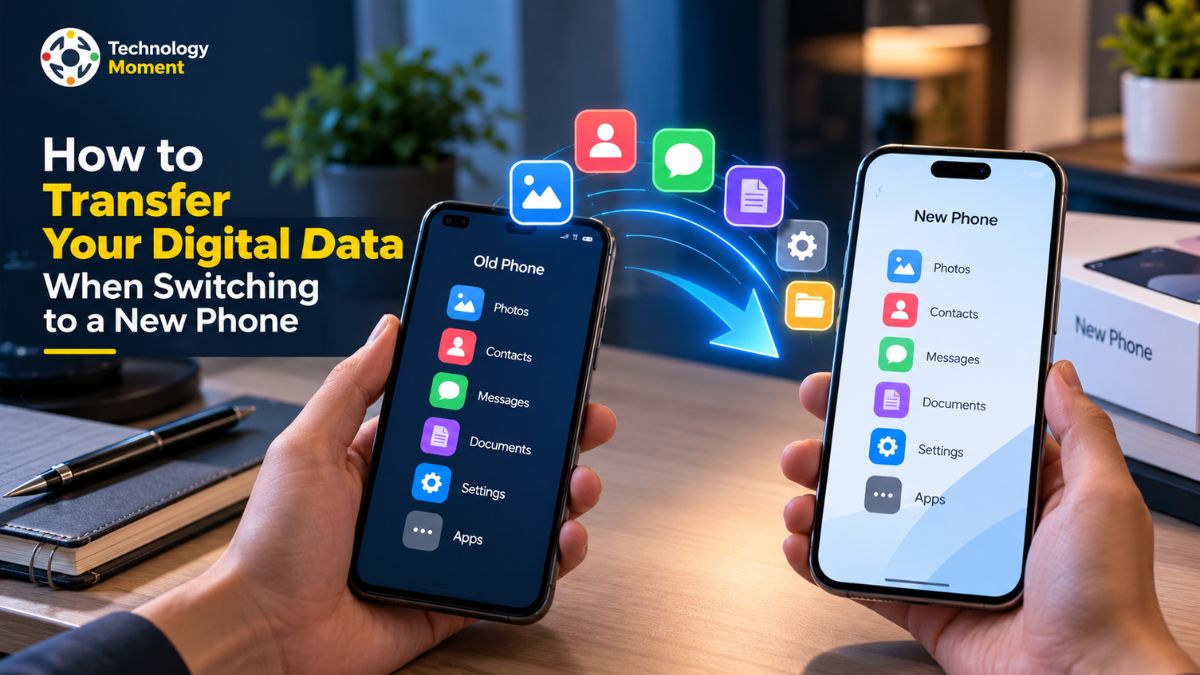
Switching to a new phone is exciting, but moving your digital life from an old device can feel overwhelming. Your contacts, photos, messages, apps, and important account details all need to be moved. If you are wondering how to transfer data to a new phone without losing important information, the right preparation can make the process much easier.
Whether you are moving from Android to Android, iPhone to iPhone, or switching between Android and iPhone, there are several ways to move your data. Built-in transfer tools, cloud backups, and direct device connections can help you migrate supported information. However, not everything transfers automatically. Some apps require separate backups, messaging services have their own migration steps, and authenticator apps may need additional setup to keep your accounts accessible.
Before you start, back up your old phone, check the available storage on your new device, and make sure you can access your essential accounts. You should also verify that your photos, contacts, messages, passwords, and other important information are available on the new phone before erasing or selling your old device.
At Technology Moment, our goal is to make technology easier to understand and use in everyday life. This guide walks you through the essential steps for transferring your data safely, explains the options available for Android and iPhone users, and highlights common problems you can avoid along the way. By following the right method for your devices, you can make the switch with greater confidence and spend less time troubleshooting. Let’s begin by preparing your old phone and choosing the most suitable transfer method.
What to Do Before Transferring Data to a New Phone
Before starting a phone data transfer, take time to prepare both devices. A little planning can help prevent missing contacts, lost photos, inaccessible accounts, and other problems. Android users can check Google backup settings, while iPhone users can use iCloud or a compatible computer backup. Make sure the backup has completed successfully before continuing.
Next, review the information stored on your device. Check your contacts, photos, videos, text messages, documents, downloads, and important app data. If you use WhatsApp, confirm that your chats have a recent backup or that a supported direct-transfer option is available. Remember that some apps store information separately, so installing them on a new phone may not restore all their data.
Prepare both devices by charging their batteries, connecting to a reliable Wi-Fi network when required, and checking available storage on the new phone. Keep your Google Account or Apple Account credentials accessible, along with your screen lock PIN or password. If you use an authenticator app, save recovery codes and review its official instructions for moving authentication access. Also check whether your SIM card or eSIM needs to be transferred.
Finally, make a simple device migration checklist so you can verify each important item later. Do not erase, sell, or trade in your old phone until you have confirmed that your essential information and accounts work correctly on the new device. These precautions make transferring data to a new phone safer and more manageable.
How to Transfer Data from Android to Android
Transferring data between Android phones is usually straightforward because many devices offer built-in migration tools during initial setup. These tools can transfer supported apps, contacts, photos, videos, text messages, call history, and selected settings. The exact options depend on the phone manufacturer, Android version, and the type of data you want to move.
To begin, turn on your new Android phone and follow the on-screen setup instructions. Connect to Wi-Fi when prompted and choose the option to copy apps and data from an existing device. Keep your old phone unlocked and nearby. Depending on the devices, you may be able to connect them using a compatible USB cable or select a wireless transfer method. Follow the instructions displayed on both screens, confirm the connection, and select the information you want to copy.
If you prefer a wired connection, check that your cable supports data transfer and that you have any necessary adapter. A wireless connection can be convenient when a compatible cable is unavailable. Once the transfer starts, keep both phones powered and follow the prompts until the process finishes. Sign in with the same account during setup and select an available backup. Samsung users may also use Samsung Smart Switch, while supported Google Pixel devices provide their own migration options.
Not everything necessarily transfers automatically. Downloaded documents, certain app data, files in hidden folders, and information associated with other accounts may require separate attention. After the transfer, open your essential apps, check your contacts and photos, and confirm that your messages are present. A careful review helps ensure your new Android phone is ready for everyday use.
How to Transfer Data from iPhone to iPhone
The most convenient option for many users is Quick Start, which helps configure the new device using the existing iPhone. Other options include restoring from an iCloud backup or using a compatible computer backup. To use Quick Start, turn on your new iPhone and place it near your old device. Make sure the old iPhone is unlocked, connected to Wi-Fi, and has Bluetooth enabled. Follow the instructions that appear on the screen, verify your Apple Account when requested, and choose your preferred transfer method. You may be able to transfer information directly between devices or download your apps and data from iCloud.
If you choose an iCloud backup, first check that your old iPhone has a recent backup. During setup on the new iPhone, follow the prompts to restore from that backup and sign in with the appropriate Apple Account. If you have a compatible computer backup, you can also restore your information using Finder, the Apple Devices app, or iTunes, depending on your computer and software.
Depending on the transfer method, you may be able to move pictures, text conversations, phone numbers, device preferences, and certain app-related data to your new phone. However, some information may need to be downloaded again, synced through an online account, or restored by logging in. After the migration is complete, review your address book, photo gallery, messages, calendar entries, and frequently used apps to ensure everything is available. Sign in to your email and other important services to verify that your accounts work correctly.
How to Move Data Between an Android Phone and an iPhone
Switching between Android and iPhone requires a slightly different approach because the two platforms handle apps, settings, backups, and some types of data differently. The best method depends on which phone you are moving from and which device you are setting up. Preparing both phones and understanding the limitations can help you avoid unnecessary delays.
If you are moving from Android to iPhone, Apple’s Move to iOS process can transfer supported information during the iPhone’s initial setup. Prepare both devices, connect them to power, and follow the setup instructions on your new iPhone. Choose the option to transfer data from Android, then follow the prompts in the Move to iOS app or the supported transfer workflow available for your devices. Select the information you want to move and wait until the transfer finishes. Depending on compatibility, supported items may include contacts, messages, photos, videos, calendars, and WhatsApp content.
If you are moving from iPhone to Android, start the setup process on your new Android phone and look for its data-copying option. Follow the instructions to connect your iPhone using a compatible cable or another supported method. Select the information you want to transfer and keep both devices connected until the process completes. Available transfer options vary by Android manufacturer and device model.
Not every item is guaranteed to transfer to your new phone. Some paid applications, specialized app data, saved passwords, passkeys, two-factor authentication details, and subscription-based or purchased media may need to be handled separately. Reinstall any missing apps and log in to your accounts as required. Once the migration is complete, make sure your contacts, pictures, text messages, and essential documents are available.
Open your most frequently used apps, confirm that calls and mobile data work properly, and check that you can recover your accounts if necessary. If you have already configured the new device, explore alternative ways to move the remaining information before performing a factory reset. Keep your previous phone intact until you have checked that all critical data has been transferred successfully and can be accessed without problems.
How to Transfer Contacts, Photos, Videos, and Messages
When switching to a new phone, transferring contacts, photos, videos, and messages is an important part of keeping your digital life organized. The best phone data transfer method depends on whether you are moving between Android devices, switching between iPhones, or changing platforms. Before starting, confirm that your important information is backed up or synchronized with the correct account.
To transfer contacts, Android users can synchronize their address book with a Google Account, while iPhone users can use iCloud Contacts. Sign in to the same account on your new device and enable the appropriate synchronization settings. If some contacts are stored on a SIM card or another service, check that they are included separately. This helps prevent missing phone numbers after switching devices.
To transfer photos and videos, you can use built-in migration tools, Google Photos, iCloud Photos, or another trusted cloud storage service. Check whether your media is stored locally or already uploaded to the cloud. If image quality matters, review the backup and download settings to ensure that the original files are available when needed. For large photo libraries, a stable connection and sufficient storage can make the process smoother.
Text messages, including SMS and MMS, may transfer through the phone’s setup process when supported. However, moving messages between Android and iPhone can involve different requirements. Some messaging apps also maintain their own backups and transfer procedures, so do not assume that every conversation will move automatically. After completing the transfer, open your contacts, photo library, and messaging app to verify the results. Check recent conversations, important attachments, and several older photos. For more practical technology tips and digital guides. Always keep your old phone unchanged until you confirm that your essential information is accessible on the new device.
How to Transfer WhatsApp Chats and App Data
WhatsApp conversations often contain important personal messages, photographs, videos, documents, and shared memories. When changing phones, transferring WhatsApp chats requires separate attention because a general phone data transfer may not restore every conversation automatically. Before beginning, check that your old phone is available, your WhatsApp account is accessible, and you understand which migration method supports your devices.
If you are moving between Android phones, WhatsApp offers chat transfer and backup-based restoration options. Depending on your setup, you may be able to transfer chats directly between nearby devices or restore them from a previously created Google Account backup. Open WhatsApp on your old phone and review its chat backup or transfer settings. On the new phone, follow the official instructions and verify your phone number when requested. Keep both devices powered and follow the on-screen prompts until the transfer finishes.
For an iPhone-to-iPhone transfer, review WhatsApp’s available iCloud backup and migration options. Confirm that the backup is recent and that you can access the relevant Apple Account before restoring your conversations. When switching between Android and iPhone, use the supported cross-platform migration process. Requirements can differ depending on the direction of the transfer, device model, operating system, and setup stage.
Other applications may also store important information independently. Notes, documents, game progress, downloaded files, and work-related data might require an account login, cloud synchronization, or an app-specific backup. Installing an application does not guarantee that its previous data will be restored. Once the transfer is complete, open WhatsApp and check recent chats, older conversations, photos, videos, and documents. Avoid deleting the old phone’s WhatsApp data until you have verified the new copy. If you need more practical advice on managing digital information, explore Technology Moment for helpful technology guides.
How to Transfer Authenticator Apps, Passwords, and Passkeys
Moving to a new phone involves more than transferring photos and messages. You must also protect access to email, social media, banking, work applications, and other important accounts. Authenticator apps, saved passwords, and passkeys may follow different migration procedures, so prepare them before retiring your old device.
Start by identifying the authenticator apps you use for two-factor authentication. Open each app and review its official instructions for account synchronization, device-to-device transfer, or backup and recovery. For example, Google Authenticator can synchronize codes through a signed-in Google Account or support manual code transfer using a QR code. Other authenticator apps may require different steps. Do not assume that installing the same app on your new phone will automatically restore every verification code.
Next, check your password manager. If your passwords are synchronized through an account, install the official app on the new device and sign in using the correct credentials. Confirm that your saved logins are available before removing access to the old phone. If you use passkeys, check whether they synchronize through your password manager or platform account and whether any additional verification is required.
Recovery codes are particularly important when transferring two-factor authentication. Store them securely and make sure you can access an alternative recovery method if your old phone becomes unavailable. Test access to essential accounts on the new device before deleting authenticator entries or resetting the previous phone. Never share verification codes, recovery codes, or passwords with someone claiming to provide transfer assistance. Use official apps and account recovery pages instead. These precautions can reduce the risk of being locked out of important services when changing devices.
How to Transfer Data Without a Cable or Computer
You do not always need a USB cable or computer to transfer data to a new phone. Many Android and iPhone devices support wireless migration, cloud backups, or account synchronization. The best option depends on your devices, the amount of data you need to move, and whether your old phone is still working.
For Android-to-Android transfers, compatible phones can offer a wireless copying option during initial setup. Turn on both devices, connect them to an appropriate network when required, and follow the instructions displayed on the new phone. Select the data you want to transfer and keep both devices nearby while the process runs. Depending on compatibility, supported information may include contacts, photos, videos, messages, applications, and certain settings.
For iPhone-to-iPhone migration, Apple’s Quick Start feature can transfer information wirelessly between nearby devices. Turn on the new iPhone, place it near the old one, and follow the setup instructions. You can also restore an available iCloud backup. Keep both devices connected to power and allow enough time for the transfer or download to finish.
Cloud services provide another option when direct phone-to-phone copying is unavailable. Google Contacts, Google Photos, iCloud, and compatible storage services can help synchronize or restore selected information after you sign in to the appropriate account. However, cloud synchronization may not include every local file, application setting, or message.
Can you transfer data without Wi-Fi? Some direct-transfer methods use a local wireless connection, while others require internet access. Requirements vary by device and transfer method, so check the instructions before starting. After transferring your files, verify that important contacts, photos, documents, and account information are available. Remember that cloud storage may have capacity limits, and uploading large libraries can take time.
How to Transfer Data When Your Old Phone Is Broken or Unavailable
Transferring data becomes more challenging when your old phone is broken, lost, or no longer turns on. However, you may still be able to recover important information if you previously enabled cloud backups or synchronized your data with an online account. The recovery options depend on your phone’s operating system, the type of damage, and the information stored before the device became unavailable.
If you are switching to a new Android phone, start by signing in with the Google Account associated with your old device. During the setup process, look for the option to restore a previous backup. Select the appropriate backup and follow the instructions to recover supported contacts, messages, settings, and other information. Photos and videos may also be available through Google Photos if they were synchronized previously. The amount of recoverable data depends on your backup settings.
For iPhone users, Apple provides the option to restore a new device from an existing iCloud backup. During setup, sign in with the relevant Apple Account and choose the appropriate backup. You can also restore from a compatible computer backup if one was created earlier. Keep the new device connected to Wi-Fi and power while the restoration process continues.
If your old phone still works partially, check whether you can unlock it or connect it to another device before attempting recovery. If the screen is damaged, a qualified repair professional may be able to help you regain access. Avoid repeatedly attempting risky repairs that could further damage the device.
Without a backup, some information may be permanently inaccessible. For more practical technology advice, visit Technology Moment. Always use official recovery methods and never share your passwords or verification codes with strangers.
How to Fix Common Phone Data Transfer Problems
Phone data transfer does not always go smoothly. The process may stop unexpectedly, take longer than expected, or leave some contacts, photos, messages, and applications missing. Before restarting the transfer, identify the likely cause and check whether your existing backup remains available. This can help you avoid unnecessary data loss when moving information to a new phone.
If your data transfer is stuck, check that both devices have sufficient battery power and a stable connection. For wireless transfers, keep the phones close together and follow the connection requirements shown on their screens. For wired transfers, inspect the cable and ports. Some USB cables support charging but not data transfer, so try a compatible alternative if your device displays a cable error.
If the transfer fails because of insufficient storage, review the available space on your new phone. Remove unnecessary downloads or choose fewer data categories during the initial transfer, where supported. You can move selected files separately after setup. Remember that photos, videos, applications, and downloaded documents may require significant storage space.
When contacts, messages, or photos are missing, check the account used for synchronization and confirm that the original information was included in the backup. Some files may be stored in a separate cloud service or within an individual application. Sign in to the correct account and allow synchronization to finish before assuming the data has disappeared.
If the new phone is already configured, review its supported transfer options before performing a factory reset. Resetting the device can erase information currently stored on it. If repeated attempts fail, consult the phone manufacturer’s official troubleshooting instructions. A careful approach is safer than repeatedly restarting the process without checking your backup and connection.
How to Verify Your Data Before Erasing the Old Phone
Completing a phone data transfer does not necessarily mean every file, account, and application has been restored. Before selling, trading in, or giving away your old phone, verify that the information you need is available and working on the new device. This final check helps reduce the risk of losing important memories, documents, messages, or access to online accounts.
Start with your contacts, photos, videos, and text messages. Open your contacts app and check several names and phone numbers. Browse your photo library, including recent pictures, older albums, and important videos. Open your messaging app and confirm that essential conversations and attachments are present. If you use WhatsApp or another messaging service, check its chat history separately because application data may follow a different transfer process.
Next, test your important applications. Open your email, password manager, authenticator app, banking apps, and other essential services. Confirm that you can sign in and complete any required verification. Check your saved passwords, passkeys, and account recovery options. If you use two-factor authentication, make sure you can generate the necessary codes or access an alternative recovery method before removing the old device.
Also verify that your SIM or eSIM works correctly. Place a test call, send a message, and check mobile data connectivity. Review your documents, downloads, calendars, and cloud storage to ensure that important files are accessible. Only after these checks should you prepare the old phone for handover. Sign out of accounts or disable device-tracking features when required by the manufacturer’s instructions, then use the official factory-reset procedure. Confirm that the reset has completed and the device displays its initial setup screen.
Frequently Asked Questions: How to Transfer Data to a New Phone
What Is the Easiest Way to Transfer Data to a New Phone?
The easiest method depends on your devices. Android users can use the built-in data-copying process, while iPhone users can use Quick Start or an iCloud backup. Both approaches can transfer supported information with minimal manual work. Before beginning, back up your old phone, keep both devices charged, and follow the instructions displayed during setup. Check the completed transfer before erasing the old device.
How Long Does It Take to Transfer Data to a New Phone?
Transferring data can take anywhere from a few minutes to several hours, depending on the amount of information, connection speed, device performance, and transfer method. A phone containing thousands of photos and large videos may take considerably longer than one with mostly contacts and messages. Keep both devices powered and connected as required. Some cloud content may continue downloading after the initial setup is complete.
Can I Transfer Data Without Wi-Fi or a Computer?
Yes, some phone-to-phone transfer methods work without a computer, and certain direct connections can operate without a conventional Wi-Fi network. However, requirements vary by device and transfer tool. Cloud backups generally require internet access, while setup tools may establish their own direct wireless connection. Check your phone’s instructions before starting, and remember that some methods still require an internet connection for account verification or downloading applications.
Can I Transfer Data If My Old Phone Will Not Turn On?
You may be able to recover data even when your old phone is unavailable. Android users can restore an existing Google backup, while iPhone users can restore from an available iCloud or computer backup. Photos and contacts may also exist in synchronized online accounts. Without a backup or synchronized copy, some local information may be unrecoverable. If necessary, consult a qualified repair professional before attempting further recovery.
What Should I Do Before Wiping My Old Phone?
First, confirm that your contacts, photos, videos, messages, documents, and important application data are accessible on your new phone. Test your passwords, authenticator codes, and account recovery methods. Verify that your SIM or eSIM works correctly and that essential accounts are available. Once everything is confirmed, follow the manufacturer’s instructions to sign out where necessary and perform a factory reset. Never wipe your old phone before checking your data.