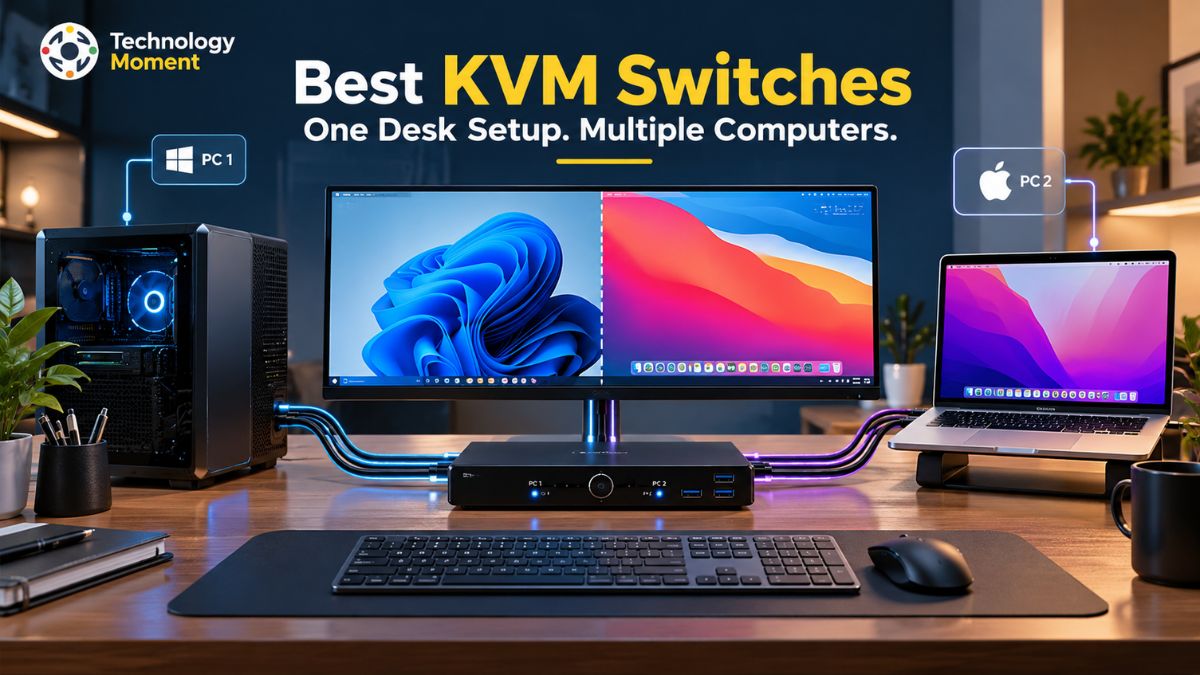
Managing two computers at one desk can quickly become inconvenient when each system needs its own monitor, keyboard, mouse, and USB accessories. Whether you are a developer switching between work and personal machines, an IT professional managing multiple systems, or someone building a more organized home office, constantly reconnecting cables can interrupt your workflow. A KVM switch offers a practical solution by allowing you to control multiple computers using shared peripherals from a single workstation.
However, choosing the best KVM switch for two computers involves more than counting ports. Different models support different monitor configurations, video connections, resolutions, refresh rates, and USB devices. A switch designed for a standard office monitor may not meet the requirements of a dual-monitor workstation or a high-refresh-rate gaming display. Similarly, USB-C connectivity does not automatically guarantee video output, laptop charging, or compatibility with every computer.
At Technology Moment, our goal is to make technology easier to understand so readers can make informed purchasing decisions. This buying guide explains the essential features to compare, from HDMI and DisplayPort connections to USB-C compatibility, peripheral sharing, and switching methods. It also highlights the specifications worth checking before investing in a new KVM switch.
Whether you need to connect a laptop and desktop, share two monitors between computers, or simplify a developer workstation, understanding these differences can help you avoid compatibility problems and unnecessary expenses. By matching a KVM switch to your actual setup and performance requirements, you can build a cleaner, more efficient workspace without paying for features you do not need. Technology Moment helps you approach that decision with greater clarity and confidence.
Best KVM Switches for Two Computers: Quick Picks
The best KVM switch for two computers depends on how you use your desk, the displays you connect, and the peripherals you need to share. A developer working with a laptop and desktop may prioritize reliable switching and USB connectivity, while a gamer may need higher refresh rates and support for a specific display resolution. Instead of choosing a model based on its advertised maximum specifications alone, consider how well it matches your complete setup.
For a standard office workstation with one monitor, a two-port HDMI or DisplayPort KVM switch is a practical starting point. Look for compatibility with your monitor’s native resolution, a suitable refresh rate, and enough USB ports for your keyboard and mouse. If you regularly transfer files through an external SSD or use a webcam, a model with USB 3.x peripheral connectivity may be more appropriate than a basic switch.
For a dual-monitor workstation, choose a KVM switch explicitly designed to switch two displays between two computers. Verify that it supports your required resolution and refresh rate on both monitors simultaneously. A single-monitor KVM cannot provide a complete dual-monitor switching solution simply because it has multiple computer inputs.
Laptop users should consider a USB-C KVM switch or a KVM docking solution when they want to simplify cable management. However, check whether the laptop’s USB-C port supports video output, whether the KVM provides the required Power Delivery, and whether the laptop supports the intended number of external displays. For gaming and demanding creative workloads, prioritize documented video bandwidth, supported refresh rates, and the exact HDMI or DisplayPort standard. A switch advertised as supporting 4K does not necessarily support 4K at 144Hz.
Finally, developers and IT professionals should evaluate hotkey switching, physical buttons, remote controllers, EDID emulation, and operating system compatibility. These features can make everyday switching more convenient. The right choice is the KVM switch that meets your actual requirements without charging you for unnecessary capabilities.
How to Choose the Best KVM Switch for Two Computers
Choosing the best KVM switch for two computers starts with understanding the complete connection between your computers, displays, and USB peripherals. A detailed comparison helps you identify which features matter most before making a purchase.
| Buying factor | Basic office setup | Advanced workstation | What to verify |
|---|---|---|---|
| Computer connections | 2 computers | 2 or more computers | Number of supported host inputs |
| Monitor configuration | 1 monitor | 2 or more monitors | Simultaneous display switching |
| Video interface | HDMI or DisplayPort | DisplayPort 1.4, HDMI 2.1, or compatible USB-C | Exact ports and supported standards |
| Resolution | 1080p or 1440p | 4K or higher | Maximum supported resolution |
| Refresh rate | 60Hz | 120Hz, 144Hz, or 240Hz | Resolution and refresh rate supported together |
| USB connectivity | Keyboard and mouse | Webcam, storage, headset, and other devices | Port count and USB data speed |
| Switching method | Physical button | Hotkeys or remote controller | Available switching options |
| Laptop compatibility | Separate video and USB cables | USB-C or Thunderbolt workflow | Video output, display limits, and charging |
| Display stability | Standard switching | EDID emulation where needed | Documented display-handling features |
| Operating systems | Windows | Windows, macOS, or Linux | Compatibility with your exact devices |
An HDMI KVM switch can be suitable for everyday office work, while DisplayPort models may be preferable for compatible high-refresh-rate PC monitors. USB-C KVM switches can simplify laptop connections, but the USB-C port must support the necessary video functionality. Thunderbolt compatibility should also be checked separately rather than assumed from the connector’s appearance.
Check the supported resolution and refresh rate as a combination. For example, a switch supporting 4K at 60Hz may not support 4K at 144Hz. The same applies to dual-monitor configurations, where advertised maximum performance may differ when both displays are connected simultaneously. Cable quality, source outputs, display inputs, and video bandwidth all affect the result.
A shared keyboard and mouse require less bandwidth than an external SSD or some webcams. If you plan to connect multiple devices, examine the number and speed of the USB ports. Also consider whether a physical button, keyboard hotkey, or wired remote controller fits your workflow better.
Confirm the number of display outputs available from each computer, especially when using a laptop. Review Power Delivery requirements, operating system limitations, required cables, and EDID support if retaining display settings matters. This approach reduces the risk of buying a KVM switch that has the right connectors but cannot deliver the performance you need.
Best KVM Switches for Different Setups
Different users need different combinations of video performance, peripheral connectivity, and convenience. The most suitable KVM switch is the one that fits your specific workstation rather than simply offering the largest number of features. For a home office with a work computer and personal desktop, a two-port KVM switch with one monitor output is often sufficient. Prioritize straightforward switching, keyboard and mouse sharing, reliable video output, and compatibility with your existing monitor. If your display supports 4K at 60Hz, look for a model that explicitly supports this mode. A USB hub can also be useful if you share a webcam, headset, or external storage device.
A dual-monitor KVM switch is the better option when you need two screens to switch between computers together. Check the video input and output configuration carefully, because some models support two computers but only one shared display. Confirm that both monitors can run at their required resolutions and refresh rates simultaneously. Developers, analysts, and multitaskers may benefit from EDID emulation if it helps preserve display detection and window arrangements when switching.
A USB-C KVM switch or KVM docking solution can be convenient when one computer is a laptop. Depending on the model, it may combine display connections, USB peripherals, and laptop charging through a compatible connection. Before buying, verify USB-C video support, Power Delivery wattage, the number of external displays supported by your laptop, and operating system compatibility. Not every USB-C port supports video, and not every KVM provides charging.
Developers and IT professionals should prioritize dependable switching, compatibility with their operating systems, sufficient USB ports, and support for the monitors they use. Hotkeys or remote buttons can make switching between development environments easier, while additional USB connectivity can accommodate storage devices and other peripherals. Users managing sensitive systems should also evaluate whether their organization requires a certified secure KVM rather than a standard consumer model.
Gamers should focus on the exact resolution and refresh rate supported by the switch, including the required video standard and cable specifications. Verify any necessary HDR, variable refresh rate, or other display features individually. Before choosing any product, compare its official specifications with your computer and monitor requirements. This ensures that the KVM switch you purchase is suitable for your actual desk setup.
KVM Switch vs. USB Switch vs. Docking Station
A KVM switch, USB switch, and docking station may look similar, but each solves a different connectivity problem. Understanding these differences can help you choose the right equipment for a two-computer workstation without spending money on features you do not need. A KVM switch is designed to share video and selected peripherals between computers, a USB switch shares USB devices, and a docking station expands the connections available to a host computer. Some products combine these functions, but their capabilities vary by model.
| Feature | KVM Switch | USB Switch | Docking Station |
|---|---|---|---|
| Primary purpose | Switch shared displays and peripherals between computers | Share USB peripherals between computers | Expand the ports of a computer |
| Video switching | Yes, on supported models | No, typically | Usually no switching between hosts |
| Keyboard and mouse sharing | Yes, if supported | Yes, for compatible USB devices | Usually connected to one host |
| Multiple computer support | Two or more, depending on ports | Usually two or more, depending on model | Generally one active host |
| Dual-monitor support | Available on compatible models | No direct video switching | Available on compatible docks |
| USB peripheral sharing | Yes, depending on model | Main function | Usually for the connected host |
| Laptop charging | Optional on some KVM docks | Not normally | Common on USB-C and Thunderbolt docks |
| Ethernet and audio expansion | Model-dependent | Generally not | Common on suitable models |
| Switching method | Button, hotkey, or remote control | Button or other supported controls | Usually reconnect or change host connection |
| Best use case | Two computers sharing a desk setup | Sharing USB devices while video stays separate | Expanding one laptop’s connectivity |
Choose a KVM switch when you want to use one monitor, keyboard, and mouse with two computers and switch between them conveniently. It is particularly useful for developers, IT professionals, and people who alternate between work and personal computers. A dual-monitor KVM can also switch two supported displays between computers. Always check the exact video configuration, resolution, refresh rate, and USB capabilities.
A USB switch is a practical option when your monitor can already change inputs independently. You can connect each computer to a separate monitor input and use a USB switch to share your keyboard, mouse, webcam, or other compatible USB devices. This approach may cost less than a full KVM switch, although video switching remains a separate task.
However, a conventional dock does not automatically switch these connections between a laptop and a desktop. If you need both laptop expansion and multi-computer switching, consider a purpose-built KVM docking station or a verified combination of compatible devices. Confirm all connection and display requirements before purchasing. For most two-computer desks, the decision is straightforward: choose a KVM for combined video and peripheral switching, a USB switch for peripheral sharing alone, and a dock for expanding one computer’s connectivity.
KVM Switch Compatibility Checklist Before Buying
Before purchasing the best KVM switch for two computers, confirm that every component in your workstation can work together. A switch may advertise 4K resolution, USB-C connectivity, or dual-monitor support without supporting the exact combination required by your computers and displays. The safest approach is to check the complete signal path, from each computer’s output to the KVM’s input and then to the monitor. Cable and adapter capabilities also matter. ASUS’s KVM setup guidance illustrates why the computer’s USB-C port must support display output for the relevant configuration.
| Compatibility check | What to verify | Why it matters |
|---|---|---|
| Number of computers | Two-port or multi-port KVM | Must accommodate every host |
| Monitor count | Single- or dual-monitor switching | Determines the number of video paths required |
| Video connections | HDMI, DisplayPort, USB-C, or supported adapters | All connections must match |
| Resolution | 1080p, 1440p, 4K, or 8K as required | Ensures the desired image quality |
| Refresh rate | 60Hz, 120Hz, 144Hz, or 240Hz | Avoids unsupported display modes |
| USB-C capability | DisplayPort Alt Mode or appropriate Thunderbolt support | Connector shape alone is insufficient |
| Laptop charging | Required Power Delivery wattage | Helps ensure adequate charging |
| USB peripherals | Port count, speed, and device compatibility | Supports webcams, storage, and other accessories |
| Operating systems | Windows, macOS, and Linux requirements | Avoids host-specific limitations |
| Switching controls | Button, hotkey, or remote | Matches your preferred workflow |
| EDID support | Documented display-handling behavior | May help maintain display detection and settings |
| Included accessories | Power supply, host cables, and display cables | Prevents unexpected additional purchases |
Confirm that the KVM supports your monitor’s required resolution and refresh rate at the same time. For dual-monitor setups, verify that both displays can run at their intended settings simultaneously. If you use a gaming monitor or ultrawide display, check any relevant HDR, variable refresh rate, or other required features separately.
For a USB-C KVM switch, check the laptop’s technical specifications to confirm video output and external-display support. If you expect the switch to charge your laptop, compare its Power Delivery rating with your computer’s requirements. Also confirm that the USB ports provide the speed and compatibility needed for external SSDs, webcams, audio devices, and other peripherals.
Check whether the product includes the necessary cables and power adapter. Confirm how switching works and whether your keyboard, mouse, and specialist USB devices are supported. If compatibility remains uncertain, review the manufacturer’s documentation and return policy before ordering. A carefully checked setup is more reliable than choosing a product based only on its advertised maximum resolution.
Common KVM Switch Buying Mistakes to Avoid
Buying a KVM switch without checking your complete desk setup can lead to unnecessary expenses, display problems, and frustrating connection issues. Even a switch with the right connector types may not support your preferred resolution, refresh rate, USB devices, or laptop configuration. Before purchasing, focus on the specifications that directly affect your daily workflow rather than choosing a model based on its feature count alone.
One common mistake is assuming that every 4K KVM switch supports 4K at 144Hz or higher. Resolution and refresh rate are separate specifications, and the available combination depends on the KVM, computer outputs, monitor inputs, and cables. If you use a high-refresh gaming monitor, verify the exact supported mode rather than relying on a general 4K label.
USB-C is a connector type, not a guarantee of identical functionality. Some ports support data only, while others support video output, charging, or Thunderbolt features. Before choosing a USB-C KVM switch for a laptop and desktop, confirm the laptop’s video capabilities, the KVM’s upstream connection requirements, and its Power Delivery rating. A two-computer KVM does not necessarily support two monitors. Check the number of video inputs and outputs and whether the product can switch both displays between the computers simultaneously.
A basic KVM may work well with a keyboard and mouse but may not be ideal for an external SSD, webcam, or other bandwidth-sensitive device. Check USB port speeds, available ports, power requirements, and compatibility with specialized peripherals. Some keyboards and mice with advanced functions may also behave differently through third-party switching hardware. Some models require separate video and USB cables for each computer. Others use a compatible USB-C connection to combine several functions. Confirm which cables are included, whether adapters are necessary, and whether the switch uses a physical button, hotkeys, or a remote controller.
A conventional docking station typically expands one computer’s connectivity; it does not automatically switch between two hosts. If you need both docking and switching, choose a product that explicitly supports both functions. Finally, verify the exact model’s specifications, warranty, and return policy before ordering. Matching the KVM switch to your actual requirements is the best way to avoid compatibility problems and unnecessary spending.
Final Verdict: Which KVM Switch Should You Buy?
The best KVM switch for two computers is the one that matches your monitor configuration, connection requirements, and daily workflow. There is no single model that suits every user because a basic office setup has different needs from a dual-monitor development workstation or a high-refresh gaming desk. Before making a decision, identify how many computers and displays you need to connect, which video interfaces they support, and which peripherals must be shared. These details will help you narrow your options without paying for unnecessary features.
If you use one monitor with a work laptop and a personal desktop, a two-computer, single-monitor KVM switch is often the simplest solution. Choose HDMI or DisplayPort according to your existing connections, and verify the required resolution and refresh rate. A model with USB peripheral sharing can also help you use the same keyboard, mouse, and compatible accessories across both computers.
For a dual-monitor workstation, select a dedicated dual-monitor KVM switch that explicitly supports two displays switching between both computers. Confirm the supported resolution and refresh rate for both monitors simultaneously. Developers, designers, and IT professionals should also consider USB 3.x connectivity, convenient switching controls, and EDID handling when these features are relevant to their workflow.
If one computer is a laptop, a USB-C KVM switch or KVM docking solution may simplify your setup. However, confirm video output support, laptop display limitations, Power Delivery requirements, and operating system compatibility. A USB-C connector alone does not guarantee video transmission or charging.
Gamers and users with demanding displays should prioritize documented video bandwidth and the exact supported resolution-refresh-rate combination. For example, a product that supports 4K at 60Hz may not support 4K at 144Hz. Check additional requirements such as HDR and variable refresh rate separately if you need them.
Finally, compare the total cost, included cables, warranty, and return policy. Manufacturer specifications are essential, but real compatibility depends on the complete connection path, including computers, adapters, cables, KVM hardware, and monitors. The right buying decision balances performance, convenience, and price while meeting your current requirements and allowing reasonable room for future upgrades.
Frequently Asked Questions About KVM Switches for Two Computers
Are There KVM Switches That Handle 4K Resolution at 144Hz?
Certain KVM models can deliver 4K video at 144Hz, but support varies significantly between products. Check the specified HDMI or DisplayPort version, available signal bandwidth, refresh-rate limits, and whether any compression technology is required. Your graphics hardware, connecting cables, adapters, and monitors must all be capable of handling the same video mode. Be cautious when reading general 4K claims, because some devices only support a maximum of 60Hz at that resolution.
Can a USB-C KVM Provide Display Output and Laptop Power?
A USB-C connection does not automatically guarantee video transmission and charging. Display functionality depends on the capabilities of the computer’s USB-C port and the switch, including support for DisplayPort Alt Mode or an appropriate Thunderbolt connection. Check both products’ specifications to determine whether one USB-C cable can carry video, transfer data, and charge your laptop.
Will a KVM Switch Work With Both a MacBook and a Windows Computer?
You can use one KVM switch with a MacBook and a Windows PC if the device supports their respective video interfaces, USB connections, and display configurations. However, external monitor support differs across MacBook models, so not every setup will work identically. Certain combinations may also require additional adapters or a compatible dock. Confirm your MacBook’s external display capabilities and review the KVM’s compatibility information before purchasing.
How Is a KVM Switch Different From a USB Peripheral Switch?
The main distinction is that a KVM switch can manage video signals alongside supported USB peripherals, whereas a USB switch typically transfers USB accessories between computers without switching the monitor connection. If your screen already has multiple video inputs and can change sources independently, a separate USB switch may be all you need. A KVM is more convenient when you want to change the active computer for both the display and connected peripherals together.
Should You Choose a KVM Switch or a Docking Station?
These devices serve different primary purposes. A KVM switch is intended to let multiple computers share selected monitors and peripherals, while a docking station expands the connectivity of an individual computer through additional ports, display connections, networking, or charging. Some products combine docking functionality with built-in KVM controls, offering both features in one unit. Consider whether you mainly need to move between two computers, add connectivity to a laptop, or accomplish both tasks.
Can a KVM Switch Affect Display Refresh Rate?
Yes. A KVM switch may restrict refresh-rate performance when its bandwidth or supported video specifications cannot accommodate the selected display mode. The maximum refresh rate can also change depending on the resolution being used; for example, a device may handle a higher refresh rate at 1080p than at 4K. Check the manufacturer’s supported resolution-and-refresh combinations, particularly if you intend to operate two monitors. Suitable source hardware, cables, and adapters are equally important for achieving the expected results.