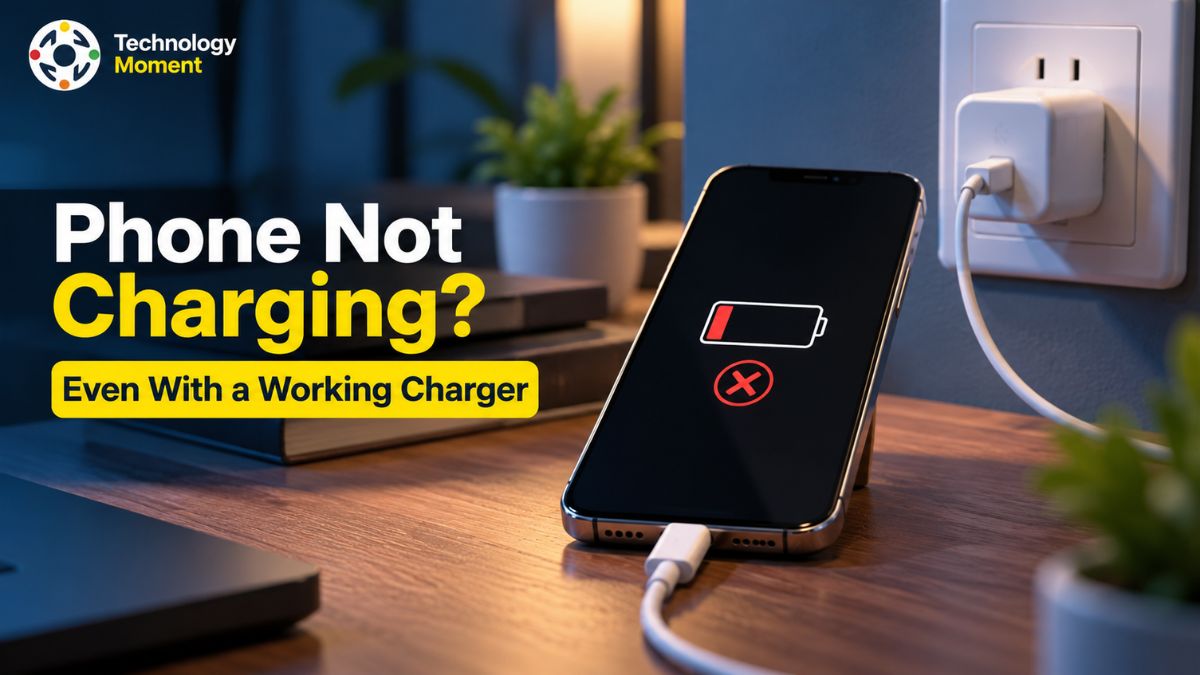
When your phone is not charging despite using a working charger, it can be frustrating, especially when you rely on your device for work, communication, navigation, and everyday tasks. You connect the cable, check the power adapter, and plug everything in correctly, yet the battery percentage stays the same or the Phone Not Charging Despite does not respond at all. Before assuming that your battery is dead or your phone needs an expensive repair, it is worth identifying what is actually causing the problem.
At Technology Moment, we help readers understand everyday technology problems through practical guides, clear explanations, and troubleshooting steps that are easy to follow. Our goal is to make technology less confusing and help you make informed decisions without wasting time or money on unnecessary fixes. A phone that will not charge can have several causes, including a damaged charging cable, an incompatible power adapter, dust inside the charging port, a worn-out battery, or a temporary software issue. Sometimes, overheating, moisture detection, or charging protection settings can also prevent normal charging. Although these problems may produce similar symptoms, each requires a different solution.
In this guide, you will learn how to troubleshoot a phone that will not charge even when the charger appears to work. We will walk you through practical checks for the cable, adapter, charging port, battery, and software, helping you narrow down the possible cause step by step. You will also discover which warning signs require professional assistance and when replacing a component may be necessary. Whether you use an Android phone or an iPhone, Technology Moment is here to help you troubleshoot smarter, protect your device, and find a reliable solution.
Why Is My Phone Not Charging Even With a Working Charger?
When your phone is not charging even with a working charger, the problem may be somewhere other than the power adapter. A smartphone relies on several components to receive and manage power, including the charging cable, adapter, charging port, battery, and internal charging circuitry. If any of these components fails to work correctly, your phone may refuse to charge, charge intermittently, or display a charging symbol without increasing the battery percentage.
One common cause is a faulty or incompatible charging cable. Even if a cable looks undamaged, its internal wires or connectors may have worn out. Similarly, a power adapter may supply insufficient power or may not support your phone’s charging requirements. Trying another compatible cable and adapter can help determine whether the charging accessories are responsible.
Another possible reason is dust or lint inside the charging port. Small particles can prevent the connector from making proper contact, particularly if you frequently carry your phone in a pocket or bag. A loose charging port, bent connector, or damaged USB-C or Lightning port can cause similar symptoms. If your phone only charges when the cable is held at an angle, a connection problem may be present.
Battery problems can also explain why a phone will not charge. An ageing or degraded phone battery may struggle to accept or retain power. In other cases, software glitches, charging protection settings, excessive heat, or moisture detection can temporarily interrupt charging. Some phones deliberately slow or pause charging to protect the battery when temperatures become too high.
The important thing is not to assume that every phone charging problem requires a battery replacement. Start by checking the outlet, cable, adapter, and charging connection before considering hardware failure. If your phone displays a liquid warning, feels unusually hot, or has a swollen battery, disconnect it safely and seek professional advice rather than continuing to charge it. Understanding these possible causes will help you narrow down the issue and choose the appropriate troubleshooting steps instead of replacing components unnecessarily.
How to Fix a Phone That Won’t Charge With a Working Charger
If your phone won’t charge with a working charger, follow a systematic troubleshooting process to identify the problem. Begin with the simplest checks before moving on to software or hardware issues. First, check the power outlet. Plug another device into the same outlet to confirm that it supplies power. If you are using a laptop USB port, power strip, or extension cable, try a reliable wall outlet instead. Make sure the charging cable is firmly connected to both the adapter and the phone.
Next, test the charging cable and power adapter separately. If possible, use a different compatible cable with your existing adapter, then try a different compatible adapter with the original cable. Testing one component at a time makes it easier to identify a faulty charging accessory. Avoid assuming that an adapter is suitable simply because its connector fits your phone.
Inspect the charging port for visible dust, lint, moisture, or damage. If the port appears dirty, follow the phone manufacturer’s cleaning instructions. Do not insert metal objects, needles, or other tools into the port, and avoid liquids or forceful cleaning methods that could damage the connectors. If you notice moisture or a liquid-detection warning, disconnect the charger and let the device dry according to the manufacturer’s guidance.
If the accessories and port appear fine, restart your phone. For a phone with a completely drained battery, leave it connected to a known-good charger and outlet for a short period. Some devices need several minutes before displaying a battery icon or responding to the power button. Google, for example, recommends allowing a deeply discharged Pixel additional charging time before proceeding with further checks.
Also, allow an overheated phone to cool naturally and check whether battery protection settings are limiting charging. Install available software updates when the phone has sufficient power and is operating normally. If the phone still refuses to charge after these checks, arrange professional diagnostics instead of attempting to repair its internal charging circuitry yourself.
Phone Not Charging but Charger Works: How to Identify the Exact Cause
When your phone is not charging, but the charger works with another device, the next step is to isolate the fault rather than repeatedly reconnecting the same accessories. A charger that works with one phone does not automatically prove that every cable, connector, or charging requirement is suitable for your device.
Pay attention to the charging symptoms. If the phone displays a charging symbol but the battery percentage does not increase, power may be reaching the device without adequately replenishing the battery. High power consumption, a weak power source, temperature restrictions, or a battery-related problem could explain this behaviour.
You can also try wireless charging if your phone supports it. If wireless charging works but wired charging does not, the cable, wired charging port, or related charging hardware becomes a stronger suspect. Wireless charging also depends on compatible accessories, correct alignment, and suitable device temperature. To investigate battery problems, check the battery settings or built-in diagnostics available for your phone model. Unexpected shutdowns, rapid battery drain, or a battery percentage that changes erratically may indicate battery deterioration, although these symptoms are not conclusive on their own.
Finally, consider whether the problem started after a software update, a drop, or exposure to water. Such events can provide useful clues about the cause. Stop troubleshooting if the device becomes unusually hot, the battery swells, or you notice a burning smell. If none of these tests identify the issue, a qualified technician can inspect the charging port, battery, connectors, and internal charging circuitry. This is the most reliable way to determine whether a component needs repair or replacement.
Phone Connected to a Charger but Not Charging: Common Signs Explained
When your phone is plugged in but not charging, the symptoms can provide useful clues about the underlying problem. Instead of repeatedly disconnecting and reconnecting the charger, observe what happens when you connect your phone to a reliable power source. The charging symbol, battery percentage, connection stability, and any warning messages can help you decide which component to check first.
Seeing a lightning symbol on your phone does not always mean the battery is gaining power. Activities such as gaming, GPS navigation, video streaming, and running several demanding applications can contribute to this problem. Close unnecessary apps, reduce screen brightness, and leave the display switched off for a while. If the battery level still does not increase, try another compatible charging cable and adapter to identify whether the power supply is responsible.
When charging works only if the cable is held in a certain position, the connection may be unstable because of a faulty wire, a damaged plug, or a worn socket on the phone. Avoid twisting the cable or pushing the connector repeatedly to maintain contact, since these actions could cause further damage. Connect a different cable that supports your device. If the connection remains unreliable, have the charging port examined by a qualified technician rather than attempting to repair it yourself.
A battery that takes unusually long to fill may be affected by a low-output power adapter, a poor-quality cable, overheating, or an inconsistent electrical connection. Charging speed can also decrease naturally on some devices as the battery gets closer to its maximum capacity. Use accessories that meet your phone manufacturer’s specifications and check whether the device charges normally with another suitable power source. If the battery has been completely depleted, the screen might not turn on immediately after you connect the charger. Allow the phone to charge for the manufacturer’s recommended period before attempting a supported restart. Continued failure to respond could indicate a problem with the battery, screen, charging connector, or another internal component.
If your phone stops charging at around 80%, there may be no underlying hardware problem. Many smartphones include battery-saving options that restrict charging to a selected percentage or temporarily slow the process when the device becomes too hot. Review your battery settings to see whether a charging limit or battery-protection feature is enabled. Moisture detection can also prevent wired charging to protect the phone from electrical damage. If a liquid warning appears, unplug the cable and follow the device manufacturer’s drying guidance. Do not insert objects into the port or override the warning to force charging. If the alert does not disappear after the recommended drying period, or you notice visible damage, contact an authorized repair provider for further assessment.
Android Phone Not Charging vs. iPhone Not Charging
Although Android phones and iPhones perform the same basic charging function, their troubleshooting options, charging settings, connector types, and diagnostic features can differ. If your phone is not charging despite using a working charger, identify your device type before following model-specific instructions. The comparison below highlights common charging problems and the checks that may help resolve them.
| Troubleshooting point | Android phones | iPhones |
|---|---|---|
| Charging cable | Check compatible USB-C or model-specific cables | Check compatible USB-C or Lightning cables, depending on the model |
| Power adapter | Use a compatible adapter that meets the phone’s charging requirements | Use a compatible USB power adapter and supported cable |
| Charging port | Inspect the USB-C port for debris, moisture, or damage | Inspect the USB-C or Lightning port, depending on the model |
| Software troubleshooting | Restart the phone and check for system updates | Restart or force-restart the iPhone using the correct button sequence |
| Charging stops at 80% | Check battery protection and charging limits where available | Check Optimised Battery Charging, Charge Limit, and temperature |
| Built-in diagnostics | Some manufacturers provide diagnostic tools, such as Samsung Members | Check iOS settings and available Apple support diagnostics |
| When to seek repair | Persistent charging failure, physical damage, or battery warnings | Persistent charging failure, damaged ports, or battery-related warnings |
If your Android phone is not charging, begin by testing the wall outlet, charging cable, and power adapter individually. Restart the phone and check its battery settings for charging protection or temperature warnings. Some manufacturers also provide built-in diagnostics to help identify battery or cable-charging problems. For example, compatible Samsung Galaxy devices may support charging and battery tests through Samsung Members.
For an iPhone that won’t charge, check the cable and USB adapter for damage, try a different power outlet, and inspect the charging port carefully. Restart the device and allow a deeply discharged battery time to respond. If charging stops around 80%, review the available battery charging settings and check whether the device is too warm. Apple recommends testing these basic connections before arranging service.
A USB-C connector may fit multiple devices, but the charging accessories still need to meet the device’s compatibility and power requirements. Older iPhones may use Lightning connectors, while newer models use USB-C. In either case, damaged connectors, debris, or incompatible accessories can interrupt charging. Charging that stops at a set percentage may be intentional rather than a hardware failure. Review the settings available on your specific model before replacing the battery. If the phone continues to show charging errors after these checks, contact the manufacturer’s support service or an authorised repair provider.
How to Tell If Your Phone Battery or Charging Port Is Damaged
When your phone is not charging despite using a working charger, identifying whether the battery or charging port is damaged can help you avoid unnecessary repairs. Both problems can produce similar symptoms, including slow charging, unexpected shutdowns, and a battery percentage that does not increase. However, several clues can help narrow down the cause before you seek professional assistance. A degraded phone battery may lose charge unusually quickly, cause unexpected shutdowns, or struggle to maintain a consistent battery percentage. You might notice that the phone switches off even when the battery indicator shows some charge remaining. Older batteries may also take longer to charge or provide less usage time than they did when new.
A damaged charging port may cause intermittent charging, repeated disconnections, or a cable that feels unusually loose. If the phone charges only when the connector is held at an angle, the cable or port may have a physical connection problem. Visible corrosion, bent connectors, or persistent moisture warnings are additional reasons to have the port inspected. Before concluding that the port is damaged, test another compatible cable and adapter. If the problem continues with known-good accessories, professional inspection can help identify whether the port or internal charging circuitry is responsible.
Battery replacement may be appropriate when diagnostics indicate significant battery degradation or when a qualified technician confirms a battery fault. Charging port repair may be necessary when the connector is physically damaged or cannot maintain a reliable connection. Neither component should be replaced based on a single symptom alone. If your phone still will not charge after basic troubleshooting, a technician can test the battery, charging port, connectors, and charging circuitry. Explain which cables and adapters you tested and whether wireless charging works, if supported. If you notice excessive heat, a burning smell, battery swelling, or signs of liquid damage, stop troubleshooting and seek qualified assistance.
When Should You Stop Troubleshooting and Seek Professional Help?
Although many phone charging problems can be resolved by checking the cable, power adapter, outlet, and charging port, some situations require professional attention. Continuing to troubleshoot a damaged device can make the problem worse, especially when the battery, charging circuitry, or internal connectors are affected. Knowing when to stop can protect both your phone and your personal safety.
One important warning sign is a swollen battery. If the phone’s back panel begins separating, the screen lifts unexpectedly, or the device develops an unusual bulge, stop using and charging it. Do not press the battery back into place, puncture the device, or attempt a DIY battery replacement.
A phone may become slightly warm during normal charging, but extreme heat, a burning smell, smoke, or unusual sounds should never be ignored. Disconnect the power source only if you can do so safely, keep away from the device if it is smoking or burning, and contact local emergency services when necessary. Do not continue testing different chargers to see whether the problem disappears.
You should also seek professional help if your phone stops charging after water exposure or displays a persistent moisture warning. Avoid using heat guns, ovens, or other high-temperature methods to dry the charging port. If the phone has been dropped and subsequently develops charging problems, internal connector damage may not be visible from the outside.
If you have already tested a compatible cable, adapter, and working outlet, restarted the device, and allowed a deeply discharged battery sufficient time to respond, persistent charging failure may indicate a defective charging port, worn battery, or internal charging circuit problem. A technician can perform diagnostic tests before recommending a repair or replacement. Apple’s and Samsung’s support guidance similarly recommends seeking service when basic charging checks do not resolve the issue.
Before visiting a repair centre, note the symptoms, when the problem started, which charging accessories you tested, and whether wireless charging works if supported. Back up your data if the phone still operates safely. Ask for a diagnosis and repair estimate before authorising work, and use a reputable service provider familiar with your device model. The key is to avoid replacing the battery or charging port based on guesswork. Stop when there are safety warnings or signs of physical damage, and let a qualified technician identify the exact fault.
Frequently Asked Questions About a Phone Not Charging Despite Using a Working Charger
Why Does My Phone Say Charging but the Battery Percentage Does Not Increase?
This can happen when the phone receives insufficient power, consumes energy faster than it charges, or experiences a battery or charging hardware problem. Close demanding apps, turn off the screen, and test a compatible charger. If the battery percentage remains unchanged after sufficient charging time, inspect the accessories and seek professional assistance if the problem persists.
Can a Bad Charging Port Prevent a Phone From Charging?
Yes, a damaged or obstructed charging port can prevent the cable from making a reliable electrical connection. Common symptoms include intermittent charging, loose connectors, and charging that works only at a particular angle. Try another compatible cable first. Avoid inserting metal objects or forcing the connector into the port.
Why Does My Phone Only Charge When the Cable Is Held at an Angle?
Charging at a particular cable angle may indicate a worn connector, damaged cable, or loose charging port. Stop bending the cable or applying pressure because this can worsen the damage. Test another compatible cable without forcing the connection. If the same symptom continues, have the charging port inspected by a qualified technician.
Can a Software Problem Stop a Phone From Charging?
Yes, software glitches or charging protection settings can affect charging behaviour. Restart your phone, check for available system updates, and review battery settings for charge limits or temperature-related restrictions. If the device is completely unresponsive, follow the manufacturer’s recommended recovery steps. Persistent charging failure after these checks may indicate a hardware problem that requires professional diagnosis.
How Long Should I Leave a Completely Dead Phone Charging?
A deeply discharged phone may need several minutes before displaying a battery icon or responding to the power button. Connect it to a compatible charger and a working outlet, then follow the manufacturer’s recommended charging period. Some devices need longer than others. If the phone remains unresponsive after the recommended checks, or becomes unusually hot, stop and seek professional help.
Should I Replace My Phone Battery or Charging Port?
A degraded battery may require replacement, while a damaged connector may need charging port repair. Test compatible charging accessories first and check the device’s battery diagnostics if available. Because both problems can cause similar symptoms, ask a qualified technician to inspect the phone before paying for a component replacement.