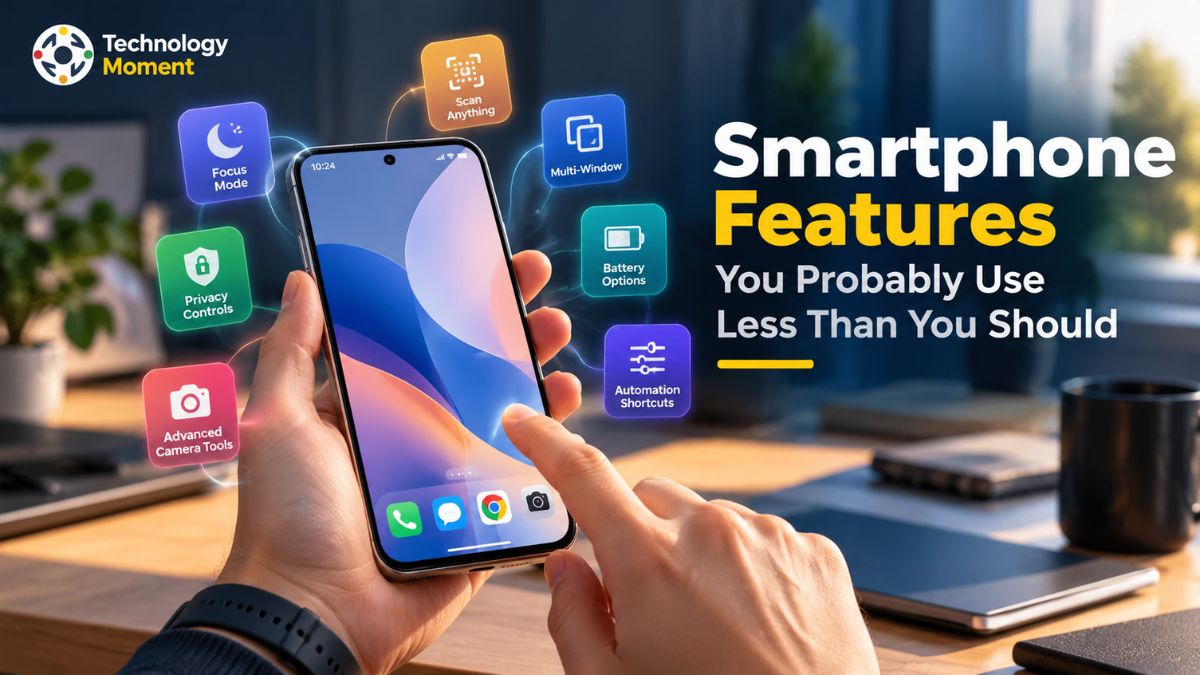
Your smartphone can do much more than make calls, send messages, and run your favorite apps. From scanning documents and copying text directly from photos to sharing files quickly and making everyday tasks more accessible, many useful smartphone features are easy to overlook. You may already have these tools on your device without realizing how much time and effort they can save.
The good news is that you do not always need to download additional apps or buy a new phone to get more out of your technology. Many smartphones include built-in tools for productivity, communication, accessibility, and convenience. Learning how to use them can help you manage everyday tasks more efficiently, whether you are working, studying, travelling, or simply organizing your personal life.
In this guide, we explore useful smartphone features that deserve more attention, including document scanning, text recognition, convenient sharing options, voice commands, accessibility settings, and practical shortcuts. We will also explain how these features can help in real-life situations and where to look for them on Android and iPhone devices. Because menus and capabilities vary by model and software version, some steps may differ on your phone.
At Technology Moment, our goal is to make technology easier to understand and more practical to use. We focus on helpful guides, straightforward tutorials, and technology insights that help readers make informed decisions without unnecessary complexity. Whether you are a casual smartphone user or someone who wants to work more efficiently, this guide will help you discover features worth trying and get more value from the device you already own.
1. Scan Documents Without a Separate Scanner App
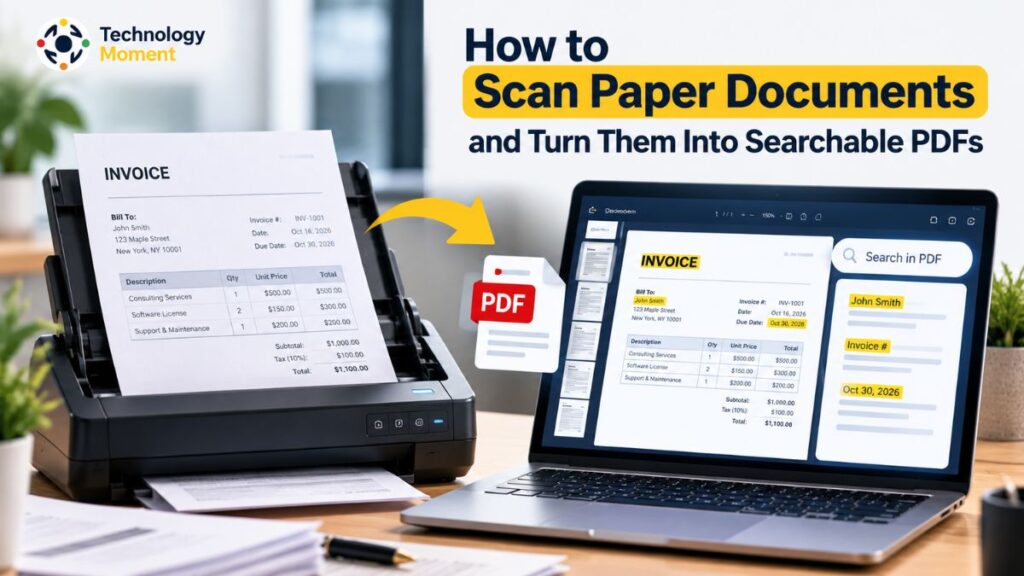
You do not need a traditional scanner to create digital copies of important paperwork. Many useful smartphone features allow you to scan documents directly with your phone’s camera, making it easier to manage receipts, invoices, handwritten notes, contracts, and other records. A built-in document scanner can capture a page, correct its perspective, and save the result as a PDF that is easy to store or share. This is particularly helpful for students, remote workers, freelancers, and anyone who regularly handles paperwork.
On an iPhone, open the Notes app, create a note, tap the attachment option, and select Scan Documents. Position the paper inside the camera frame and capture it. You can adjust the page boundaries before saving the scan. Open the app, tap the camera or add button, choose the scanning option, and photograph your document. Review the crop, make any necessary adjustments, and save the finished file as a PDF. Apple Support and Google Drive Help provide detailed instructions.
For better results, place the document on a flat surface with good lighting and avoid casting shadows across the page. Keep the camera steady and check that small text remains readable before sharing the file. For multi-page documents, scan each page into the same file when supported. These simple smartphone tips and tricks can save time, reduce paper clutter, and help you organize important information without purchasing a separate scanner.
2. Copy Text Directly From Photos and Screenshots
Have you ever needed to copy an address from a photograph, save a phone number from a poster, or extract a paragraph from a screenshot? Text recognition is one of the most useful smartphone features because it can identify written information inside supported images and make that text available for copying, searching, or sharing.
On supported iPhones, Apple’s Live Text feature can recognize text in photos, videos, and certain camera views. Open a suitable image in Photos, select the text you need, adjust the selection, and tap Copy. You can then paste the information into Notes, Messages, an email, or another compatible app. On Android, Google Lens can perform similar tasks with supported images and camera views. Open Google Lens or access it through a compatible Google app, point it at the relevant text or select an existing image, and choose the text-selection option when available.
You can then copy the selected words into another application. Availability depends on device compatibility, software versions, language support, and app settings. Apple Support explains how Live Text works. These hidden smartphone features are useful for collecting research notes, saving contact details, copying product information, and translating signs or menus while travelling. They can also make smartphone productivity easier when handling lengthy information.
However, always review the extracted text before using it, especially when copying dates, prices, account details, or unfamiliar names. Blurry photographs, decorative fonts, and unusual handwriting can lead to recognition errors. Avoid uploading sensitive documents to unfamiliar services simply to extract text. With a little practice, camera text recognition can turn ordinary photos into practical tools for everyday tasks.
3. Share Files and Wi-Fi Access More Easily
Sending photographs, videos, documents, and other files does not always require attaching them to an email or uploading them to a third-party service. Modern smartphones include convenient sharing tools designed to transfer information between compatible devices. Learning how to use these features can make everyday communication faster, particularly when sharing large files with friends, colleagues, classmates, or family members. Depending on your device, these options may use nearby wireless connections, secure links, or QR codes.
On compatible Android devices, Quick Share allows you to send files to nearby supported devices. Open the photo, video, or document you want to share, tap Share, select Quick Share, and choose the recipient when their device appears. On Apple devices, AirDrop provides a similar way to share files with nearby compatible iPhones, iPads, and Macs. Open the content, tap Share, select AirDrop, and choose the intended recipient. Some newer Android devices also support sharing with Apple devices through compatible Quick Share and AirDrop functionality, but availability depends on the specific hardware and software. Google’s Quick Share guide and Apple’s AirDrop guide explain the available options.
You can also share Wi-Fi access without reading a long password aloud. Depending on your phone and network settings, you may be able to display a QR code or use a built-in password-sharing option that another compatible device can access. The exact process differs across Android models, iPhones, and wireless networks. Before sharing files or network access, confirm the recipient’s identity and review the information being sent. Adjust device visibility when appropriate, and avoid displaying Wi-Fi credentials publicly. These practical smartphone tools can simplify file transfers and make connecting with trusted people more convenient.
4. Use Accessibility Features for Everyday Convenience
They can also help anyone who wants clearer text, easier navigation, more convenient ways to read information, or better control over how a smartphone displays and plays content. Many helpful mobile phone features are already available in device settings, yet users may overlook them because they rarely explore the accessibility menu. Spending a few minutes discovering these options can make your phone more comfortable to use at home, at work, or while travelling.
For example, screen magnification can enlarge small text or parts of the display when you need to read detailed information. Text-to-speech tools can read supported on-screen content aloud, which may be useful while reviewing long passages or reducing the need to look continuously at the screen. Live captions can display spoken words from supported audio, depending on your device, language, and application. iPhone users can explore Settings and select Accessibility to discover similar tools. Google’s Android Accessibility Help provides additional guidance.
These smartphone accessibility settings can be especially useful when reading small menus, following spoken information in a noisy environment, or making text easier to see. To get started, choose one feature that addresses a real problem rather than enabling every option at once. Test the setting in your everyday routine and adjust it until it feels comfortable. Remember that some features require an internet connection, supported languages, or compatible applications. Exploring these overlooked smartphone features can help you personalize your device, improve convenience, and make everyday digital tasks more accessible.
5. Use Voice Commands and Voice Typing
Typing every message, search query, or reminder on a smartphone can take longer than necessary, especially when you are busy or working with a small keyboard. Voice typing and voice commands are useful smartphone features that let you interact with your device by speaking. Instead of entering every word manually, you can dictate messages, write notes, search for information, and perform certain actions using your voice. These tools can make everyday communication more convenient for students, professionals, travellers, and anyone who prefers speaking to typing.
On most supported Android phones, you can use voice typing through Gboard. Open an app where you can enter text, tap the text field, select the microphone icon on the keyboard, and start speaking when prompted. Your speech will appear as text, which you can review and edit before sending. On an iPhone, tap the microphone icon on the on-screen keyboard to use Dictation, provided it is enabled and supported for your language. This can help you draft emails, create shopping lists, write study notes, and reply to messages without typing everything by hand.
Voice commands can do more than enter text. On compatible Android devices, Voice Access allows you to open apps, navigate screens, scroll, and interact with buttons using spoken instructions. On iPhone, Voice Control provides similar hands-free navigation after setup. These accessibility tools are particularly useful when touching the screen is inconvenient or difficult. However, they are different from ordinary voice assistants, which focus more on requests such as setting timers, checking information, or controlling supported device functions. Learn the commands available on your own phone rather than assuming every feature works everywhere.
For better results, speak clearly, reduce background noise, and check names, numbers, and punctuation before sharing dictated text. Speech recognition accuracy varies by language, accent, microphone quality, and software. Review privacy settings before using voice features for sensitive information. By exploring voice typing and voice assistant shortcuts, you can make routine smartphone tasks faster and more comfortable without relying entirely on manual input.
6. Multitask With Split Screen and Quick Shortcuts
Switching repeatedly between apps can interrupt your workflow and make simple tasks feel unnecessarily complicated. Smartphone productivity improves when you learn to use multitasking options, quick settings shortcuts, and gesture controls that reduce the number of steps needed to complete everyday activities. For example, you might want to read a document while taking notes, compare information from two apps, or keep a video visible while replying to a message. Depending on your phone and the apps involved, built-in multitasking features may help you do these things without repeatedly returning to the home screen.
On supported Android devices, split-screen mode lets you display two compatible apps at the same time. The exact process varies by manufacturer, but you can generally open the recent-apps screen, tap an app’s icon or menu, choose Split screen if available, and select a second app. On supported Google Pixel phones, this option appears in the recent-apps interface. You can then adjust the divider to give either app more screen space. Some apps do not support split-screen mode, and smaller displays may make simultaneous use less comfortable. Google’s guide to split screen on Pixel phones provides device-specific instructions.
Quick settings shortcuts can save time when you frequently change screen brightness, enable Airplane Mode, switch on the flashlight, or activate Do Not Disturb. On iPhone, Control Center provides quick access to commonly used controls, and you can customize the available options. Many Android phones also let you rearrange Quick Settings tiles to place frequently used tools within easy reach. Gesture navigation offers another useful way to move between screens, return home, or switch between recent apps. Available gestures depend on your operating system and navigation settings.
To make these smartphone shortcuts genuinely useful, focus on actions you perform several times a day. Place your most frequently used controls within easy reach and practise the gestures supported by your device. Avoid assuming that every phone supports the same multitasking features. On some iPhones, for example, the experience relies on app switching and picture-in-picture rather than Android-style split-screen mode. Choosing the right shortcuts for your device can reduce repetitive taps, simplify mobile workflows, and make your smartphone easier to use throughout the day.
7. Find Useful Features Hidden in Your Phone Settings
Your phone’s Settings app contains more than options for changing wallpapers, connecting to Wi-Fi, or adjusting the volume. It also includes useful smartphone features designed to improve privacy, reduce distractions, manage notifications, and make everyday activities more convenient. Some of these tools remain unnoticed because they are not displayed prominently on the home screen. Exploring a few relevant settings can help you discover hidden smartphone features that match your routine without installing extra applications.
One option worth checking is notification management. Depending on your Android device and software version, Notification History may let you review recently dismissed notifications. This can be helpful if you accidentally clear an alert and need to check which app sent it. However, notification history may need to be enabled before it records notifications, and availability varies across devices. Search for “Notification History” in Settings to see whether your phone supports it.
Another useful tool is Focus mode or a similar distraction-management feature. Android devices offer different focus and digital wellbeing options, while iPhones include Focus settings that can silence or limit selected notifications during work, study, or rest. Set up a suitable mode for activities that require concentration, and choose which people or apps can still reach you when necessary. These smartphone settings can make it easier to protect your attention without permanently muting every notification.
Screen recording is another built-in tool worth exploring. It lets you capture on-screen activity as a video, which can be useful for demonstrating a setting, explaining an app, or saving a walkthrough for personal reference. On supported iPhones, Screen Recording is available through Control Center, and compatible Android devices generally provide a Screen Record option in Quick Settings. Some apps restrict recording, and private messages or personal details may appear in the resulting video.
To discover more hidden phone features, open Settings and use its search bar to look for terms such as “focus,” “record screen,” “notifications,” or “app pinning.” Menu names and availability differ across manufacturers and software versions. Start with settings that solve an actual problem, review the permissions they require, and test each feature before relying on it. A few minutes of exploration can reveal practical mobile tools that improve convenience, reduce distractions, and help you get more value from your existing device.
8. Make Your Smartphone Safer and More Convenient
Your smartphone is more than a communication device; it can also help you prepare for emergencies, protect personal information, and manage everyday activities more confidently. Several useful smartphone features are available directly through your device’s settings, but they are worth exploring before you actually need them. Taking a few minutes to configure these tools can make your phone more convenient and help you understand which safety options are available on your particular device.
One important feature to check is Emergency SOS. On supported Android phones, the Emergency SOS settings can provide options for contacting emergency services, notifying selected contacts, or sharing location information during an emergency. Open Settings and search for “Emergency SOS” or “Safety & emergency” to review the available options. On an iPhone, open Settings and search for “Emergency SOS” to find the relevant controls and instructions. Before relying on this feature, add the appropriate emergency contacts where supported and understand how the emergency call process works. Availability and activation methods vary by device, country, carrier, and software version. You can consult Google’s Emergency SOS guide for Android instructions.
Another useful step is reviewing app permissions. Some applications may request access to your camera, microphone, contacts, photos, or location even when those permissions are not necessary for your regular use. Remove unnecessary access when appropriate, but remember that some permissions are essential for an app’s intended functions. Google’s Android privacy guide and Apple’s privacy guidance explain how these controls work.
You should also review your screen lock, automatic updates, backup options, and device-finding settings. Use a strong screen lock, keep your software updated, and check that important information is backed up securely. Avoid sharing verification codes or sensitive details with untrusted people. These everyday phone features can improve convenience while helping you make more informed security decisions.
A few additional smartphone tips and tricks can make these precautions easier to maintain. Set up a trusted emergency contact, learn how to locate your phone if it goes missing, and check whether your device offers alerts for suspicious activity or unusual account access. If you use public Wi-Fi, avoid entering sensitive information on untrusted websites and prefer secure connections. Safety features are most useful when you understand their limitations, so review their settings occasionally rather than assuming they will work automatically in every situation.
How to Find These Useful Smartphone Features on Your Device
You do not need to memorize every setting or search through dozens of menus to discover useful smartphone features. Most modern phones provide a search function within Settings that helps you locate specific tools quickly. If you want to find screen recording, notification history, accessibility options, focus controls, or voice commands, open Settings and enter the feature’s name in the search bar. On some devices, the search field appears at the top; on others, you may need to scroll before it becomes visible. The exact menu names and available options can vary by manufacturer, operating system, and region.
For Android users, begin with Settings and search for terms such as “Accessibility,” “Digital Wellbeing,” “Quick Share,” or “Safety & emergency.” You can also explore the Accessibility menu to find tools such as text-to-speech, magnification, and voice controls on supported devices. Google’s Android Accessibility Help explains several built-in options and notes that feature availability can differ across devices.
On an iPhone, open Settings and search for options such as “Accessibility,” “Focus,” “Emergency SOS,” or “Privacy & Security.” You can also explore Control Center to find frequently used controls and customize supported shortcuts. Apple’s official support guides provide step-by-step instructions when a particular feature is difficult to locate.
Another helpful approach is to explore the apps already installed on your phone. Notes, Camera, Photos, Google Drive, and other built-in or commonly available apps may offer document scanning, text recognition, sharing, or organizational tools. Before downloading another application, check whether your existing apps already provide the functionality you need. This can reduce unnecessary installations and help keep your phone organized.
Start by choosing two or three features that solve real problems in your daily routine. Test each one, check its permissions, and learn any limitations before relying on it. If a setting does not appear, consult the official support page for your phone model and software version. This simple approach helps you discover useful smartphone features without wasting time or changing settings you do not understand.
Frequently Asked Questions About Useful Smartphone Features
What are the most useful smartphone features?
Some of the most useful smartphone features include document scanning, text recognition, voice typing, file sharing, screen recording, and accessibility tools. These features can help you complete everyday tasks more efficiently without installing additional applications. The best options depend on your needs, whether you want to organize documents, communicate more easily, improve productivity, or simplify phone navigation. Explore your device’s built-in tools to discover which features are most useful.
What are some hidden features on smartphones?
Hidden smartphone features are useful tools that people often overlook in their device settings or built-in apps. Examples include notification history on supported Android devices, text recognition in photos, customizable quick settings, accessibility shortcuts, and emergency assistance options. Availability varies between Android phones and iPhones. Searching your Settings app and exploring official device guides can help you discover practical features that make everyday smartphone use more convenient.
Can I use smartphone features without downloading extra apps?
Yes, many useful smartphone features are already built into your device. Depending on your phone, you may be able to scan documents, record your screen, dictate text, manage notifications, and adjust accessibility settings without downloading another application. Some features require a compatible built-in app, an internet connection, or additional software. Before installing a new tool, check whether your existing apps already provide the functionality you need.
Are hidden smartphone features available on Android and iPhone?
Yes, Android phones and iPhones offer many similar capabilities, including voice typing, document scanning, accessibility settings, and convenient file sharing. However, feature names, menu locations, and supported functions differ between operating systems and device models. Some Android features are available only on particular manufacturers’ devices, while certain iPhone features require compatible software versions. Check your device’s official support documentation for accurate instructions and current compatibility information.
Which smartphone settings should I check first?
Start by reviewing your privacy permissions, screen lock, software updates, emergency contacts, accessibility settings, and notification controls. These settings can help improve security, convenience, and everyday usability. Next, explore features such as voice typing, screen recording, quick settings shortcuts, and focus modes. You do not need to change everything at once. Choose settings that address your needs, understand their purpose, and verify that each feature works correctly on your device.