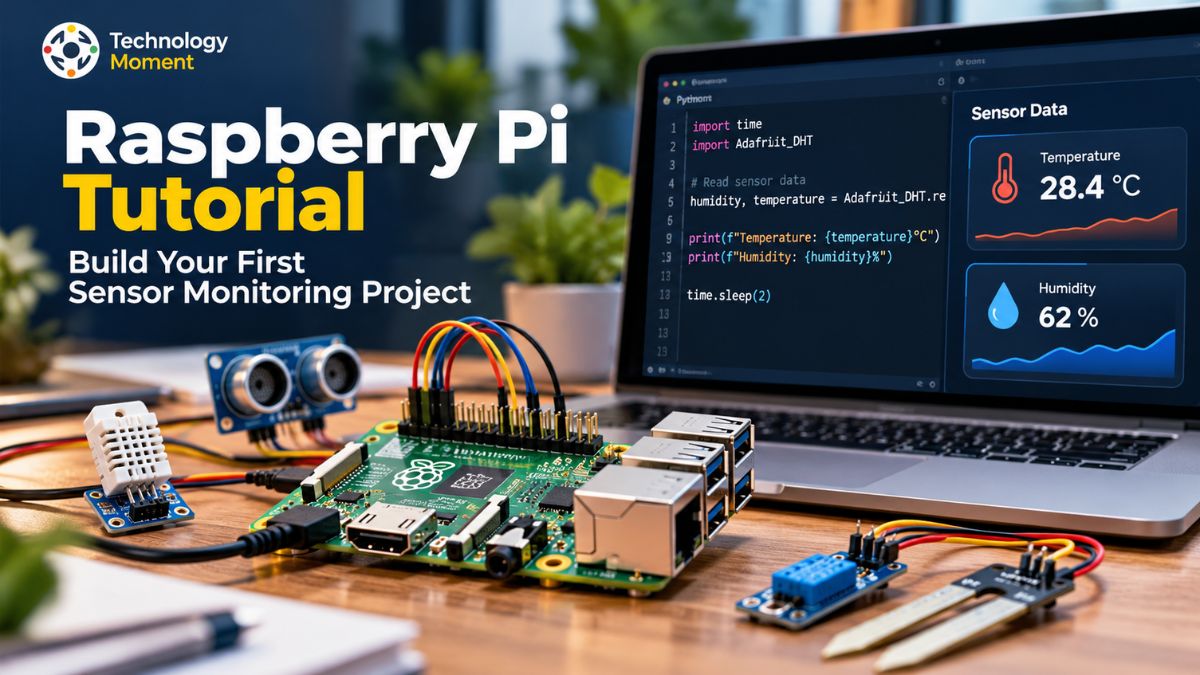
Building your first Raspberry Pi sensor monitoring project is a practical way to explore electronics, Python programming, and real-world data collection. Whether you are new to Raspberry Pi or looking to expand your technical skills, this project will help you understand how a small computer can collect environmental information and turn it into useful data.
In this Raspberry Pi sensor project tutorial, you will learn how to connect a compatible sensor, configure the necessary software, write a Python script, and read temperature and humidity measurements. You will also discover how to record sensor readings in a CSV file, allowing you to review historical data and understand how environmental conditions change over time. By following each step, you can build a simple monitoring system without needing advanced electronics or programming experience.
This guide walks you through setting up a temperature and humidity monitoring system, beginning with choosing compatible components and wiring the sensor to the Raspberry Pi’s GPIO interface. It then explains how to prepare the Python environment, retrieve environmental measurements, and resolve typical setup or connectivity issues. You will also discover how properly formatted timestamps, consistent sampling schedules, and organized record-keeping help maintain accurate and dependable monitoring data. For this practical implementation, either a DHT11 or DHT22 module can be used, as long as the wiring and software settings match the selected sensor.
At Technology Moment, our goal is to make technology easier to understand through practical tutorials, clear explanations, and useful step-by-step guides. This project follows that approach by focusing on a working example you can build, test, and adapt to your own needs. After completing this tutorial, you will understand the essential steps for building a sensor-based monitoring setup with Raspberry Pi and be ready to develop your skills further through practical projects focused on smart automation, real-time environmental data collection, and visual analysis of sensor readings.
What Is a Raspberry Pi Sensor Monitoring Project?
A Raspberry Pi sensor monitoring project is a practical electronics and programming application that uses a Raspberry Pi computer to collect, process, and display information from connected sensors. Depending on the sensor you choose, the system can measure temperature, humidity, air pressure, light intensity, or other environmental conditions. Instead of checking these measurements manually, you can use a Python script to collect sensor readings automatically and monitor changes over time.
It combines simple hardware connections with Python programming, making it easier to understand how physical devices communicate with software. For example, a DHT11 or DHT22 sensor can provide temperature and humidity measurements that the Raspberry Pi reads through its GPIO interface. A Python program can then display these values in the terminal and save them for later analysis.
The main advantage of a Raspberry Pi sensor monitoring system is its flexibility. You can configure the project to collect readings at regular intervals, attach timestamps to measurements, and store the information in a CSV file. This process, known as sensor data logging, helps you compare measurements collected at different times and identify environmental patterns. You can also extend the project with graphs, dashboards, or automated alerts as your skills improve.
Common applications include room temperature monitoring, home weather stations, greenhouse monitoring, and basic environmental data collection. These projects introduce important concepts such as hardware interfacing, sensor calibration, and automated data acquisition. In this Raspberry Pi sensor project tutorial, you will build a basic monitoring system from the ground up. The goal is to understand each component and create a working foundation that you can adapt to more advanced Raspberry Pi and IoT projects.
What You Need to Build the Project
Before starting your Raspberry Pi sensor project, gather the necessary hardware and check that each component is compatible with your board. You will need a Raspberry Pi with GPIO pins, a suitable power supply, a microSD card containing Raspberry Pi OS, and access to a computer or monitor for setup. A keyboard and mouse can make the initial configuration easier, although you can also work remotely through an SSH connection if your Raspberry Pi is configured for network access.
For this beginner-friendly Raspberry Pi sensor monitoring project, choose a DHT11 or DHT22 temperature and humidity sensor. The DHT11 is a straightforward option for basic experiments, while the DHT22 generally offers a wider measurement range and better stated accuracy. Both sensors can be used to learn the fundamentals of reading environmental data with Python. Check the specifications of your particular sensor before making a selection. Depending on whether you have a bare sensor or a preassembled module, you may need an external pull-up resistor on the data line. Follow the manufacturer’s wiring instructions because component layouts and requirements can differ.
On the software side, prepare Raspberry Pi OS, Python 3, a code editor, and a compatible sensor library. A library such as Adafruit CircuitPython DHT can simplify communication with supported DHT sensors. You do not need an expensive development kit to begin; the essential requirement is a compatible board, a working sensor, and reliable connections. Keep your components organized before assembling the circuit. Confirm the sensor pinout, identify the correct GPIO connection, and ensure that the sensor’s data signal is compatible with the Raspberry Pi’s 3.3-volt GPIO logic. Preparing these items in advance makes the hardware setup easier to follow and reduces avoidable wiring mistakes.
Prepare Raspberry Pi OS and Python
The next step is to prepare your Raspberry Pi software environment so that Python can communicate with the connected sensor. Start Raspberry Pi OS and open a terminal, either directly on the device or through an SSH session. Before installing project dependencies, update the package information and install available system updates using sudo apt update followed by sudo apt full-upgrade. Restart the Raspberry Pi if the update process requires it.
Check whether Python 3 is available by running python3 --version. You should also confirm that the package installer is available. Keeping your project in a dedicated directory helps separate its files from other Raspberry Pi projects. Create a folder named sensor-monitor and move into it before setting up the environment.
A Python virtual environment is a useful way to manage project dependencies without unnecessarily changing the system-wide Python installation. Create one with python3 -m venv .venv and activate it using source .venv/bin/activate. If the environment creation command reports that the venv package is missing, install the appropriate package for your Raspberry Pi OS version and try again.
For a DHT11 or DHT22 sensor, install the compatible library with python -m pip install adafruit-circuitpython-dht. Depending on your operating system and hardware configuration, additional dependencies, such as the relevant GPIO support packages, may be required. Follow the library’s current installation instructions for your system.
After installation, verify that Python can import the required modules before connecting everything to the complete application. Save your scripts inside the project directory and use the virtual environment whenever you run them. This organized Raspberry Pi Python setup makes troubleshooting easier and helps prevent dependency conflicts. Once the environment is ready, you can proceed to the physical sensor wiring and test the connection.
Connect the Sensor to Raspberry Pi GPIO Pins
Connecting the sensor correctly is an essential part of building a reliable Raspberry Pi sensor monitoring system. GPIO stands for General-Purpose Input/Output, and these pins allow the Raspberry Pi to communicate with compatible electronic components. In this project, the sensor sends temperature and humidity information through a data connection that your Python program can access using the appropriate library.
Begin by identifying the power, ground, and data connections on your DHT11 or DHT22 sensor. The exact pin arrangement depends on the sensor package or breakout module, so consult its datasheet instead of assuming that every model uses the same layout. Connect the sensor’s ground to a Raspberry Pi ground pin and its power input to a voltage supported by that particular sensor and module. Connect the data output to a suitable GPIO pin, such as GPIO4, if supported by your selected hardware and library.
A bare DHT sensor may require a pull-up resistor between the data line and the appropriate supply voltage. Some breakout modules already include this component. Check the manufacturer’s documentation before adding another resistor. Most importantly, Raspberry Pi GPIO inputs use 3.3-volt logic and are not 5-volt tolerant. Never allow a 5-volt signal to reach a GPIO input.
Before powering the circuit, double-check every wire, confirm the sensor’s pinout, and ensure that no connections are shorted. If you are using a numbered wiring diagram, distinguish between physical pin numbers and BCM GPIO numbers because they are not interchangeable.
Once the wiring is complete, keep the circuit stable and prepare to run a small Python test. Successful communication should allow the program to retrieve temperature and humidity values. If the sensor does not respond, check the power supply, ground connection, selected GPIO pin, resistor requirements, and installed software library before changing the circuit. A careful hardware setup provides the foundation for accurate sensor readings and dependable data logging.
Write a Python Script to Read Sensor Data
After completing the hardware setup, the next step is to write a Python script that reads information from your connected sensor. In this Raspberry Pi Python sensor project, you will use a DHT11 or DHT22 sensor to collect temperature and humidity measurements. The script communicates with the sensor through a GPIO pin and displays the results in the terminal. Before running the program, activate your Python virtual environment and confirm that the required sensor library is installed.
In your project folder, create a Python script called sensor_reading.py. This sample configuration connects the sensor to GPIO pin 4, identified as board.D4 in Adafruit’s CircuitPython module. If your hardware uses a DHT11 sensor, replace the DHT22-specific class with the appropriate DHT11 class.
import time
import board
import adafruit_dht

sensor = adafruit_dht.DHT22(board.D4)

try:
    while True:
        try:
            temperature = sensor.temperature
            humidity = sensor.humidity

            print(f"Temperature: {temperature:.1f} °C")
            print(f"Humidity: {humidity:.1f}%")
            print("-" * 30)

        except RuntimeError as error:
            print(f"Sensor reading error: {error}")

        time.sleep(2)

except KeyboardInterrupt:
    print("Monitoring stopped.")

finally:
    sensor.exit()
Once you have saved the script, launch it by running python sensor_reading.py in the terminal. When the hardware setup is functioning properly, the program will continuously print the current temperature and humidity measurements. This confirms that Python is successfully collecting data from the connected sensor and presenting the results as they become available.
Basic error handling allows the application to recover from occasional unsuccessful measurements, while pressing Ctrl+C terminates execution and triggers sensor cleanup. If the program fails to start or produces no output, verify that the required Python package is installed, the GPIO pins are connected correctly, the selected sensor is supported, and the power supply is adequate. This implementation serves as a starting point for building Raspberry Pi-based environmental tracking systems and recording sensor measurements for later analysis.
Build a Raspberry Pi Sensor Data Logger Using Python
Displaying sensor readings is useful, but saving them makes your Raspberry Pi sensor monitoring project more practical. A data logger records measurements over time so you can examine environmental changes later. For this project, Python’s built-in csv and datetime modules allow you to save timestamped temperature and humidity readings without installing a separate data logging package.
Create a file named sensor_logger.py. The following example reads data from a DHT22 sensor connected to GPIO4 and appends successful measurements to a CSV file named sensor_data.csv. If the file does not exist, Python creates it and adds a header row.
import csv
import time
import board
import adafruit_dht
from datetime import datetime
from pathlib import Path

file_path = Path("sensor_data.csv")
sensor = adafruit_dht.DHT22(board.D4)

try:
    with file_path.open("a", newline="") as file:
        writer = csv.writer(file)

        if file_path.stat().st_size == 0:
            writer.writerow([
                "Timestamp",
                "Temperature_C",
                "Humidity_Percent"
            ])

        while True:
            try:
                temperature = sensor.temperature
                humidity = sensor.humidity
                timestamp = datetime.now().astimezone().isoformat(
                    timespec="seconds"
                )

                writer.writerow([
                    timestamp, temperature, humidity
                ])
                file.flush()

                print(timestamp, temperature, humidity)

            except RuntimeError as error:
                print(f"Reading failed: {error}")

            time.sleep(2)

except KeyboardInterrupt:
    print("Data logging stopped.")

finally:
    sensor.exit()
Run the script using python sensor_logger.py. The CSV file will store the timestamp, temperature, and humidity for each successful reading. The two-second interval is suitable for demonstrating basic logging with a DHT22; follow your sensor’s recommended sampling interval when adapting the project.
You can open the resulting file in a spreadsheet application to compare readings, calculate averages, or create charts. This Raspberry Pi data logger using Python provides a simple starting point for environmental data collection and future monitoring projects.
Run and Test Your Raspberry Pi Sensor Monitoring Project
Once your Python script and CSV logger are ready, test the complete system to confirm that the hardware, software, and data storage work together. Start by activating your virtual environment, moving into the project directory, and running python sensor_logger.py. Watch the terminal output for temperature and humidity readings. If the sensor is functioning correctly, the displayed values should update at the configured interval, although small fluctuations are normal.
Next, verify that the Raspberry Pi sensor data logging process is saving information correctly. Open the project directory and locate sensor_data.csv. The file should contain a header followed by rows with timestamps, temperature measurements in degrees Celsius, and relative humidity percentages. Allow the program to run for several minutes, then check whether additional rows have appeared. If you want to keep the original measurements, avoid opening the file in a mode that overwrites its contents.
Compare the terminal output with the CSV records to confirm that successful readings are being recorded. You can open the file in a spreadsheet application and format the timestamp column for easier inspection. Over time, this data can help you identify changes in room temperature or humidity and create simple environmental monitoring charts.
If the script fails to start, check that you are using the correct Python environment and have installed the required libraries. If readings fail repeatedly, inspect the sensor wiring, GPIO pin selection, power supply, and pull-up resistor requirements. DHT sensors can occasionally return reading errors, so allow the recommended retry interval rather than repeatedly querying the device too quickly. When you finish testing, press Ctrl+C to stop the program safely. Confirm that the CSV file remains readable and contains the expected records. Successful testing means your Raspberry Pi sensor monitoring project can read measurements, display results, and save data for later analysis.
Troubleshoot Common Raspberry Pi Sensor Problems
Even after completing the hardware setup and Python programming, you may encounter issues when running your Raspberry Pi sensor monitoring project. Common problems include missing sensor readings, incorrect temperature values, Python library errors, and CSV files that do not contain the expected data. Identifying the cause systematically can help you restore the project without replacing working components unnecessarily.
If your Raspberry Pi sensor returns no readings, start by checking the power, ground, and data connections. Confirm that the sensor is connected to the correct GPIO pin and that the pin used in your Python script matches the physical wiring. For example, board.D4 refers to BCM GPIO4, not physical header pin 4. You should also verify whether your DHT11 or DHT22 module requires an external pull-up resistor. The manufacturer’s wiring instructions should guide the final connection.
Python scripts may fail to execute if a required sensor-related module is unavailable or installed outside the active Python environment. Before launching your program, enable the appropriate virtual environment and confirm that all dependencies are installed correctly. When an import exception occurs, make sure the package is present in the environment associated with the interpreter running your script. Installing libraries indiscriminately with elevated permissions is not recommended, as it may interfere with existing dependencies or introduce environment conflicts.
Unstable sensor output does not necessarily mean that the device itself is defective. DHT sensors may occasionally fail to communicate properly because of signal interference, electrical disturbances, or temporary transmission issues. To improve reliability, catch recoverable RuntimeError exceptions and allow a minimum interval of two seconds before attempting another measurement. If the problem persists across multiple attempts, inspect the circuit connections, verify the supply voltage, check whether the required pull-up resistor is in place, and ensure that the sensor is supported by your hardware and software setup.
If your Raspberry Pi CSV data logger produces an empty file, confirm that the script is saving successful readings, that the destination directory is correct, and that the program has permission to write the file. Check the timestamp and measurement columns to ensure that records are being appended rather than overwritten. Troubleshooting each component separately makes it easier to identify whether the problem comes from hardware, software, or data storage.
Improve and Extend Your Sensor Monitoring Project
After successfully building your first Raspberry Pi sensor monitoring project, you can extend its capabilities to collect more useful information and automate routine tasks. The basic system already demonstrates how to read sensor data using Python, display measurements, and save them to a CSV file. With a few improvements, it can become a more flexible environmental monitoring solution for your home, workspace, or learning environment.
One useful improvement is to configure automatic execution so the monitoring script starts when the Raspberry Pi boots. A systemd service can run the program in the background and restart it according to your chosen service configuration. Make sure the service uses the correct project directory, Python virtual environment, and permissions. You should also provide a safe shutdown mechanism so the sensor and its resources are released properly.
You can improve your Raspberry Pi sensor data logging system by collecting timestamped readings over longer periods and reviewing the resulting CSV file. Opening the data in a spreadsheet application allows you to create charts, calculate average temperatures, and compare humidity levels throughout the day. For more advanced analysis, Python libraries can help transform recorded measurements into graphs and summaries.
Another option is to add a compatible sensor such as the BME280, which can measure temperature, humidity, and atmospheric pressure. Because it uses a different communication interface and library, you will need to adjust the wiring and Python code accordingly. Always verify voltage compatibility and follow the sensor manufacturer’s documentation before connecting additional hardware.
As your skills develop, consider creating a Raspberry Pi sensor dashboard that displays current measurements and historical trends. You could also explore greenhouse monitoring, home weather stations, or IoT sensor projects that send data to a remote system. Start with one improvement at a time, test each change, and retain your original working script as a reference. This approach helps you build a more reliable monitoring system while strengthening your Python programming and electronics skills.
Frequently Asked Questions About Raspberry Pi Sensor Projects
What hardware is needed for a Raspberry Pi sensor project?
You need a Raspberry Pi board, a compatible power supply, a microSD card with Raspberry Pi OS, a suitable sensor, jumper wires, and a breadboard if required. For temperature and humidity monitoring, a DHT11 or DHT22 is a practical starting point. You may also need a pull-up resistor, depending on your sensor module. Check voltage compatibility, GPIO connections, and manufacturer instructions before powering the circuit.
Which sensor is best for a Raspberry Pi monitoring project?
The best sensor depends on what you want to measure. A DHT11 is suitable for basic temperature and humidity experiments, while a DHT22 generally provides better stated accuracy and a wider measurement range. A BME280 is another option when you also want atmospheric pressure readings. Compare sensor specifications, interface requirements, library support, and operating conditions before choosing a component for your Raspberry Pi sensor monitoring project.
How do you log sensor data using Python?
You can log sensor data using Python’s built-in csv module. Read the measurements through a compatible sensor library, generate a timestamp, and append each successful reading to a CSV file. Include column headings for the timestamp and measured values so the information remains easy to interpret. You can then open the file in a spreadsheet application to review historical measurements, calculate averages, and create charts.
Can Raspberry Pi collect sensor data automatically?
Yes. A Raspberry Pi can collect sensor data automatically by running a Python script at regular intervals. You can configure the script to read measurements, attach timestamps, and save results to a CSV file. For unattended operation, a systemd service can start the program when the device boots. Ensure the sensor connections remain reliable, the storage location is writable, and the script handles reading errors appropriately.
How often should a Raspberry Pi read sensor data?
The sampling interval depends on your sensor, the speed of environmental changes, and your project’s requirements. For a DHT11 or DHT22 project using Adafruit’s CircuitPython DHT library, allow at least two seconds between retries after a reading error. For routine logging, choose an interval that respects the sensor’s specifications and avoids unnecessary repeated measurements. Faster sampling is not always more useful or more accurate.
Can you save Raspberry Pi sensor readings to a CSV file?
Yes. Python’s csv module can store sensor readings in a structured file containing timestamps, temperature, and humidity values. Open the file in append mode to preserve earlier records, and write a header when creating an empty file. You can later analyze the CSV using spreadsheet software or Python data analysis libraries.
What is the difference between DHT11 and DHT22?
The DHT22 generally offers a wider operating measurement range and better stated accuracy, making it more suitable for projects requiring more detailed environmental readings. Both sensors need correct wiring and compatible software. Check the datasheet for the exact specifications of your particular model before selecting it for a Raspberry Pi monitoring project.