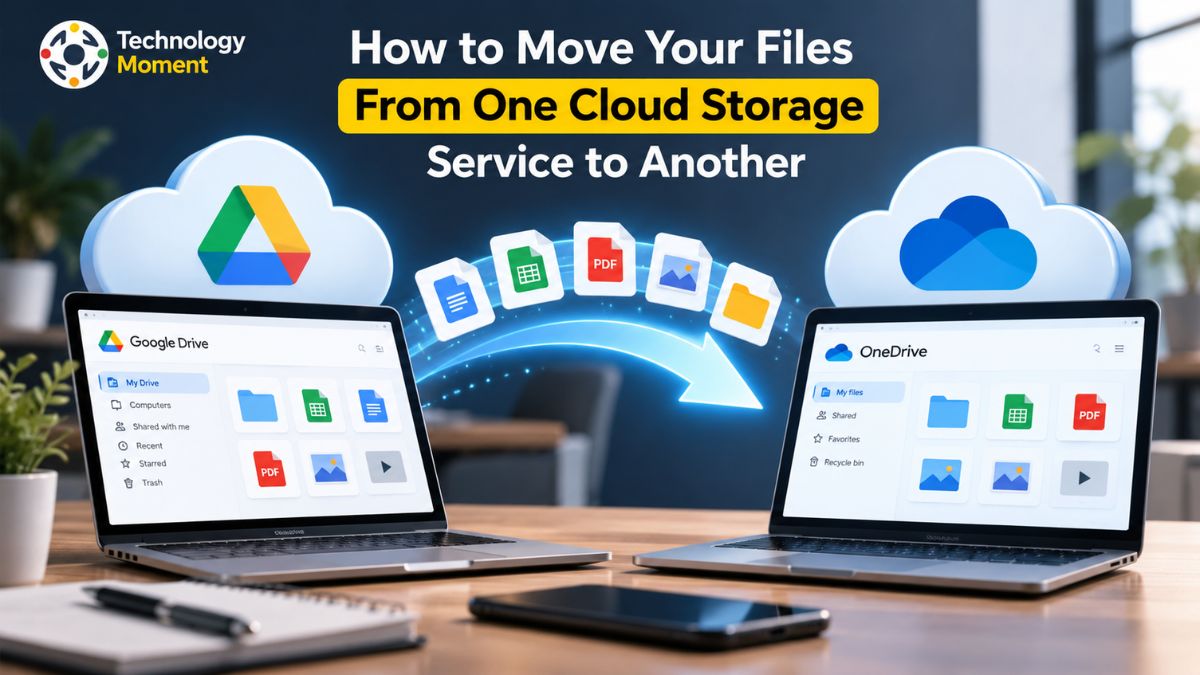
Moving your files from one cloud storage service to another may seem simple, but transferring everything safely takes more than copying and pasting. Whether you are switching providers to save money, organizing personal documents, or moving business data to a new platform, the process can become complicated when you have thousands of files, large folders, or shared documents to manage.
The good news is that you do not always need to download every file to your computer before moving it. Depending on the services you use, you may be able to transfer files directly between cloud accounts, use a migration tool, or move your data in smaller batches. Choosing the right method can save time, reduce manual work, and make the transition easier to manage.
However, speed should not be your only priority. Missing files, broken folder structures, duplicate documents, and lost sharing permissions can create problems after a transfer is complete. Before you begin, it is important to check your available storage, prepare a backup, review access permissions, and understand which file details your chosen method can preserve.
In this guide, Technology Moment walks you through how to transfer files between cloud storage services, from preparing your accounts to moving files in bulk and checking the results. You will also learn how to preserve folder organization, troubleshoot common transfer problems, and reduce the risk of accidental data loss. Whether you are managing a personal photo library or coordinating a business migration, these practical steps will help you move your files with greater confidence and keep your data organized throughout the process.
What to Know Before Moving Files to Another Cloud Storage Service
Before you move files from one cloud storage service to another, take time to understand what needs to be transferred and how the destination will handle your data. Start by reviewing your source account and identifying the documents, images, videos, archives, and folders you want to keep. Check the available storage capacity in your destination account and compare it with the amount of data you plan to migrate.
Next, create a backup of your important files. Keeping an independent copy provides an additional recovery option if a transfer fails or some files are accidentally overlooked. Prepare a simple inventory containing important folder names, file counts, and any documents that require special attention. This information will help you compare the original data with the destination after migration.
Review file ownership and shared folder permissions as well. Files shared with colleagues, clients, or family members may not retain the same access settings when moved between different providers. Similarly, version history, comments, timestamps, and other file metadata may not transfer exactly as expected. Check the destination provider’s documentation to understand these limitations.
Finally, plan the migration at a convenient time, particularly if you are moving business files. Avoid making unnecessary changes to documents during the process, and inform team members if their access or workflow could be affected. Proper preparation makes cloud storage migration easier to manage, reduces unexpected interruptions, and helps prevent accidental data loss.
Discover the Most Effective Way to Move Files Across Cloud Storage Platforms
The best way to transfer files between cloud storage services depends on the amount of data, your available internet connection, budget, and the features supported by your providers. For a small collection of documents, manually downloading files from the original account and uploading them to the destination may be sufficient. This approach is straightforward, but it requires enough local storage and can become time-consuming when handling large folders.
For larger transfers, consider a cloud-to-cloud file transfer tool. Depending on the service, these tools can connect your source and destination accounts and transfer files without requiring you to download every item to your computer first. Before choosing one, check its supported providers, transfer limits, pricing, security practices, and ability to preserve folder structure. Review the permissions it requests and use a reputable provider.
Businesses and teams may benefit from built-in migration tools designed for organizational accounts. These options can provide more control over bulk data migration, user accounts, and certain permissions. However, available features vary by platform and subscription, so confirm that the tool supports your specific migration requirements.
Compare the methods based on convenience, reliability, and the effort required to verify the results. If your internet connection is limited or your computer has little free space, a supported direct transfer may be more practical than manual downloads. If you are moving sensitive documents, security should take priority over speed or price.
Whichever method you choose, test it with a small group of files first. Confirm that the documents open correctly, folders appear in the expected locations, and access permissions work as intended. A successful test can reveal compatibility issues before you transfer your entire cloud storage library.
How to Transfer Files Between Cloud Storage Services Step by Step
Once you have selected a suitable method, organize the migration into manageable steps. First, sign in to your source cloud storage account and identify the files and folders you want to move. Remove unnecessary copies only if you are certain they are not needed, and keep your original data intact throughout the transfer. Check that you have permission to access and copy the selected content.
Next, sign in to the destination account and confirm that it has enough available storage. If you are using a cloud file migration tool, connect both accounts by following its authorization instructions. Review the access permissions carefully and avoid providing credentials directly to an untrusted service. Some tools may require additional approval from an account administrator, particularly for business environments.
After connecting the accounts, select the required files and folders. Choose an appropriate destination location and check whether the tool offers options for preserving folder hierarchy, handling duplicate names, or excluding unnecessary content. Start with a small test transfer before processing everything, especially when moving important business documents.
When the test succeeds, begin the main transfer. Monitor the progress report and note any skipped files, warnings, or failed operations. Depending on the transfer method and the amount of data, the process may take minutes or several hours. Avoid changing the original files while the migration is running because modifications can complicate file verification.
After the transfer finishes, compare the source and destination file counts and review the transfer log. Open important documents, inspect representative folders, and check whether shared files remain accessible to the intended users. Keep the original files until these checks are complete. Following a consistent process helps make cloud storage migration more predictable and reduces the risk of missing or damaged data.
How to Transfer Large Files and Multiple Folders in Bulk
Transferring large files and multiple folders requires a little more planning than moving a few individual documents. Start by estimating the total data volume and identifying especially large files, such as videos, design projects, archives, or database exports. Check the destination account’s storage capacity and review any file-size restrictions or transfer quotas that could interrupt the process.
For large-scale cloud migration, a tool that supports bulk file transfer can reduce repetitive work. Depending on the provider, you may be able to select entire folders or several collections at once instead of processing each file individually. Before starting, confirm that the tool supports your source and destination services and can handle the types of files you need to move.
Organizing the transfer into smaller batches can make problems easier to identify. For example, you might transfer documents first, followed by media files and archived projects. Alternatively, divide the migration by department, project, or top-level folder. Keep a record of completed batches so you can identify what remains if the process is interrupted. This approach also makes it easier to compare file counts and investigate missing items.
Transfer speed depends on several factors, including internet bandwidth, provider limits, file sizes, and the migration tool’s capabilities. If a transfer fails, inspect the error report before restarting everything. Retry failed items individually or resume the transfer if the tool supports that feature. Avoid repeatedly creating new copies without checking whether earlier attempts completed successfully, as this can produce duplicate files.
Once all batches finish, verify the results before removing anything from the source account. Compare folder contents, check important file sizes, and open selected files to confirm they work correctly. Careful batching and verification help you move large volumes of cloud data efficiently while maintaining better control over file organization and data integrity.
How to Preserve Folder Structure, File Names and Metadata
When moving files between cloud storage services, preserving the original organization is just as important as transferring the files themselves. A successful cloud storage migration should make it easy to find documents in their familiar locations without rebuilding the entire folder hierarchy manually. Before starting, review your source account and identify the main folders, subfolders, and important file names you want to retain. If you are transferring a large collection, create a simple inventory to help you compare the original structure with the destination later.
Choose a cloud file migration tool that supports folder structure preservation and check its settings before beginning. Some tools allow you to recreate the original hierarchy, while others may transfer only selected files or place them in a different destination structure. For example, Dropbox provides an import option for certain Google Drive files that can preserve their folder organization, although its supported workflow has limitations. Always check the current documentation for your chosen service before relying on a particular feature. <Cite refs={[“turn916027search4”]}/>
File names also require attention. Check whether the destination service supports the characters and naming conventions used by the source platform. Certain characters may be removed or changed during migration, potentially creating confusion or naming conflicts. Metadata, such as modification dates, file ownership, version history, and sharing permissions, may also behave differently across providers. Do not assume every attribute will transfer automatically.
For important business documents, test the migration with a small folder first. Compare file names, folder locations, and relevant metadata after the transfer. Keep a record of any changes and resolve unexpected differences before migrating the remaining files. Careful planning helps maintain an organized cloud library and reduces the time needed to locate documents after the move.
How to Verify Files After Cloud Migration
Completing a cloud-to-cloud file transfer does not automatically mean every file has arrived correctly. Some files may be skipped because of access restrictions, unsupported formats, naming conflicts, or temporary errors. File verification helps you identify these problems before you depend entirely on the destination account. Start by reviewing the migration report, if your transfer tool provides one, and identify the number of files transferred, skipped, and unsuccessfully copied.
Next, compare the source and destination folders. Check the total number of files and subfolders, taking into account any items you intentionally excluded. Matching counts are a useful starting point, but they do not prove that every file is identical. Open a selection of important documents, photographs, videos, and archives to confirm that they work as expected. Pay particular attention to business records, financial documents, and files that would be difficult to replace.
For critical data, compare file sizes and use checksums where supported. A checksum is a value calculated from a file’s contents; matching checksums generated using the same algorithm provide strong evidence that two accessible files contain identical data. However, not every cloud provider or migration tool exposes checksum information, so this method may require additional software or a separate verification process.
Review file integrity alongside metadata and permissions. Confirm that important documents remain accessible to the correct users and that essential folder structures have been preserved. Google Workspace migration tools, for example, provide reporting on migrated and skipped items for supported workflows, helping administrators investigate incomplete transfers. Keep the original files until verification is complete and any missing items have been recovered. A final verification checklist gives you a clear record of what was checked and helps prevent problems from going unnoticed after migration.
How to Avoid Accidental Data Loss During Cloud Migration
Preventing accidental data loss should be a priority whenever you move files between cloud storage providers. Before starting, create a separate backup of important documents and confirm that you can access it if something goes wrong. A backup stored independently of both the source and destination accounts can provide an additional recovery option. For business data, follow your organization’s retention requirements and ensure that the backup includes the files necessary for normal operations.
One of the most important precautions is to keep the original files until the migration has been verified. Avoid selecting options that automatically delete source files unless you fully understand their behavior and have confirmed that the destination copy is complete. For example, Dropbox’s Google Drive import workflow includes a source-deletion option, making it important to review the selected settings carefully before uploading.
During the transfer, minimize unnecessary changes to files and folders. Editing, renaming, or moving documents while migration is underway can complicate verification and create uncertainty about which version is current. For team environments, communicate the migration schedule and, where practical, establish a temporary process for handling new or updated files. If the migration tool supports incremental transfers, check whether it can copy changes made after the initial migration.
Security is equally important. Use trusted migration tools, review their requested account permissions, and avoid sharing passwords through insecure channels. Once the transfer is complete, revoke third-party access that is no longer required and review sharing settings in the destination account. Finally, verify important files, folder structures, ownership, and access permissions before considering the migration finished. Maintain a record of unresolved errors and confirm that recovery options remain available. These precautions reduce the risk of losing valuable information and help individuals, teams, and businesses move their cloud data with greater confidence.
How to Transfer Files Between Popular Cloud Storage Services
Moving data from one cloud storage platform to another can vary based on the services you choose, your subscription type, and the transfer options each provider offers. Start by reviewing the available solutions, such as built-in import features, migration services provided by the platforms themselves, or external tools designed to move files across cloud accounts. Keep in mind that transfer methods available to individual users may differ from those offered to business organizations or educational institutions.
For Google Drive to Dropbox, Dropbox offers an import feature for eligible individual accounts. Its documented workflow allows users to select files from Google Drive and includes an option to preserve their folder organization. However, the feature described in its help documentation does not import entire folders as a single selection, so users should check whether it meets their needs before proceeding.
For Dropbox to Google Drive, eligible Google Workspace administrators can use Google’s migration service to move supported business files, folders, and associated permissions. The service also provides migration reports and supports delta updates for newly added or modified files within the documented workflow. These capabilities are particularly useful when coordinating a business migration. For OneDrive to Google Drive, Google provides migration workflows for supported organizational accounts. However, some content, sharing settings, shortcuts, and previous file versions may not transfer in exactly the same way.
For other combinations, including Google Drive to OneDrive or OneDrive to Dropbox, verify the currently available import and export options instead of assuming that a direct transfer is supported. Whichever route you choose, test a small batch, preserve your source files, and verify the destination before deleting anything. Provider-specific checks help reduce migration errors and keep important documents accessible after the move.
Some File Types or Versions Did Not Transfer
During cloud storage migration, you may discover that certain files, previous versions, or special document features did not transfer to the destination account. This does not always mean the migration has failed completely. Some cloud storage services support only specific file types, while others apply restrictions based on file ownership, access permissions, or file size. Identifying the reason for each missing item will help you choose the correct solution.
Start by reviewing the migration report, if your tool provides one. Look for skipped files, failed transfers, warnings, and unsupported content. Check whether the affected files are restricted, owned by another user, or stored in a format that the destination service cannot import. For example, Microsoft’s OneDrive import documentation identifies certain unsupported content from Google Drive and Dropbox, including Google Forms, Google Sites, and some provider-specific features.
Next, determine whether the problem involves the file itself or its additional features. A document may transfer successfully while losing version history, comments, macros, or other functionality. Google also warns that unsupported content within files may not migrate to another storage provider. Keep the original files until you have confirmed that the migrated versions contain everything you need.
If a file was skipped, check your account permissions, destination storage capacity, and transfer settings before trying again. You may need to download the original file, convert it into a supported format, or use a different migration method. For previous versions, check whether the source provider allows you to download or restore them separately. After resolving these issues, retry the affected files and verify the results. Recording unresolved items helps ensure that important documents are not overlooked during the migration.
What to Do After Moving Your Files to the New Cloud Service
Once your files have moved to the destination account, take time to confirm that the new cloud storage environment is ready for everyday use. Begin by comparing the original and destination file inventories. Check the number of files and folders, review migration reports, and investigate any items marked as skipped or failed. Pay particular attention to important documents, business records, project folders, and files that would be difficult to recreate.
Next, open a representative selection of transferred files. Confirm that documents display correctly, images and videos open, and archives can be accessed. Where possible, compare file sizes and use checksum verification for critical files. Check the folder hierarchy, file names, and relevant metadata to make sure your cloud file management system remains organized. These checks can reveal problems that a successful transfer notification alone might not identify.
Check the new storage environment to ensure that permissions and user access are configured correctly. Add relevant colleagues to the required directories, verify that shared URLs work as expected, and revise any connected tools, apps, or automated processes that rely on the previous storage service. In a business setting, notify staff once the transition is complete and provide clear instructions for locating and opening their files. When incremental migration is available, review any content modified or added during the transfer and run another synchronization if necessary to ensure the destination contains the latest versions.
Before removing the old account or deleting original files, confirm that your backup and recovery options are working. Retain the source data until you have resolved outstanding errors and met any applicable retention requirements. Finally, revoke unnecessary access granted to third-party migration tools and review the security settings of the destination account.
A careful post-migration review helps maintain data integrity, protects important information, and ensures that individuals and teams can continue working without unnecessary disruption.
Frequently Asked Questions About Moving Files Between Cloud Storage Services
What’s the easiest way to move data from one online storage platform to another?
You can transfer files by downloading them from the original account and uploading them to the destination, using a supported direct cloud-to-cloud transfer tool, or choosing a provider-managed migration service. The best method depends on your storage providers, file volume, and available features. Before starting, back up important files, check account permissions, and verify the transferred data before deleting the originals.
Is it possible to migrate files directly between cloud drives without saving them locally?
Yes, some cloud-to-cloud file transfer tools and built-in migration services can move supported files directly between accounts without requiring a local download. Availability depends on the source and destination providers, account type, and tool permissions. Check supported integrations, transfer limits, security practices, and pricing before choosing a service. Test a small folder first to confirm that the transfer works as expected.
Which solution works best for transferring data across different cloud storage providers?
The best cloud file migration tool depends on your requirements. Compare supported providers, bulk transfer capabilities, folder preservation, security controls, pricing, and error reporting. Individuals may prefer a simple transfer utility, while businesses may need administrator controls and detailed migration reports. Check official provider documentation and test a small batch before transferring important files or large amounts of data.
How do I prevent data loss during cloud migration?
Create a backup before starting, preserve the original files, and keep a record of important folders and file counts. Review access permissions and identify unsupported file types before transferring data. After migration, inspect error reports, open important documents, and verify file integrity where possible.
How long does cloud storage migration take?
Cloud storage migration time depends on the total data volume, internet speed, file sizes, provider limits, and the transfer method. A small collection may move quickly, while a large business migration can take hours or longer. Many small files can also require additional processing time. Run a test transfer, monitor progress reports, and allow time for verification before switching completely to the destination service.