Paper documents still play an important role in everyday life, from class notes and study materials to invoices, receipts, contracts, and business records. However, keeping these documents only on paper can make information hard to organize, share, and find when you need it. How to Scan Paper Documents into Searchable PDFs, but one common problem is that a scanned PDF may behave like an image, preventing you from searching for words or copying text directly.
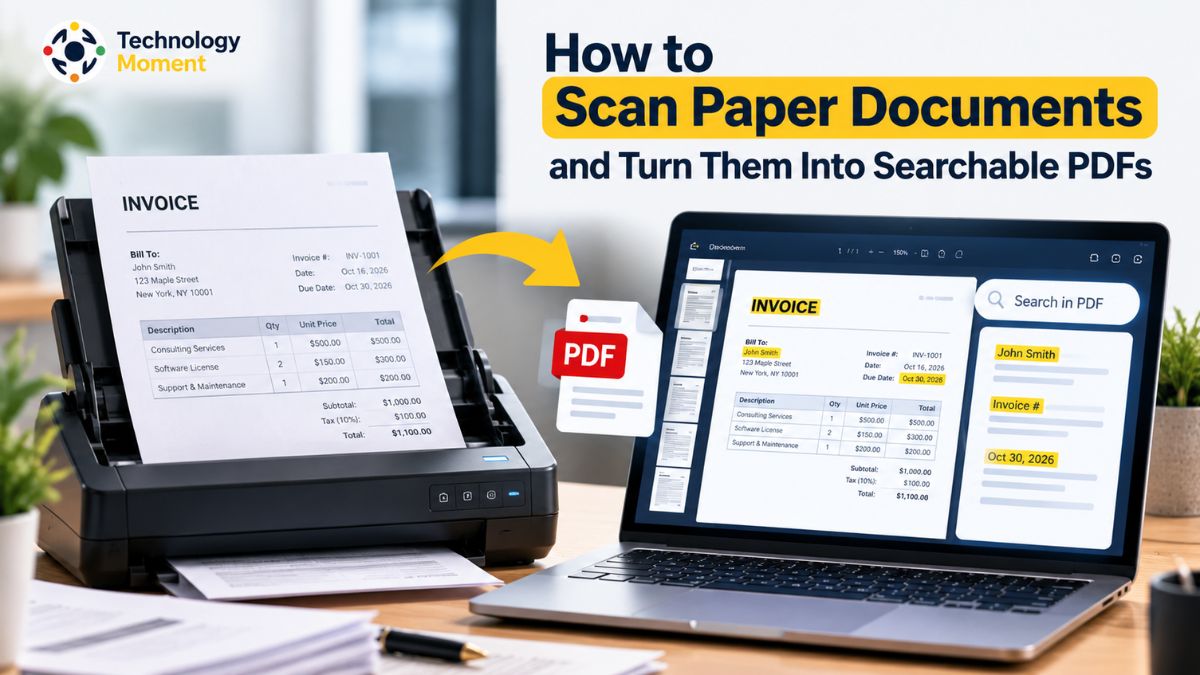
The solution is to create searchable PDF documents using Optical Character Recognition (OCR). This technology identifies printed text in scanned pages and adds a searchable text layer, making digital documents easier to navigate and manage. With the right scanning method and OCR settings, you can turn paper records into useful digital files without losing sight of the original document.
In this guide, Technology Moment will walk you through the process of scanning paper documents and converting them into searchable PDFs. You will learn how to scan documents using a smartphone or scanner, apply OCR to new or existing PDF files, arrange pages in the correct order, and choose clear, consistent file names. We will also cover common text-recognition problems and simple ways to verify that your finished document is accurate and searchable.
Whether you are a student organizing notes, an office worker managing paperwork, or a small business owner maintaining important records, these practical steps can help you build a more efficient digital filing system. By the end, you will know how to create searchable PDF documents, check their quality, and store them more confidently for future use.
What Is a Searchable PDF and How Does OCR Work?
A searchable PDF is a digital document that allows you to find specific words or phrases without reading every page manually. Unlike an ordinary image-based PDF, which may contain only pictures of printed pages, a searchable PDF includes text that a PDF reader can recognize, select, and search. This makes searchable documents useful for students managing study notes, office workers handling reports, and small businesses organizing invoices, receipts, and customer records.
Optical Character Recognition (OCR) helps computers extract written information from scanned pages and turn it into digital text. Rather than treating a scanned PDF as a collection of images, OCR software identifies individual characters and words within each page. It can then embed the detected text into the PDF, allowing the document to remain visually unchanged while becoming searchable. This capability is particularly valuable for businesses, offices, and organizations that maintain large digital archives.
Consider a company employee who needs to retrieve a specific detail from a lengthy, 50-page report. Searching through every page manually can be time-consuming. OCR technology converts the document’s printed content into searchable text, allowing the employee to find a required invoice reference or specific passage within seconds. Many PDF readers also support copying the extracted text for use in emails, spreadsheets, or other business documents.
It is important to understand that OCR accuracy depends on the quality of the original scan, the language selected, and the complexity of the document. Blurry images, unusual fonts, and handwritten notes can produce recognition errors. Therefore, creating searchable PDF documents involves more than scanning pages; it also requires checking the recognized text. Once you understand how OCR works, you can choose the right scanning method and create digital files that are easier to search, organize, and share.
What You Need Before Scanning Paper Documents
Before you create searchable PDF documents, prepare the necessary equipment, software, and paper records. The right setup depends on how many documents you need to scan and how you plan to use the finished files. For occasional paperwork, a smartphone with a suitable document-scanning app may be sufficient. If you regularly process large stacks of invoices, forms, or office records, a dedicated document scanner with an automatic document feeder can save time.
You will also need a tool that supports Optical Character Recognition (OCR). Some scanning apps can create searchable PDFs automatically, while other tools require you to apply text recognition after saving the scan. Check whether your chosen software supports your device, document language, required page count, and preferred file format. If you need to process confidential information, consider offline OCR software or another solution that meets your privacy requirements.
Preparing the paper documents is equally important for accurate text recognition. Remove staples and paper clips, flatten folded pages, and arrange the documents in the correct order. Make sure printed text is readable, and that pages do not contain unnecessary shadows, smudges, or obstructed areas. For books or bound documents, position each page carefully to reduce distortion near the spine.
For example, a student might use a course name and topic, while a business could include the document type, date, and reference number. Consistent names make digital document organization easier later. Finally, ensure your device has enough storage space and choose a secure destination for the files. A little preparation can improve scan quality, reduce repeated work, and make the complete scanning process more efficient.
How to Scan Paper Documents to PDF Using a Smartphone
A smartphone can serve as a convenient mobile document scanner when you need to digitize class notes, receipts, letters, or business paperwork. Modern scanning apps can detect page boundaries, crop images, correct orientation, and combine multiple scans into a single PDF. However, creating a searchable PDF also depends on whether the app supports OCR or allows you to process the saved document separately.
Start by placing the paper document on a flat, contrasting surface in a well-lit area. Open your chosen scanning app and position the camera directly above the page. Keep the entire document inside the capture area and avoid shadows, reflections, and movement. Capture the page, review the preview, and adjust the crop if any text or important details are missing. If the scan appears blurry or distorted, take another image before continuing.
When scanning multiple pages, add each page to the same document and review the thumbnails before saving. Check that the pages follow the correct order and that no page has been duplicated, rotated incorrectly, or omitted. Depending on the app, you may also be able to adjust image settings, such as grayscale or contrast, to improve readability.
On Android, Files by Google provides a document-scanning feature that saves scans as PDFs. On supported iPhones, Apple’s Preview app also offers document scanning and lets users review page adjustments before finishing. Features and availability can vary by device and software version. After saving your PDF, determine whether it contains searchable text. Try selecting a word or searching for a phrase in a PDF viewer. If the file contains only page images, use a compatible OCR tool to recognize the text. This final step helps turn a basic smartphone scan into a more useful digital document.
How to Create Searchable PDF Documents Using OCR
Once you have scanned your paper documents, the next step is to apply Optical Character Recognition (OCR) if the PDF does not already contain searchable text. The process is straightforward: open the scanned file in an OCR-compatible tool, select the text-recognition feature, choose the appropriate language, and process the document. Depending on the software, you may also be able to specify which pages should be recognized.
Before making any changes, save a separate copy of the scanned PDF so the original remains intact. Load the duplicate into an OCR application and locate its text-extraction feature, which may be labelled “Recognize Text,” “Text Recognition,” or a similar term. Set the language that matches the document to improve character detection and reduce reading errors. If the file contains many pages, specify which pages should be processed before launching the conversion.
After OCR finishes, save the processed file with a clear name that distinguishes it from the original scan. For example, Project_Report_Searchable.pdf makes the file’s purpose easy to identify. Some tools preserve the original page images and place an invisible text layer over them, while others offer additional options for enhancing scanned images. The exact features depend on the software.
You can also apply OCR to an existing scanned PDF rather than scanning the paper again. This is useful when you already have archived documents that cannot be searched. Free OCR tools and paid desktop applications may offer different limits, language support, batch-processing options, and privacy protections, so review the features before choosing one.
Finally, verify the result. Search for a word that appears clearly in the document, select and copy a short passage, and compare it with the original page. Pay particular attention to names, dates, amounts, and reference numbers. OCR can misread characters even when a document looks clear. Correct errors where possible and repeat recognition with improved scan quality if necessary. These checks help ensure your searchable PDF is genuinely useful for future reference.
How to Scan Multiple Pages and Keep the Correct Page Order
When scanning a long document, creating a single PDF with all pages in the correct order makes digital document management much easier. Whether you are digitizing study notes, office reports, invoices, or business records, a well-organized multi-page PDF helps you find information without opening several separate files. However, scanning multiple pages can sometimes result in missing sheets, duplicate pages, or an incorrect page sequence.
To avoid these problems, arrange your paper documents in the intended reading order before scanning. If you are using a smartphone, select the option to add another page after each scan. With a flatbed scanner, scan each sheet individually and combine the resulting files using a suitable PDF tool. If your scanner has an automatic document feeder, check its supported page capacity and whether it can scan both sides automatically.
After scanning, review the page thumbnails in your PDF editor. These previews make it easier to identify rotated pages, misplaced sheets, and accidental duplicates. Use the available page-management tools to reorder, rotate, insert, or delete pages as needed. For double-sided documents, verify that both sides have been captured and that the reading sequence remains consistent.
Before applying OCR, check the page order carefully. Optical Character Recognition can make text searchable, but it does not automatically guarantee that pages appear in the correct sequence. After processing, compare the final PDF against the original paper documents and confirm that the first, middle, and last pages are present. For more practical technology and document-management guidance, explore Technology Moment. Following a consistent scanning workflow helps students, office workers, and small businesses create searchable PDF files that are easier to navigate, share, and archive.
How to Improve OCR Accuracy in Scanned PDFs
Optical Character Recognition (OCR) converts text visible in scanned images into machine-readable content. However, OCR software cannot always recognize every character correctly. Blurry scans, poor lighting, unusual fonts, and distorted pages can reduce text recognition accuracy. If you want to create searchable PDF documents that are genuinely useful, improving the original scan is an important first step.
Start by checking the clarity of your scanned document. Make sure the text is readable, the page is correctly oriented, and the image does not contain unnecessary shadows or reflections. When scanning printed documents, use a suitable resolution and avoid excessive image compression. If the original paper is available and the text appears blurry, rescanning it may produce better results than repeatedly processing the same poor-quality image.
Next, correct tilted pages using a deskew feature and remove unnecessary borders through careful cropping. Adjust brightness or contrast when needed, but avoid aggressive image enhancement that could erase faint characters or important details. Selecting the correct document language is also essential because OCR tools use language-specific character patterns to recognize text.
After processing, check the extracted text against the original page. Pay special attention to names, dates, reference numbers, decimal points, and financial amounts. Characters such as the letter O and the number 0 can look similar, potentially creating errors that are difficult to notice during ordinary reading. If recognition remains inaccurate, try another OCR tool or adjust its settings. For documents containing tables, multiple columns, stamps, or handwriting, additional manual checking may be necessary. Remember that searchable text does not automatically mean accurate text. A careful review helps ensure that your searchable PDF remains reliable for searching, copying, and future reference.
How to Name and Organize Searchable PDF Files
If your digital files have unclear names or are stored in disorganized folders, finding the right document can still take unnecessary time. A consistent file-naming system helps students, office workers, and small businesses locate important information without opening every PDF individually.
Begin by choosing a naming format that describes the document clearly. For example, a student might save a file as Marketing_Chapter-03_Notes.pdf, while a business could use Invoice_2026-10-15_INV104.pdf. Including the document type, relevant subject, date, or reference number makes filenames more meaningful. Use a consistent date format, such as YYYY-MM-DD, when dates are important for sorting. Avoid vague names such as scan001.pdf, newfile.pdf, or document-final-final.pdf.
Next, organize files into folders based on their purpose. Students may create folders for individual subjects or semesters, while office workers might separate reports, contracts, meeting notes, and administrative records. Small businesses can maintain separate categories for invoices, receipts, customer documents, and financial records. Choose a structure that matches how you normally search for information rather than creating too many unnecessary folders.
OCR makes this system even more useful because you can search for words inside supported searchable PDF documents. However, clear filenames and organized folders remain valuable when you need to identify files quickly or work with multiple versions.
You can also use document metadata, such as titles and keywords, when your PDF software supports these features. For sensitive records, apply appropriate access permissions and store files in a secure location. Keep backups of important documents and avoid overwriting original scans until you have verified the processed versions. By combining descriptive filenames, logical folders, and searchable text, you can build a practical digital filing system that remains manageable as your document collection grows.
How to Verify That Your PDF Is Truly Searchable
After scanning paper documents and applying OCR, verify that the final PDF works as expected before sharing, submitting, or archiving it. A document may look perfectly clear on the screen while containing only page images. In that situation, the text may not be searchable or selectable. Checking the finished file helps identify this problem before it affects your workflow.
Start by opening the PDF in a compatible viewer and using its search function to find a distinctive word that appears in the document. Choose a word that is clearly visible and not repeated too frequently. If the viewer finds the word in the expected location, that is a useful indication that the document contains searchable text. Repeat the test with a few words from different pages because some PDFs contain a mixture of searchable and image-only pages.
Next, try selecting a sentence and copying it into a plain-text editor. Compare the copied content with the original page image. Look for missing words, incorrect punctuation, unusual spacing, or characters that have been recognized incorrectly. Pay particular attention to names, dates, invoice numbers, totals, and other details that must remain accurate.
You should also verify the document’s page count and reading order. Confirm that no pages are missing, duplicated, or rotated incorrectly. For documents with tables or multiple columns, check that the extracted text follows a sensible reading sequence. If the document will be used by people relying on assistive technology, remember that searchable text alone does not guarantee full PDF accessibility.
Finally, save the verified version with a descriptive filename and reopen that saved file to confirm that your changes were retained. Keep the original scan as a backup, especially when working with important records. If the text cannot be searched, run OCR again using suitable settings or improve the scan quality. These simple checks help ensure your searchable PDF is ready for everyday use.
How to Fix Common Searchable PDF Problems
Creating searchable PDF documents with Optical Character Recognition (OCR) can make everyday document management easier, but the process does not always work perfectly. You may find that a scanned PDF does not allow text searching, recognized words contain errors, or some pages are missing from the final file. Understanding these common problems can help you fix them without repeating the entire scanning process.
If you cannot search for text in a scanned PDF, first check whether OCR has been applied. An image-based PDF may look like a normal document but contain only page images. Open the file in an OCR-compatible tool, select its text-recognition feature, choose the correct language, and process the required pages. If the PDF is password-protected or has security restrictions, you may need appropriate permission before processing it.
When OCR produces incorrect or missing words, examine the original scan. Poor resolution, low contrast, skewed pages, and unusual fonts can reduce text-recognition accuracy. Improve the image quality, straighten the pages, and run OCR again if necessary. For important documents, review names, dates, account references, and financial figures manually rather than assuming every recognized character is correct.
Another common problem is an incorrect page order or an incomplete PDF. Open the page thumbnails, compare them with the original paper documents, and insert, rotate, reorder, or remove pages as required. If the final file is too large, consider adjusting image compression while keeping the text readable. Finally, save the corrected PDF under a clear filename and test its search function again. Keep a backup of the original scan until you have confirmed that the processed document is complete, readable, and searchable. These troubleshooting steps can help students, office workers, and small businesses maintain more reliable digital records.
How to Protect Sensitive Documents When Using OCR Tools
Scanning paper records into searchable PDF files can simplify document management, but privacy should remain a priority when handling sensitive information. Documents such as contracts, invoices, identity records, employee files, and financial statements may contain personal or confidential details. Before uploading a document to an online OCR converter, consider where the file will be processed, who may access it, and how long the service retains it.
One option is to use offline OCR software that processes documents locally on your computer or supported device. This can reduce the need to upload sensitive files to an external service, although you should still consider device security, backups, and software permissions. If you choose an online PDF OCR tool, review its privacy policy, data-retention practices, deletion options, and terms of service. Do not assume that a file is immediately deleted simply because the conversion has finished.
Protect your devices by keeping their operating systems, browsers, and scanning applications updated. Use strong authentication where available, and store completed PDFs in locations with appropriate access controls. If several employees need access to business records, grant permissions according to their responsibilities instead of sharing every document with everyone.
It is also important to verify the recipient before sending a searchable PDF by email or sharing a cloud link. Searchable files can make sensitive information easier to locate, so accidental sharing may expose more information than intended. For confidential records, consider encryption or password protection when supported by your workflow, and communicate passwords through a separate secure channel.
Finally, keep only the copies you need and follow applicable retention policies. Students can protect personal documents, while small businesses can establish consistent procedures for invoices, customer records, and contracts. Choosing suitable OCR tools and handling scanned documents responsibly helps balance convenience, accessibility, and privacy.
Frequently Asked Questions: How to Scan Paper Documents into Searchable PDFs
Is It Possible to Turn a Scanned PDF Into Searchable Text Without Paying?
Yes, several free scanning apps and OCR tools can help create searchable PDF documents. Available features, file-size limits, supported languages, and usage restrictions vary by service. Check whether your chosen tool includes OCR rather than simply converting images into a PDF. For confidential documents, review privacy policies before uploading files. Always test the finished PDF by searching for a word and checking whether the recognized text is accurate.
How to Make PDF Documents Searchable Using an Android Phone or iPhone?
Yes, you can scan paper documents using a compatible Android or iPhone app. Some apps include OCR, while others create image-based PDFs that require separate text recognition. Capture each page clearly, review the page order, and save the document. If text searching does not work, open the PDF in an OCR-compatible tool.
Why is the text in my scanned PDF not searchable?
A scanned PDF may store each page as an image rather than as readable digital text. To enable text searches, process the file with Optical Character Recognition (OCR), which identifies letters and words from the page images. Select the appropriate language before starting, as this can improve recognition accuracy. If certain words remain unsearchable, inspect the affected pages for blurred characters, skewed alignment, incomplete OCR processing, or access restrictions. Save the processed document and search for several words to confirm that recognition worked correctly.
Can I make a PDF searchable while keeping its original image quality?
Yes. OCR software can usually preserve the scanned pages and add a separate text layer that enables searching and text selection. The final result depends on the tool and its processing settings, since some applications may resize images, adjust contrast, or apply compression. For best results, retain a backup of the original file and avoid unnecessary image modifications. After processing, inspect the document at different zoom levels, paying particular attention to fine print, tables, signatures, and numerical information.
Can I search handwritten text in a PDF?
Handwritten text can sometimes be recognized, but results are generally less predictable than printed-text OCR. Accuracy depends on handwriting clarity, the language, document condition, and the capabilities of the recognition software. If the handwriting is important, review the extracted text manually and correct errors where possible. For difficult pages, keeping a clear image of the original handwriting alongside the recognized text can help prevent misinterpretation.
Can I create searchable PDFs offline?
Download any required software and language resources beforehand, then scan or import your documents and run text recognition locally. Offline processing can be useful when handling confidential records or working without an internet connection. Check the application’s requirements because some features, language packs, or processing options may still require online access.