Email has become an essential part of everyday work, but managing an overflowing inbox can quickly become a challenge. Between important business conversations, meeting updates, newsletters, notifications, and routine messages, it is easy to lose track of priorities. Important emails get buried, follow-ups are forgotten, and valuable time is spent sorting messages instead of focusing on meaningful work. The real problem is not simply receiving too many emails; it is finding an effective way to manage them.
This is where email management tools can make a difference. From smart email filters and automatic sorting to priority inboxes, unsubscribe features, and follow-up reminders, the right tools can help simplify everyday email tasks. Many solutions also offer automation and AI-powered features that make organizing messages, identifying important conversations, and reducing inbox clutter easier.
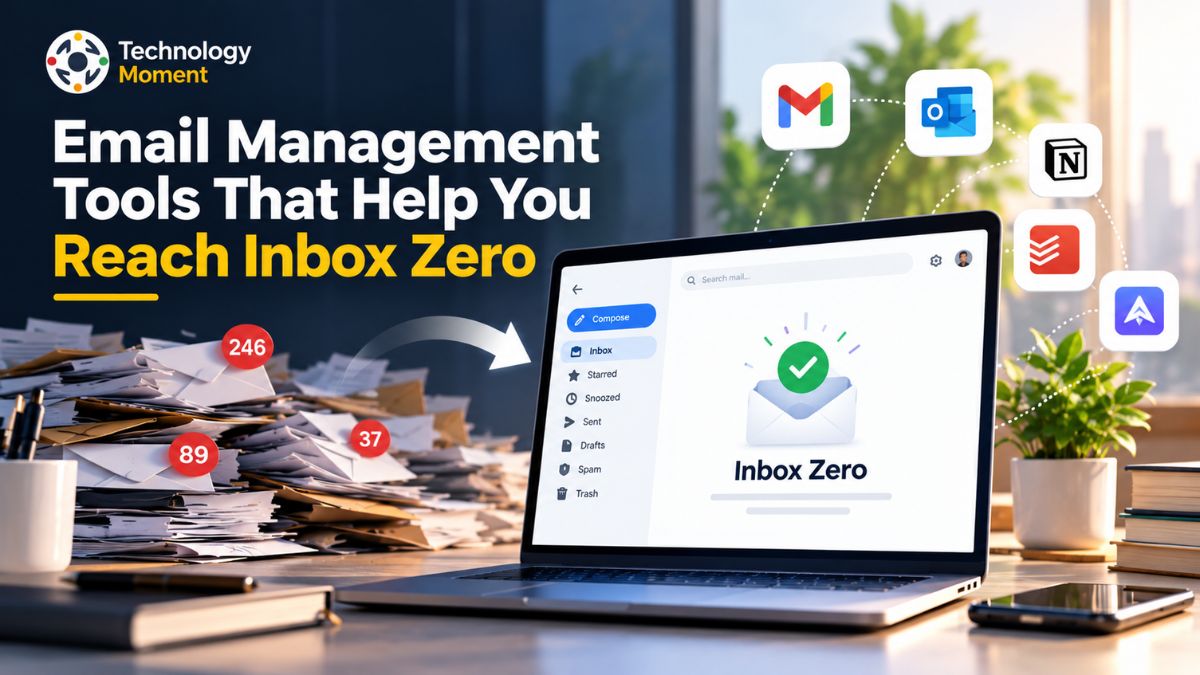
One popular approach is Inbox Zero, a method focused on processing emails systematically rather than allowing unread messages to accumulate. However, achieving a manageable inbox does not mean responding to every message immediately. It means creating an organized workflow that helps you identify what needs attention, what can wait, and what no longer needs to remain in your inbox.
At Technology Moment, we explore practical technology solutions that help people work smarter and make informed decisions. In this guide, we look at email management tools that can help you organize your inbox, prioritize important messages, manage follow-ups, and reduce email overload. Whether you are a busy professional, freelancer, entrepreneur, or remote worker, you will discover useful options for building a more organized and productive email routine.
What Are Email Management Tools and How Do They Work?
Email has become one of the most important communication channels for professionals, businesses, freelancers, and remote teams. However, managing a growing number of messages every day can become difficult without an organized system. This is where email management tools become useful. These tools are designed to help users organize, filter, prioritize, track, and manage incoming and outgoing emails more efficiently. Instead of manually checking every message, users can rely on different features to keep their inbox organized and reduce unnecessary work.
Email management software works by providing features that simplify common inbox activities. For example, email filters can automatically sort incoming messages based on the sender, subject, keywords, or other conditions. Users can create labels and folders to separate business conversations, personal messages, newsletters, receipts, and important notifications. This makes it easier to find specific emails without searching through hundreds of unrelated messages. Some inbox management tools also offer automatic categorization, allowing users to distinguish between important communications and less urgent updates.
Another useful feature is email prioritization. A smart inbox can help users identify messages that require immediate attention while keeping less important emails separate. Features such as email snoozing, reminders, and follow-up tracking also help prevent important conversations from being forgotten. For people managing several accounts, multiple email account management features can bring messages from different addresses into one organized workspace.
Modern email management tools increasingly include automation and AI-powered capabilities. Depending on the product, these features can summarize long conversations, suggest replies, identify important information, and help organize messages. Some applications also support email scheduling, bulk email cleanup, and newsletter unsubscribe management. These capabilities can reduce repetitive tasks and make everyday email productivity easier to maintain.
It is important to understand that email management tools are not all the same. Some work as complete email applications, while others connect with existing services such as Gmail or Outlook to provide additional organization features. The right choice depends on individual requirements, budget, preferred devices, and daily email volume. Ultimately, the purpose of these tools is to create a more manageable email workflow, save time, and help users stay focused on their priorities.
What Is Inbox Zero and Why Does It Matter?
Inbox Zero is an email management approach that focuses on processing messages regularly instead of allowing them to accumulate in an overcrowded inbox. The idea is not to spend the entire day answering emails or maintain an empty inbox at every moment. Instead, the Inbox Zero method encourages users to make clear decisions about every message: respond, archive, delete, delegate, or schedule it for later. This approach helps create a structured system for handling everyday communication.
One of the biggest reasons people struggle with email productivity is the constant arrival of new messages. Business updates, promotional newsletters, meeting invitations, customer questions, and automated notifications can quickly create inbox clutter. When everything remains in the same place, important emails become harder to identify. As a result, users may overlook deadlines, forget follow-up messages, or waste time repeatedly opening emails that do not require immediate action.
The Inbox Zero method helps address this problem by introducing a consistent email workflow. For example, users can start by identifying messages that need an immediate response. Emails requiring additional work can be converted into tasks or assigned a reminder. Messages that contain useful information but need no action can be archived, while unwanted promotional emails can be deleted or unsubscribed from. This process makes inbox organization more practical and reduces the pressure of managing unread messages.
Maintaining an organized inbox can also improve concentration. Instead of constantly checking incoming notifications, professionals can establish specific times for reviewing emails. Smart email filters, priority inbox features, email labels, and follow-up reminders can make this routine easier. These features help separate important conversations from less urgent communication and reduce unnecessary interruptions throughout the working day.
However, achieving Inbox Zero does not mean that every person must maintain exactly zero unread messages. Different professionals have different communication requirements, and some receive hundreds of emails daily. The goal is to build a sustainable system that prevents important messages from getting lost. When combined with suitable email organization tools and consistent habits, Inbox Zero can help reduce email overload, improve time management, and create a more productive working environment.
Best Email Management Tools to Help You Reach Inbox Zero
Choosing the right email management software becomes easier when you compare tools based on their features, pricing, compatibility, and intended use cases. Not every email organizer solves the same problem. Some applications focus on cleaning up an overcrowded inbox, while others provide smart email filters, priority messages, follow-up reminders, or AI-powered email organization. Therefore, comparing their capabilities before making a decision can help you find a solution that fits your daily workflow.
The following comparison covers popular email management tools for individuals, professionals, freelancers, entrepreneurs, and teams. Pricing is shown in US dollars and is indicative; actual costs depend on billing frequency, region, subscription plan, and current vendor offers.
| Email management tool | Best use case | Key features | Starting price / free option |
|---|---|---|---|
| Clean Email | Inbox cleanup | Bulk email cleanup, smart folders, unsubscribe management, Auto Clean | Free limited use; paid plans available |
| SaneBox | Automatic email filtering | Smart folders, priority sorting, reminders, email management rules | From approximately $7/month |
| Spark Mail | Everyday inbox organization | Smart Inbox, email categorization, snoozing, AI features | Free plan; paid plans available |
| Superhuman | Professional email productivity | Keyboard shortcuts, AI assistance, split inbox, follow-up features | From $25/user/month, annually |
| Shortwave | AI-powered email management | AI search, conversation summaries, smart organization | Free plan; paid plans available |
| Microsoft Outlook | Business email management | Focused Inbox, folders, rules, calendar integration | Free options; Microsoft 365 plans |
| Gmail | Free email organization | Filters, labels, categories, archiving, search | Free; paid Google Workspace plans |
| Mailbutler | Email follow-up management | Tracking, reminders, templates, tasks | Free/paid options |
| Boomerang | Email scheduling | Send Later, reminders, inbox management features | Free/paid options |
| Missive | Shared inbox management | Team assignments, internal comments, collaborative replies | Free trial; paid plans |
Essential Features to Look for in Email Management Tools
The best email management tools should do more than simply display incoming messages. They should help users organize conversations, identify important emails, reduce repetitive tasks, and maintain a manageable inbox. Before selecting email management software, it is important to understand which features can make a real difference in everyday email productivity. The right combination of features depends on how frequently you receive emails and how you prefer to manage your communication.
Smart Email Filters and Automatic Sorting: Smart email filters help organize incoming messages according to conditions such as sender, subject, keywords, and message type. For example, users can automatically direct newsletters into a separate folder while keeping business communications in their primary inbox. Automatic email sorting reduces manual work and makes important conversations easier to find.
Priority Inbox and Important Message Detection: Not every email requires immediate attention. Priority inbox features help separate important messages from routine notifications and promotional communication. This allows professionals to focus on urgent conversations without repeatedly checking every incoming message. Gmail’s importance markers and Outlook’s Focused Inbox are examples of built-in approaches to prioritizing email.
Email Labels, Folders and Categorization: Labels and folders create a structured system for storing messages. Users can organize emails into categories such as clients, projects, invoices, meetings, and personal communication. Some email services allow messages to have multiple labels, making information easier to retrieve when conversations belong to different categories.
Bulk Email Cleanup and Unsubscribe Management: An effective email organizer should make it easier to remove unnecessary messages. Bulk cleanup features allow users to process groups of emails instead of deleting them individually. Unsubscribe management also helps reduce unwanted newsletters and promotional emails, preventing inbox clutter from building up again.
Follow-Up Reminders and Email Tracking: Follow-up reminders are valuable when waiting for responses from clients, colleagues, or business partners. Email snoozing, reminders, and tracking features help users remember important conversations and manage unanswered messages more effectively.
AI Email Assistants and Automated Workflows: Modern AI-powered email management tools can summarize conversations, suggest replies, support email searches, and assist with message organization. Automated workflows can also handle repetitive activities, reducing the effort required to maintain an organized inbox.
Multiple Email Account Management: People who use separate personal and professional addresses may benefit from a unified inbox. Managing multiple email accounts in one application can simplify communication and reduce the need to switch between different platforms. When comparing email organization tools, also consider mobile compatibility, integration options, data privacy, security permissions, and subscription costs. A feature-rich application is not automatically the best choice. The most useful tool is one that solves your actual inbox management problems without making your workflow more complicated.
How to Choose the Best Email Management Tools for Your Needs
Selecting the best email management tools requires understanding your communication habits, daily workload, preferred email provider, and budget. A tool that works well for a freelancer may not be suitable for a large business team. Similarly, someone who receives hundreds of emails daily may need advanced filtering and automation, while an occasional email user may be comfortable with the built-in features of Gmail or Outlook. Instead of choosing software based only on popularity, focus on the features that solve your specific problems.
For Individual Professionals: Professionals who receive regular business communication should look for smart inbox organization, priority messages, email scheduling, and follow-up reminders. Tools such as Spark Mail and Superhuman can be useful for people who want a more productivity-focused email experience. However, users who prefer their existing email application can explore SaneBox for additional filtering capabilities.
For Freelancers and Entrepreneurs: Freelancers and entrepreneurs often manage client enquiries, project updates, invoices, and business discussions through email. Email management tools with labels, automatic sorting, reminders, and multiple account support can help keep different conversations organized. Clean Email can help remove unnecessary messages, while Spark and Gmail provide useful everyday organization features.
For Remote Workers and Small Businesses: Remote teams often receive messages from customers, colleagues, suppliers, and business partners. In these situations, shared inbox management becomes important. Tools such as Missive can help teams assign conversations, discuss messages internally, and coordinate responses. This reduces the risk of duplicate replies or overlooked customer enquiries.
For Gmail and Google Workspace Users: Gmail already includes useful email organization features such as filters, labels, categories, search, and archiving. Users who want basic inbox organization can begin with these built-in options. Those looking for additional AI-powered search or inbox automation can evaluate compatible third-party applications.
For Outlook and Microsoft 365 Users: Outlook offers rules, folders, Focused Inbox, and integration with Microsoft’s productivity ecosystem. These features are particularly useful for professionals who already depend on Microsoft applications for business communication and scheduling.
For People Managing Multiple Email Accounts: Users with several email addresses should prioritize unified inbox support, reliable synchronization, search functionality, and account compatibility. Before subscribing, check whether the tool supports all your email providers and devices.
Finally, consider pricing, free-plan limitations, privacy policies, and security permissions. Some applications need access to mailbox information to provide automated organization, so understand how your data is processed and protected. Start with a free option or trial whenever available, test the features you actually need, and upgrade only when the additional capabilities provide meaningful value. The best email organization tools are those that fit naturally into your routine and help you maintain a sustainable Inbox Zero workflow.
How to Organize Your Email Inbox and Reach Inbox Zero
Managing an overcrowded inbox requires more than deleting unnecessary messages. A practical email organization system helps you identify important conversations, manage follow-ups, and prevent new messages from creating unnecessary clutter. Whether you use Gmail, Outlook, or another email application, following a consistent process can make inbox management easier. The goal is to build a repeatable workflow that keeps your messages organized without spending your entire working day checking emails.
Step 1: Clean Up Your Existing Email Inbox
Remove outdated promotional emails, unnecessary notifications, duplicate messages, and unwanted newsletters. If your inbox contains thousands of emails, use bulk email cleanup features instead of processing every message individually. Some email organizer tools also provide smart views that group similar messages together, making large inbox cleanups easier.
Step 2: Organize Your Inbox with Custom Labels, Folders, and Automated Filters
Once unnecessary messages are removed, create a simple organization system. You can use labels or folders for categories such as clients, projects, invoices, meetings, and personal communication. Smart email filters can automatically move incoming messages into the appropriate categories based on their sender, subject, or keywords. This reduces manual sorting and makes important information easier to find later.
Step 3: Separate Important Emails from Low-Priority Messages
Not every incoming email deserves the same level of attention. Use priority inbox features to distinguish important business conversations from newsletters, promotional messages, and routine notifications. Gmail categories and Outlook Focused Inbox can help users separate different types of communication. This approach makes email prioritization easier and reduces the chances of overlooking important messages.
Step 4: Unsubscribe from Unwanted Newsletters
Promotional emails and unnecessary subscriptions are common causes of inbox clutter. Review your subscriptions and unsubscribe from newsletters that no longer provide useful information. You can also use supported unsubscribe features or dedicated email cleanup software to manage unwanted subscriptions more efficiently. Reducing unnecessary incoming messages helps maintain inbox organization over time.
Step 5: Use Follow-Up Reminders for Unanswered Emails
Some messages require a response after additional information becomes available. Instead of leaving these emails buried in your inbox, use email snoozing, reminders, or follow-up tracking. You can also create a dedicated folder for conversations that require action. This makes it easier to remember important commitments and avoid missing business opportunities.
Step 6: Automate Repetitive Email Tasks
Use filters, automatic sorting, templates, and scheduling features to simplify routine activities. For example, you can automatically categorize receipts, separate newsletters, or schedule messages to be sent at an appropriate time. Choose automation rules carefully so that important emails are not accidentally hidden or misplaced.
Step 7: Review Your Inbox Daily
A successful Inbox Zero routine requires consistency. Set aside specific times during the day to review new messages rather than responding to every notification immediately. Process each email by responding, archiving, deleting, delegating, or scheduling a follow-up. Instead, focus on keeping messages organized and ensuring that nothing important is forgotten.
By combining these habits with suitable email management tools, you can reduce email overload and develop a more manageable communication workflow. Start with a few simple changes, evaluate what works, and gradually improve your system. A consistent approach is more sustainable than trying to clean your entire inbox every few weeks.
How AI Is Changing Email Management and Inbox Organization
Artificial intelligence is changing how people organize, read, and respond to emails. Traditional email management often requires users to manually sort messages, create filters, identify important conversations, and track pending replies. AI-powered email management tools are making some of these activities easier by analyzing messages, recognizing patterns, and helping users manage their inbox more efficiently. Instead of treating every email equally, AI features can help users focus on conversations that require attention.
One important development is AI-powered email sorting and categorization. AI assistants can analyze information such as message content, sender details, and conversation context to suggest relevant categories. For example, business enquiries, meeting updates, invoices, and newsletters can be organized into different groups. Some applications also support automatic labels and smart filters, reducing the need to create every rule manually. However, available automation depends on the application and its permissions.
Another useful capability is automatic email summaries and priority detection. Long email conversations can contain multiple replies, decisions, deadlines, and action items. AI-powered summarization can convert lengthy discussions into shorter explanations, helping users understand the main points more quickly. Some AI assistants can also identify messages that may require a response or highlight important information such as upcoming deadlines. Google has introduced Gemini-powered capabilities in Gmail, while Microsoft offers Copilot features for Outlook users.
AI is also improving email writing and follow-up management. AI-assisted replies can suggest suitable responses based on the context of a conversation. Users can adjust the tone, improve clarity, or create a first draft without starting from a blank page. Depending on the tool, AI features may also help identify unanswered messages, suggest follow-up actions, and support more organized communication.
Another growing area is automated inbox workflows. Users can describe certain organization rules in natural language, while supported AI tools translate those instructions into filters, labels, or other actions. For example, a user may want messages from specific clients to receive a priority label or routine newsletters to be separated automatically. These capabilities can reduce repetitive inbox management tasks.
However, AI email management also requires careful attention to privacy and accuracy. Some applications need access to email content to generate summaries or organize messages. Before connecting an AI assistant, review its permissions, data handling policies, and security practices. AI-generated summaries and suggested replies should also be checked before relying on them for important business decisions.
Frequently Asked Questions About Email Management Tools
Which email management tools are free?
Gmail and Outlook offer free email organization features, including filters, folders, labels, and message sorting. Spark Mail and some other email productivity applications also provide free options with limitations. Check their current subscription plans to understand which features are included without payment.
How do I automatically organize emails?
You can automatically organize emails by creating filters or rules based on senders, subjects, keywords, and message categories. Gmail supports filters and labels, while Outlook provides rules and folders. Some email management software also offers automatic categorization and smart sorting to reduce manual inbox organization.
What is the best way to manage email overload?
The best approach is to reduce unnecessary incoming messages, prioritize important conversations, and establish a regular email-checking routine. Unsubscribe from unwanted newsletters, use automatic filters, archive completed conversations, and schedule follow-ups. These practices help reduce inbox clutter and improve everyday email productivity.
Are email management tools worth using?
Yes, email management tools can be valuable for people who regularly handle large numbers of messages. They simplify inbox organization through automatic sorting, priority detection, bulk cleanup, and reminders. However, occasional email users may find built-in Gmail or Outlook features sufficient without purchasing additional software.
Can AI organize my emails automatically?
Yes, some AI-powered email management tools can categorize messages, suggest labels, summarize conversations, and identify important emails. Certain applications also support automated inbox rules. However, the level of automation varies between products, and users should review permissions before allowing AI applications to access their email accounts.
How can I prioritize important emails?
Use priority inbox features, sender-based filters, labels, and notification settings to highlight important conversations. You can also create separate categories for urgent requests, client communication, and pending responses. Reviewing these categories regularly helps prevent important messages from getting buried under less relevant notifications.
What is the difference between email management software and email clients?
An email client is an application used to send, receive, and read emails, such as Gmail or Outlook. Email management software focuses on improving how messages are organized, filtered, prioritized, and tracked. Some products combine both functions, while others work alongside existing email applications.