
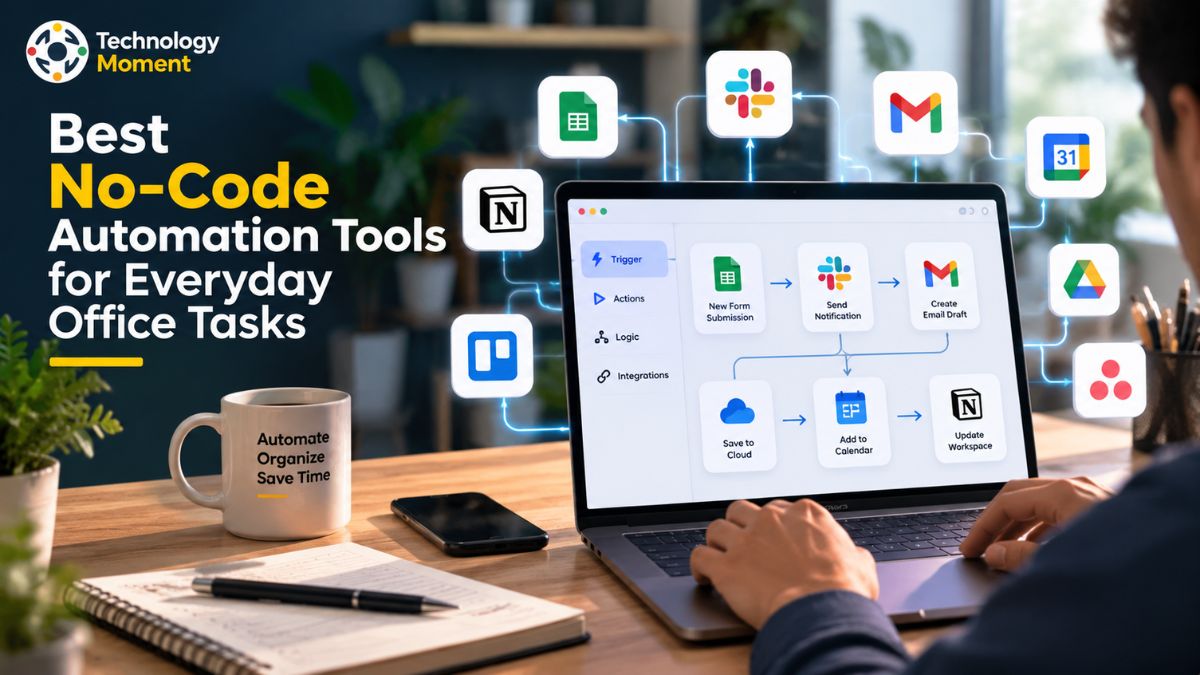
Repetitive office tasks can take up a surprising amount of time. Sending routine email notifications, updating spreadsheets, transferring information between applications, and tracking form submissions may seem like small responsibilities, but together they can interrupt focused work and slow down daily operations. For small businesses, office workers, and solopreneurs, simplifying these processes can make a meaningful difference.
This is where no-code automation tools become useful. These platforms let users connect different applications and build automated workflows without writing code. Instead of manually copying information or checking for every new submission, you can configure a workflow to perform specific actions when an event occurs. For example, a new form submission could add a row to a spreadsheet and trigger an email notification, helping keep information organized with less manual effort.
At Technology Moment, we explore practical technology solutions that help readers work smarter, understand useful digital tools, and make informed decisions. In this guide, we compare some of the best no-code automation tools for everyday office tasks, including Zapier, Make, Microsoft Power Automate, n8n, and other relevant platforms. We will examine their key features, ease of use, integration options, pricing considerations, and potential limitations.
Whether you want to automate routine administrative work, improve communication, or connect the business applications you already use, choosing the right workflow automation software starts with understanding your needs. This article will help you identify suitable options, explore practical automation examples, and decide which tool fits your workflow, technical experience, and budget. The goal is simple: spend less time on repetitive tasks and more time on work that requires your attention.
What Are No-Code Automation Tools?
No-code automation tools are software platforms that help people automate repetitive tasks without writing programming code. They allow users to connect business applications, create workflow rules, and move information between systems through visual builders, ready-made integrations, and simple configuration options. For small businesses, office workers, and solopreneurs, these tools can reduce manual work and make everyday processes easier to manage.
Most no-code workflow automation tools follow a simple trigger-and-action approach. A trigger is an event that starts a workflow, while an action is the task performed in response. For example, when someone submits an online form, an automation tool can add the response to a spreadsheet, send an email notification, and notify a team member. Once configured and tested, the workflow can run automatically whenever the specified conditions are met.
Common applications include email automation, spreadsheet automation, form automation, appointment reminders, customer follow-ups, and approval requests. Instead of manually transferring information between business applications, employees can use app integration tools to connect compatible services and create consistent workflows. Some platforms also support conditional workflows, multi-step actions, and automated reporting for more complex requirements.
One important benefit of no-code automation tools is accessibility. Users do not necessarily need technical expertise to build useful workflows. Visual automation builders make it easier to understand how information moves between applications, while workflow templates can help beginners get started quickly. However, more advanced scenarios may still require technical knowledge, careful configuration, or troubleshooting.
These platforms differ in their supported integrations, workflow complexity, execution limits, security controls, and pricing models. A simple notification workflow may need only two connected applications, whereas a business process involving multiple conditions, approvals, and data transformations may require a more flexible platform.
Choosing the right task automation software starts with identifying repetitive activities, understanding which applications are already in use, and estimating how frequently each workflow will run. The goal is not to automate everything, but to remove unnecessary manual steps while maintaining accuracy, oversight, and control over business information.
Best No-Code Automation Tools for Everyday Office Tasks
Several automation platforms serve different needs, from connecting everyday applications to managing complex business workflows. The best option depends on your technical experience, preferred software ecosystem, budget, and the number of steps involved in your processes.
1. Zapier — Best for Connecting Business Apps
Zapier is a popular option for users who want to connect applications without building complex technical systems. Its trigger-and-action approach makes it suitable for automating email notifications, spreadsheet updates, form submissions, and customer follow-ups. For example, a new form response could trigger a spreadsheet update and send an email to the appropriate team member. Zapier is worth considering when ease of setup and ready-made integrations are priorities. Visit the official Zapier website to explore supported applications and plans.
2. Make — Best for Visual Workflow Automation
Make provides a visual workflow builder for creating multi-step automations. Users can arrange connected modules, add filters, and create conditional paths that determine what happens next. This flexibility can help small businesses manage workflows involving several applications or different types of incoming information. For instance, a form submission could be checked against specific conditions before the information is stored or a notification is sent. Explore its features and current plans on the official Make website.
3. Microsoft Power Automate — Best for Microsoft 365 Users
Microsoft Power Automate is particularly relevant to businesses that rely on Microsoft 365 applications. It supports cloud-based workflows and desktop automation, making it useful for email notifications, approval requests, and certain repetitive tasks involving office software. A team could configure an approval workflow that notifies a manager when a request requires review. Available features depend on the connected services, licensing, and workflow type. Check the official Power Automate website for details.
4. n8n — Best for Flexible and Self-Hosted Workflows
n8n is a workflow automation platform suited to users who need greater control over integrations, data handling, and workflow logic. It offers visual workflow construction alongside options for more technical customization. Self-hosting can appeal to organizations that want to manage their own infrastructure, although this requires setup, maintenance, and security management. Explore deployment options on the official n8n website.
5. IFTTT — Best for Simple Automations
IFTTT focuses on straightforward automations across supported applications and connected services. Its Applets can trigger an action when a specified event occurs, making it useful for simple notifications and personal productivity routines. It may be less suitable than more flexible workflow builders for complicated business processes. Visit the official IFTTT website for supported services and plan information.
6. Integrately — Best for Ready-Made App Connections
Integrately offers pre-built automation options that can simplify connections between supported business applications. It may suit beginners who want to set up common workflows without configuring every step from scratch. Before choosing it, check whether your required applications and specific actions are supported. Learn more at the official Integrately website.
Each platform serves a different purpose. Zapier emphasizes convenient app connections, Make offers visual workflow flexibility, Power Automate fits Microsoft-oriented environments, n8n provides customization and self-hosting options, IFTTT handles simpler routines, and Integrately emphasizes ready-made connections. Comparing them against your actual requirements is more useful than selecting a tool based on popularity alone.
No-Code Automation Tools Compared
Comparing no-code automation tools side by side makes it easier to identify which platform matches your daily office tasks. Instead of focusing only on the number of integrations, consider ease of use, workflow flexibility, compatibility with existing applications, pricing, and the level of technical management required.
| Tool | Best For | Ease of Use | Relevant Capabilities | Free Access |
|---|---|---|---|---|
| Zapier | Everyday business app connections | Beginner-friendly | Trigger-action workflows, email alerts, spreadsheet updates | Limited free plan |
| Make | Visual and multi-step workflows | Beginner to intermediate | Filters, conditional paths, data transformation | Free plan with usage limits |
| Microsoft Power Automate | Microsoft 365 office workflows | Depends on workflow type | Cloud flows, approvals, desktop automation | Free trial; some capabilities may be included with eligible plans |
| n8n | Customizable and self-hosted workflows | Intermediate to advanced | Visual workflows, custom logic, deployment flexibility | Self-hosted community option |
| IFTTT | Simple personal automations | Beginner-friendly | Applets and straightforward triggers | Limited free plan |
| Integrately | Ready-made app connections | Beginner-friendly | Pre-built automations and app integrations | Limited free plan |
Note: Free access, included features, and usage allowances can change. Verify the latest conditions on each provider’s official pricing page before making a purchasing decision.
Everyday Office Tasks You Can Automate Without Coding
Many everyday office responsibilities follow predictable patterns, making them ideal candidates for automation. With the right no-code automation tools, small businesses and office workers can reduce repetitive data entry, improve communication, and keep information consistent across their applications. The most useful starting point is usually a task that happens frequently, follows clear rules, and requires little human judgment. Email notification automation helps teams respond promptly to new inquiries, completed forms, order updates, and internal requests. For example, when a potential customer submits a contact form, an automation workflow can send a confirmation email and notify the responsible employee.
Follow-up reminders can also be triggered when a task remains incomplete, provided the connected applications support the required actions. This approach reduces the need to monitor every application manually. Spreadsheet automation is useful when information arrives through several channels. A compatible workflow can transfer form responses into Google Sheets or update records in another connected application. This reduces repetitive copying and makes it easier to maintain organized records. Before automating spreadsheet updates, define the required columns, establish consistent data formats, and check how the workflow handles duplicate submissions or missing information.
Form automation can simplify employee requests, customer inquiries, registrations, feedback collection, and appointment requests. A new submission might create a spreadsheet row, generate a task, or send a notification to the appropriate team. Connecting forms with other business applications also reduces delays between collecting information and acting on it. Routine administrative work includes assigning tasks, sending deadline reminders, routing requests, and updating records. Workflow automation tools can handle predictable steps while allowing employees to review decisions that require judgment. For example, an expense request could be routed to a manager for approval before the next stage begins.
Some automated workflows can collect information from supported applications, prepare recurring summaries, and notify teams when specific conditions are met. These processes can help employees track project progress and outstanding tasks without repeatedly checking multiple dashboards. The key is to automate individual processes carefully rather than introduce unnecessary complexity. Start with one reliable workflow, test it using sample information, and monitor its results before expanding automation across the business.
How to Automate Repetitive Office Tasks Without Coding
Learning how to automate repetitive office tasks does not require building a complicated system. Most beginner-friendly platforms provide visual workflow builders that let users select applications, choose triggers, configure actions, and test the resulting process. A structured approach helps avoid mistakes and makes the automation easier to maintain.
Step 1: Identify a Repetitive Task
Begin by identifying work that happens regularly, such as transferring customer information, sending confirmation emails, or reminding employees about deadlines. Record how often the task occurs, which applications are involved, and where errors or delays commonly appear. Choose a process with clear rules and a predictable outcome rather than starting with a sensitive or complicated workflow.
Step 2: Choose the Right Automation Software
Select a tool that supports your existing applications and required actions. Zapier may suit straightforward connections between business apps, while Make offers visual multi-step workflows. Microsoft Power Automate is worth considering for Microsoft 365 environments. If you need self-hosting or extensive customization, n8n may be a better fit, although it can require more technical knowledge.
Step 3: Configure a Trigger and an Action
A trigger defines when an automation begins. It might be a new form submission, a received email, or a change in a supported spreadsheet. An action specifies what happens next, such as adding a record, sending a notification, or creating a task. Some workflows support multiple actions, filters, and conditional paths.
Step 4: Connect Applications and Build the Workflow
Authorize the necessary application connections, select the relevant fields, and map information to the correct destinations. For example, a form’s name and email fields should map to the corresponding spreadsheet columns. Configure conditions where needed, and confirm that the workflow does not expose information to unauthorized recipients.
Step 5: Test, Monitor, and Improve
Run test submissions before relying on the workflow in everyday operations. Check whether records appear correctly, notifications reach the intended recipients, and failures are reported. Review execution limits, permissions, and error-handling options periodically.
Practical example: Suppose a small business receives customer inquiries through an online form. The workflow can use a new submission as its trigger, add the details to a connected spreadsheet, and send an email notification to the sales team. After testing duplicate submissions, field mapping, and notification delivery, the business can use the workflow to reduce manual data entry. This simple example demonstrates how no-code tools can connect separate tasks into one repeatable process.
Best Free No-Code Automation Tools for Small Businesses
Free no-code automation tools can help small businesses test workflow automation before committing to a paid subscription. However, a free plan is not automatically the best choice for every business. Platforms differ in their task limits, available integrations, execution frequency, and access to advanced features. The right option depends on the volume and complexity of your daily work.
Zapier is worth exploring if you want to connect common business applications with minimal setup. Its free plan can help beginners test simple workflows, although usage and feature restrictions may limit larger processes. Review the Zapier website for current allowances. Make is useful for people who prefer a visual automation builder. Its free offering can help users experiment with scenarios that connect multiple applications. Before building a frequently used workflow, check the current operation allowance and any scheduling restrictions on the Make pricing page.
Microsoft Power Automate is relevant for organizations using Microsoft products. Microsoft offers a free trial, but access to individual connectors, cloud workflows, and desktop automation depends on the plan and licensing conditions. Check the official pricing page to understand what is included. n8n is an option for technically confident users who want flexibility and the ability to self-host. Its self-hosted community edition can reduce recurring software subscription costs, but hosting, maintenance, backups, and security may still require time or money. Businesses that prefer managed infrastructure should compare the available cloud plans at n8n.
IFTTT can suit simple trigger-based automations and personal productivity routines. Its free offering has specific limits, so confirm the current number of available Applets and other restrictions on the IFTTT plans page. When comparing free workflow automation software, examine how usage is counted. One provider might charge by successful tasks, while another counts operations, credits, or executions. A workflow with several actions may consume an allowance faster than a simple notification.
Small businesses should also consider reliability, security, and the time needed to maintain each workflow. A free tool that cannot perform an essential action may create more manual work than it saves. Start by automating one frequent task, measure the time saved, and upgrade only when additional capacity or features justify the cost.
How to Choose the Right Workflow Automation Software
Choosing the right workflow automation software starts with understanding which repetitive tasks consume the most time in your daily operations. Small businesses, office workers, and solopreneurs often need different solutions, so selecting a platform simply because it is popular may not deliver the best results. The ideal tool should fit your existing applications, workflow complexity, budget, and technical experience.
Check Application Integrations: Before selecting a tool, confirm that it connects with the applications you already use. If your daily work depends on Gmail, Google Sheets, Google Forms, Slack, or Microsoft 365, check whether the platform supports the specific triggers and actions you need. App integration tools can simplify data transfer, but a connector may not support every feature of an application.
Compare Ease of Use: Beginners should look for a visual automation builder, clear setup instructions, and ready-made workflow templates. Zapier and Integrately can be suitable for straightforward app connections, while Make offers visual tools for more complex workflows. Microsoft Power Automate is worth considering for Microsoft-oriented businesses, whereas n8n may appeal to users who want additional customization and self-hosting options.
Evaluate Pricing and Usage Limits: Free workflow automation software can be useful for testing, but its limitations matter. Some providers count individual tasks or operations, while others charge according to workflow executions or subscription requirements. Estimate how frequently your automations will run and calculate the likely monthly cost before upgrading. Review official pricing pages because free-plan allowances and paid features can change.
Consider Security and Reliability: Automation tools may process customer details, employee information, and internal business records. Review access permissions, available security controls, data-handling policies, execution history, and error notifications. Businesses with specific compliance requirements should confirm that the platform meets their obligations before transferring sensitive information.
Think About Future Requirements: A simple email notification may need only one trigger and one action, but a growing business might eventually require approval workflows, conditional logic, or automated reporting. Choose a platform that supports your realistic next steps without paying for unnecessary features.
Common Mistakes to Avoid When Automating Office Work
No-code automation can simplify repetitive office tasks, but poorly designed workflows may create duplicate records, send incorrect notifications, or move information to the wrong destination. Avoiding common mistakes is essential for making business process automation dependable and useful. Automation does not automatically improve a process that is already confusing. Before creating a workflow, identify unnecessary steps, clarify responsibilities, and establish consistent procedures. For example, if employees use different formats for customer information, an automated spreadsheet may reproduce those inconsistencies. Standardizing the input process first makes spreadsheet automation more reliable.
A workflow can fail because of expired connections, changed application permissions, missing fields, or temporary service problems. Do not assume that an automation will always run successfully after its initial setup. Use available execution logs, error alerts, and retry features to identify problems. Regularly review important email notification automation and data transfer automation processes to confirm that information reaches the correct destination. Repeated triggers or multiple form submissions can sometimes create duplicate entries. Design workflows with appropriate checks, such as a unique customer identifier or submission reference, when supported by the connected applications. Test how the system handles repeated events before using it for important business records.
Automation may connect applications that contain confidential business or customer information. Give workflows only the permissions they require, restrict access to sensitive records, and avoid sending private information through unnecessary notifications. Review connected accounts and remove access that is no longer needed. Businesses should also consider relevant privacy obligations when choosing cloud-based automation software. A free plan may be sufficient for a few basic workflows but unsuitable for frequent multi-step automations. Before implementation, examine task limits, execution frequency, supported integrations, and potential upgrade costs. Check the provider’s current pricing rather than relying on an outdated comparison.
A workflow that works with one sample record may fail when information is missing or formatted differently. Test normal submissions, incomplete fields, unexpected values, and repeated events. Where possible, include a manual review for sensitive approvals or important customer communications. Building too many workflows simultaneously makes troubleshooting difficult. Start with one repetitive administrative task, document how it works, and monitor the results. Expand only after the initial automation performs consistently. A gradual approach helps businesses improve productivity without introducing unnecessary operational risk.
Frequently Asked Questions About No-Code Automation Tools
What Are the Best No-Code Automation Tools?
The best no-code automation tools depend on your requirements. Zapier is useful for connecting everyday business applications, Make supports visual multi-step workflows, and Microsoft Power Automate suits many Microsoft 365 environments. n8n offers flexible workflow customization and self-hosting options. Compare integrations, ease of use, security, pricing, and execution limits before choosing a platform. The best option is the one that reliably automates your actual tasks.
What Is the Best Free Workflow Automation Tool?
There is no single best free workflow automation tool for everyone. Zapier and Make offer free plans with specific usage limits, while Microsoft Power Automate provides a free trial. n8n also offers a self-hosted community edition for users comfortable managing their own infrastructure. Compare available integrations, execution allowances, setup requirements, and maintenance costs before deciding which option offers the best value.
Can I Automate Office Tasks Without Coding?
Yes. No-code automation tools let you create workflows using visual builders, triggers, actions, and predefined rules. You can automate tasks such as sending email notifications, updating spreadsheets, routing form submissions, and creating reminders. Some advanced workflows may require technical configuration, but many everyday office processes can be automated without programming experience. Start with a simple workflow and test it before using it regularly.
How Can I Automate Email Notifications and Spreadsheets?
Choose an automation platform that supports your email service and spreadsheet application. Configure a trigger, such as a new form submission or spreadsheet update, and select the corresponding action to send an email or add a record. Map the relevant fields, verify recipient addresses, and test the workflow with sample data. Check execution logs and permissions to ensure that notifications and spreadsheet updates work correctly.
How Do I Connect Google Forms to Google Sheets Automatically?
Google Forms can store responses in a linked Google Sheets spreadsheet through its built-in response destination feature. Open the form’s Responses section and select the option to link or create a spreadsheet. If you need additional actions, such as notifying a team or updating another application, a compatible automation tool may help. Test the complete workflow and verify that responses appear in the correct spreadsheet.
Is Zapier Better Than Make?
Zapier may be preferable when you want straightforward application connections and an approachable setup experience. Make may be more suitable when you need a visual builder with branching logic and complex multi-step workflows. Neither platform is universally better. Compare the integrations you require, the complexity of your processes, available monitoring features, and the expected monthly usage before choosing between them.
Are No-Code Automation Tools Worth It for Small Businesses?
No-code automation tools can be worthwhile when repetitive tasks consume significant time or cause avoidable errors. Automating routine data entry, notifications, and administrative workflows can reduce manual effort and improve consistency. However, benefits depend on implementation quality, subscription costs, and maintenance requirements. Start with a frequent, low-risk task, measure the time saved, and expand automation when the results justify the investment.