Web browsing is part of everyday life, whether you are researching a topic, managing work, studying online, or keeping up with the latest technology. However, constantly switching between tabs, typing website addresses, and searching through browser menus can take more time than necessary. The good news is that a few simple browser shortcuts and lesser-known features can make everyday browsing faster, smoother, and more convenient.
Keyboard shortcuts let you perform common actions without repeatedly reaching for your mouse. You can open a new tab, return to a recently closed page, jump directly to the address bar, or find specific words on a webpage in seconds. Features such as tab groups, bookmarks, reader modes, and built-in translation tools can also help you organize information and work more efficiently.
In this guide, Technology Moment explores practical browser shortcuts and hidden features that can improve your daily browsing experience. Whether you use Google Chrome, Microsoft Edge, Mozilla Firefox, or Safari, you will discover useful techniques for managing tabs, navigating websites, searching more efficiently, and getting more from your browser. We will also highlight important differences between Windows and Mac shortcuts so you can follow the instructions for your device.
You do not need to memorize dozens of keyboard combinations or install additional extensions to get started. Learning a handful of useful shortcuts and exploring features already available in your browser can make a noticeable difference over time. At Technology Moment, our goal is to make technology easier to understand and more useful in everyday life. Explore these practical tips, try the shortcuts that fit your workflow, and discover how small changes can help you browse the web with greater speed and confidence.
Essential Browser Keyboard Shortcuts Everyone Should Know
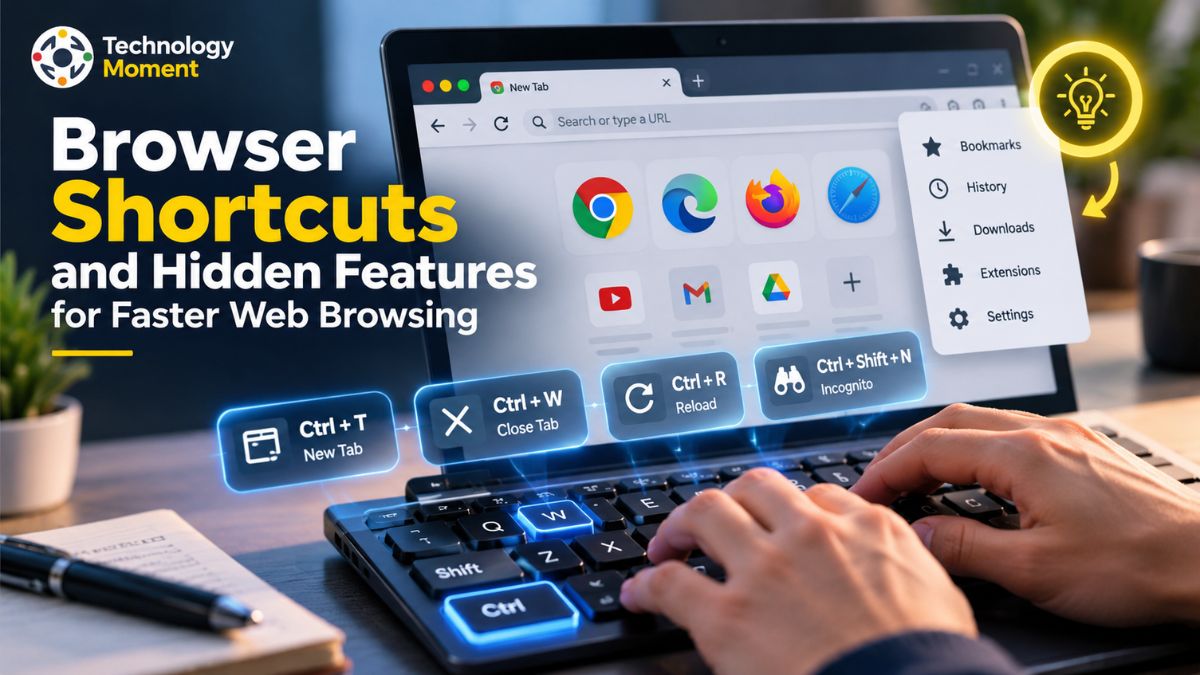
Browser keyboard shortcuts are simple combinations of keys that help you perform everyday browsing tasks without repeatedly using your mouse. Learning a few useful browser keyboard shortcuts can make online research, studying, and office work faster and more convenient. For Windows and Linux users, Ctrl + T opens a new tab, while Mac users can press Command + T. To close the current tab, use Ctrl + W on Windows or Command + W on Mac. If you accidentally close an important page, Ctrl + Shift + T or Command + Shift + T can reopen the last closed tab in supported browsers.
Other essential shortcuts help you move between pages and find information quickly. Press Ctrl + F on Windows or Command + F on Mac to search for specific words on the current webpage. Use Ctrl + R or Command + R to reload a page, and press Ctrl + D or Command + D to bookmark a useful website in browsers that support these combinations. These small actions can save time when researching multiple topics or revisiting frequently used resources.
Browser shortcuts also make reading more comfortable. Use Ctrl + Plus (+) to zoom in, Ctrl + Minus (-) to zoom out, and Ctrl + 0 to restore the default zoom level on Windows in compatible browsers. On Mac, the corresponding shortcuts generally use the Command key. You can also press Ctrl + P or Command + P to open the print dialog when you need a physical or digital copy of a webpage.
You do not need to memorize every keyboard combination at once. Start with shortcuts you use daily, practise them while browsing, and gradually add more to your routine. These practical browser tips and tricks can improve productivity without requiring additional software.
Browser Tab Management Shortcuts for Faster Browsing
Managing multiple browser tabs becomes challenging when you are researching, comparing products, reading articles, or working with several online tools. Browser tab management shortcuts help you move between websites, recover closed pages, and keep your workspace organized. Instead of repeatedly clicking tabs, Windows and Linux users can press Ctrl + Tab to move to the next tab and Ctrl + Shift + Tab to return to the previous one. On Mac, Control + Tab and Control + Shift + Tab work in many browsers, although behaviour can vary depending on the browser and settings.
When several tabs are open, you can jump directly to a specific position. In Chrome and Edge on Windows, Ctrl + 1 through Ctrl + 8 select the corresponding tab, while Ctrl + 9 moves to the last tab. On Mac, Chrome generally uses Command + 1 through Command + 9 for this purpose. These tab shortcuts are particularly useful when you keep important websites in consistent positions.
If you accidentally close a tab, use Ctrl + Shift + T on Windows or Command + Shift + T on Mac to reopen it in supported browsers. You can also duplicate a tab in Microsoft Edge using Ctrl + Shift + K on Windows. Check your browser’s shortcut guide if a combination does not work on your device.
Beyond keyboard shortcuts, built-in browser features can simplify tab management. Pin frequently used websites, such as email or your calendar, so they remain easy to access. Group related tabs by project, subject, or task where your browser supports tab groups. You can also move tabs into separate windows to distinguish work from personal browsing. Combining these browser tricks with a consistent tab organization system helps reduce clutter and makes everyday web browsing more efficient.
Address Bar Shortcuts That Save Time
The browser address bar is more than a place to enter website addresses. In current web browsers, this feature doubles as a search tool, allowing users to look up information, navigate to online resources, and revisit websites they have accessed before. Learning address bar shortcuts can reduce unnecessary clicks and speed up everyday browsing. On Windows and Linux, Ctrl + L, Alt + D, or F6 can focus the address bar in Chrome. On Mac, Command + L is the common Chrome shortcut. Similar combinations are available in other browsers, although exact behaviour may differ.
Once the address bar is selected, type a website address to visit a page or enter a search query to find information online. For example, typing a phrase such as “best project management tools” and pressing Enter sends the query to your default search engine. In Chrome, you can also type a supported search engine’s shortcut or keyword and use the suggested interaction to search with a different provider.
Autocomplete and search suggestions can make address bar navigation more convenient by displaying relevant websites, previous searches, and browsing history entries as you type. These suggestions can help you return to frequently visited pages without remembering the complete URL. However, be careful when selecting suggestions if you are using a shared computer or searching for sensitive information.
Another useful technique is to use the address bar to find a previously visited website instead of searching through bookmarks manually. You can also use browser-specific search features to locate open tabs or saved pages where available. Remember that suggestions and search history depend on your browser settings and privacy configuration. For people who browse the internet throughout the day, mastering these browser address bar shortcuts can simplify navigation, reduce repetitive actions, and make online research more efficient.
Page Navigation Shortcuts for Everyday Tasks
Page navigation shortcuts help you move through websites, locate information, and control how webpages appear on your screen. They are especially useful when reading long articles, completing online forms, or researching a topic with multiple sections. Instead of scrolling continuously with a mouse, press the Spacebar to move down approximately one screen at a time in many browsers. Use Shift + Spacebar to move upward. The Home and End keys can take you to the beginning and end of a webpage in common desktop browsing situations.
When you need to find a particular phrase, use Ctrl + F on Windows or Command + F on Mac to open the find bar in supported browsers. Enter a word or phrase, and the browser highlights matching text on the page. This browser navigation trick is useful for finding specific facts in lengthy articles, locating a product name, or identifying a relevant section in an online document.
You can also move between previously visited pages using Alt + Left Arrow to go back and Alt + Right Arrow to move forward in many Windows browsers. On Mac, browser-specific combinations may differ, so consult the shortcut list for your browser. To reload a webpage, use Ctrl + R on Windows or Command + R on Mac. If a page appears outdated, some browsers also support a hard refresh that reloads content while bypassing the usual cached resources. The exact shortcut varies by browser and operating system.
Keyboard navigation is another helpful feature for people who prefer not to use a mouse. Press Tab to move between links, buttons, and form fields, and Shift + Tab to move backward. Press Enter to activate a selected link or button when appropriate. These keyboard shortcuts make browsing more accessible and can improve efficiency during repetitive tasks. By combining page navigation shortcuts with zoom controls and browser search tools, you can find information faster, read comfortably, and handle everyday web tasks with fewer interruptions.
Windows vs. Mac: Which Browser Shortcuts Are Different?
Browser keyboard shortcuts can make web browsing faster on both Windows and macOS, but the key combinations are not always the same. The most important difference is that Windows users generally use the Ctrl key for common browser actions, while Mac users usually use the Command (⌘) key. Understanding this difference makes it easier to switch between computers without repeatedly searching for browser shortcuts.
The following comparison table covers common actions in Google Chrome and other compatible desktop browsers. Exact combinations can vary by browser, operating system, and settings, so check your browser’s official shortcut guide if a command does not work as expected.
| Action | Windows | Mac |
|---|---|---|
| Open a new tab | Ctrl + T | Command + T |
| Close the current tab | Ctrl + W | Command + W |
| Reopen a closed tab | Ctrl + Shift + T | Command + Shift + T |
| Focus the address bar | Ctrl + L | Command + L |
| Find text on a webpage | Ctrl + F | Command + F |
| Bookmark the current page | Ctrl + D | Command + D |
| Print the current webpage | Ctrl + P | Command + P |
| Zoom in | Ctrl + Plus (+) | Command + Plus (+) |
| Zoom out | Ctrl + Minus (-) | Command + Minus (-) |
| Restore default zoom | Ctrl + 0 | Command + 0 |
| Switch to a numbered tab | Ctrl + 1–8 | Command + 1–8 |
| Switch to the last tab | Ctrl + 9 | Command + 9 |
Another difference involves navigation keys. On Windows, Alt + Left Arrow commonly returns to the previous page, while Chrome on Mac supports Command + Left Bracket ([) for the same purpose. Some Mac keyboards also use the Option key where Windows users would use Alt, but this depends on the specific command.
Mac users should also remember that function keys may control screen brightness or volume unless configured otherwise. Meanwhile, Windows users may have dedicated function keys for browser actions. These differences do not mean one system is faster than the other; they simply require a little practice.
For the best results, memorize five frequently used shortcuts first, then add more as needed. Learning these Windows browser shortcuts and Mac browser shortcuts can make everyday browsing more comfortable, whether you work on one operating system or regularly switch between both.
Common Browser Shortcut Mistakes to Avoid
Browser shortcuts are designed to save time, but using the wrong combination can interrupt your workflow or cause you to lose track of important pages. One common mistake is assuming that every browser uses exactly the same keyboard shortcuts. Chrome, Firefox, Microsoft Edge, and Safari share many familiar commands, but certain actions differ between browsers or operating systems. Before relying on a shortcut for an important task, check the official shortcut list for your browser.
Another frequent mistake is confusing the Ctrl and Command keys. Windows users usually press Ctrl for actions such as opening tabs, finding text, and saving bookmarks, whereas Mac users generally use Command. If you switch between a Windows laptop and a Mac, practise the equivalent shortcuts on each device instead of assuming that every key combination is identical.
Accidentally closing a tab is another frustrating problem. Fortunately, many desktop browsers support Ctrl + Shift + T on Windows or Command + Shift + T on Mac to reopen recently closed tabs. However, repeatedly pressing Ctrl + W or Command + W without checking which tab is active can close a page you intended to keep open.
Some users also expect shortcuts to work in every situation. A keyboard combination may behave differently when a text field is active, a browser extension changes its behaviour, or another application uses the same shortcut. Keyboard layouts and browser settings can also affect the result. If a command fails, try the equivalent option from the browser menu rather than assuming the feature is unavailable.
Finally, avoid memorizing too many shortcuts at once. Start with address-bar navigation, tab switching, page search, and reopening closed tabs. Practise these browser tips during everyday tasks until they become familiar. With a gradual approach, you can reduce common browser shortcut mistakes, improve browsing efficiency, and use your keyboard more confidently without disrupting your work.
Frequently Asked Questions About Browser Shortcuts
What are the most useful browser shortcuts?
Some of the handiest keyboard commands for web browsers are Ctrl + T for creating a new tab, Ctrl + W for closing the current tab, Ctrl + Shift + T for restoring a recently closed tab, and Ctrl + F for searching specific words on a page. On Mac computers, the Command key usually replaces Ctrl when using these combinations. Learning these key combinations can simplify routine browsing, save time, and make navigating online content more convenient.
How do I browse the internet faster?
You can browse the internet faster by learning keyboard shortcuts, organizing related tabs into groups, bookmarking frequently visited websites, and using the address bar for direct searches. Reader mode can simplify long articles, while built-in translation tools can help you understand international websites. Closing unnecessary tabs and keeping your browser updated can also make your workflow more organized.
How can I restore a browser tab that I accidentally closed?
If you close a tab by mistake, you can usually bring it back using a keyboard shortcut. On Windows, press Ctrl + Shift + T in browsers such as Chrome, Microsoft Edge, or Firefox. Mac users can typically restore the last closed tab with Command + Shift + T. Press the shortcut multiple times to recover other recently closed tabs, provided they remain available in the browser’s session history.
How can I navigate a webpage without a mouse?
Navigate through interactive items like links and buttons by pressing the Tab key, or use Shift + Tab to return to the previous item. Press Enter to open or activate the highlighted element. To search for specific words or phrases on a webpage, use Ctrl + F on Windows devices or Command + F on Mac computers. In supported browsers, press the Spacebar to move down the page and Shift + Spacebar to scroll upward through lengthy content.
Which browser shortcuts work on both Windows and Mac?
Many browser shortcuts perform the same tasks across both systems, including opening tabs, closing tabs, searching within a page, and bookmarking websites. However, the key combinations often differ: Windows generally uses Ctrl, while Mac generally uses Command. Some navigation and tab-switching shortcuts vary more significantly, so consult your browser’s official documentation.
What are some hidden browser features that save time?
Useful browser features include tab groups, pinned tabs, reader mode, built-in translation, bookmark folders, and address-bar search suggestions. Depending on the browser, you may also find reading-aloud tools, saved-password management, and options to restore previous sessions. Exploring these built-in features can improve productivity without requiring additional extensions.