Imagine losing your important files, family photos, business documents, or years of work because of a hardware failure, accidental deletion, or ransomware attack. A backup can mean the difference between a quick recovery and permanent data loss. However, choosing the right backup method is just as important as creating backups regularly. This is where the debate over cloud vs. local backup becomes essential.
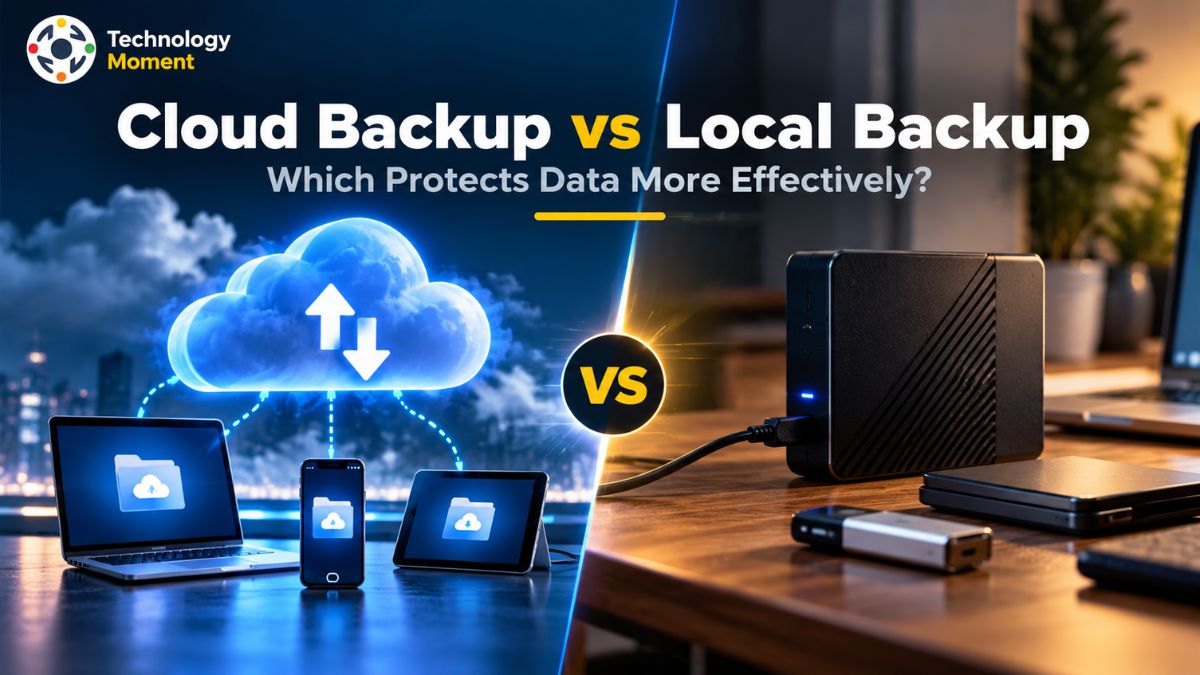
Cloud backup stores copies of your data on remote servers that you can access through the internet, while local backup keeps your files on physical storage devices such as external hard drives, USB drives, or network-attached storage (NAS). Both approaches help protect valuable information, but they offer different advantages when it comes to recovery speed, security, accessibility, cost, and protection against unexpected disasters.
For example, a local backup may allow you to restore large files quickly without relying on your internet connection. In contrast, cloud backup can provide off-site protection if your computer or physical storage device is damaged, stolen, or destroyed. Neither option is automatically secure against every threat, so understanding their limitations is crucial before making a decision.
At Technology Moment, our goal is to help readers make informed technology decisions through clear, practical, and easy-to-understand guidance. In this comparison, we will explore cloud backup vs. local backup in detail, including ransomware exposure, recovery performance, internet dependence, long-term costs, and the benefits of combining both methods.
What Is Cloud Backup?
Cloud backup is a data protection method that stores copies of your files on remote servers managed by a cloud service provider. Instead of keeping every backup on a physical device at home or in the office, cloud backup sends your selected data over the internet to an off-site storage environment. This approach helps protect important documents, photos, business records, databases, and other digital files from hardware failure, accidental deletion, theft, and damage at your primary location.
Most cloud backup solutions allow users to schedule automatic backups, choose which folders to protect, and maintain multiple versions of files. These features can make backup management easier and help users recover an earlier version when a file is accidentally changed or deleted. Depending on the service, users may also benefit from encryption, access controls, retention policies, and geographically separated storage.
One of the biggest advantages of cloud backup is off-site data protection. If a computer or external hard drive is damaged in a fire or flood, a separately stored cloud backup may remain available. Cloud backup can also support remote recovery, making it useful for individuals, small businesses, and distributed teams that need access to their protected data from different locations.
However, cloud backup has limitations. The initial upload of large datasets can take considerable time, while recovery speed depends on internet bandwidth, the amount of data being restored, and the provider’s infrastructure. Subscription fees may also increase as storage requirements grow. Internet access and account security are important considerations, especially during an emergency.
For effective data protection, users should choose a reputable provider, enable multifactor authentication, review retention settings, and test recovery procedures regularly. Cloud backup is not automatically immune to ransomware, so version history and immutable backup options can provide additional protection. Understanding these benefits and limitations makes it easier to compare cloud backup vs. local backup and choose a suitable backup strategy.
What Is Local Backup?
Local backup is a data backup method in which copies of files are stored on physical devices located at or near the user’s home, office, or primary computing environment. These devices provide an additional copy of important information without requiring an internet connection to restore locally stored files. A major advantage of local backup is recovery speed. When a computer fails, or a user accidentally deletes a document, the backup can often be accessed directly through a USB connection or local network. This makes local data backup particularly useful for large files, video projects, business databases, and other workloads where downloading everything from an online service could take much longer.
Local backup also gives users greater physical control over their storage devices and data management. Once the hardware has been purchased, there may be no recurring cloud storage subscription, although electricity, maintenance, replacement drives, and backup software can add ongoing costs. Users can choose their own storage capacity, backup schedule, encryption settings, and retention arrangements.
Despite these benefits, local backup has important disadvantages. If the backup device remains in the same building as the original computer, a fire, flood, theft, or other major incident could destroy both copies. Storage devices can also fail, and a backup drive that stays connected to an infected computer or network may be exposed to ransomware.
To reduce these risks, users should encrypt sensitive files, restrict access, monitor backup jobs, and periodically test data recovery. Businesses may also use NAS snapshots, restricted backup accounts, or immutable storage where supported. Local backup is especially valuable when fast recovery, offline access, and direct control are priorities. However, it is less effective as a standalone disaster recovery solution if every copy remains at the same physical location. Combining local storage with a secure off-site copy can create a more resilient backup system.
Cloud Backup vs Local Backup: Key Differences
Cloud backup and local backup both protect data, but they differ in storage location, recovery performance, internet dependence, cost structure, and exposure to physical disasters. Cloud backup stores copies on remote infrastructure, whereas local backup keeps them on nearby devices such as external hard drives or NAS systems. The better option depends on the amount of data you need to protect, how quickly you must restore it, and the risks you want to reduce.
| Comparison factor | Cloud backup | Local backup |
|---|---|---|
| Storage location | Remote, off-site servers | Physical devices at or near your location |
| Recovery speed | Depends on download bandwidth and provider performance | Often faster for local restores |
| Internet dependence | Generally required for online backup and recovery | Not required for direct local recovery |
| Off-site protection | Usually provided by remote storage | Requires a separate physical location to achieve off-site protection |
| Initial cost | Often low upfront cost | Requires compatible storage hardware |
| Long-term cost | Recurring fees may apply | Hardware maintenance and replacement costs may apply |
| Scalability | Storage can often be expanded through the provider | Expansion may require additional hardware |
| Data control | Shared between the user and service provider | Greater direct control over physical storage |
| Protection against ransomware | Recovery depends on access controls, data retention policies, stored versions, and tamper-resistant backup settings. | Safety relies on device access restrictions, network disconnection, permission settings, and separation from infected systems. |
| Restoring substantial amounts of data | Downloading large files can be time-consuming when internet bandwidth is restricted. | Recovering extensive datasets can be faster when the backup is available on nearby storage hardware. |
| Safeguarding against physical damage | Copies kept outside the main premises can remain available after a site-specific disaster. | Protection may be lost if the backup device is kept in the same building or area affected by the incident. |
For recovery speed, local backup often has the advantage because data can be transferred over a direct connection or local network. Cloud backup can be convenient for recovering individual files remotely, but restoring an entire computer or several terabytes of data may take considerably longer.
For off-site protection, cloud backup offers an important advantage because the backup copy is physically separated from the original device. A local drive stored beside a computer does not provide the same protection against theft, fire, or flooding. However, an encrypted local drive stored at another secure location can also serve as an off-site backup.
Cost depends on storage capacity, retention requirements, hardware lifespan, internet speed, and service fees. Neither method is universally cheaper. Similarly, neither is automatically more secure. A well-configured local backup and a properly protected cloud backup can both be effective. For many users, a hybrid backup strategy provides the best balance: local backup for fast recovery and cloud backup for off-site protection.
Cloud Backup vs Local Backup: Which Is More Secure?
When comparing cloud backup vs local backup security, it is important to distinguish between physical protection, cybersecurity, access control, and recovery reliability. Neither method is automatically safer in every situation. Security depends on how the backup is configured, who can access it, whether the stored data is encrypted, and whether previous versions remain available after an attack.
Cloud backup can improve protection against local disasters because its copies are stored away from the original computer or business premises. If a laptop is stolen or an office suffers fire damage, a separate cloud copy may remain available. Many providers offer encryption, multifactor authentication, version history, and other security controls. However, cloud accounts can still be compromised, and attackers who gain sufficient permissions may attempt to delete backup data or interfere with recovery.
Local backup offers direct physical control and can operate without internet access. An external hard drive that is disconnected after each backup is less exposed to network-based attacks while offline. However, a continuously connected drive or network-attached storage device may be vulnerable if ransomware spreads through the computer or network. Theft, physical damage, and inadequate access controls are additional risks.
| Security aspect | Cloud-based backup | On-device or offline backup |
|---|---|---|
| Safety against fire and physical theft | Offers better protection when copies are kept in a separate, remote location. | Provides less protection when backup copies remain at the same physical site. |
| Ability to withstand ransomware attacks | Can help prevent data tampering through immutable backups and securely managed accounts. | Can reduce ransomware risks when copies are disconnected from the network or protected by immutable snapshots. |
| Encryption | Depends on provider features and configuration | Depends on device and backup software configuration |
| Account or credential attacks | Cloud credentials and permissions must be protected | Device credentials and administrative access must be protected |
| Offline availability | Usually requires an internet connection | Available when the device is accessible |
| Physical control | Provider manages the underlying infrastructure | User or organization manages the hardware |
| Version recovery | Depends on retention and versioning settings | Depends on backup history and storage configuration |
For stronger ransomware protection, use multifactor authentication, least-privilege access, separate backup credentials, and immutable or offline recovery copies where practical. Do not assume that ordinary cloud synchronization is equivalent to a dedicated backup service. Synchronization may replicate unwanted changes or encrypted files, while backup software may preserve recoverable versions depending on its configuration.
The most reliable approach is often to combine secure local backup with an independent off-site copy. Follow the 3-2-1 backup rule where practical, and test restores regularly.
Cloud Storage or Local Copies: Which Offers Quicker Data Recovery?
When comparing cloud backup vs local backup recovery speed, the most important factors are the amount of data you need to restore, your internet connection, and the performance of your storage hardware. Local backup is often faster for large recoveries because files can be transferred directly from an external hard drive, SSD, or network-attached storage (NAS). Cloud backup, on the other hand, requires downloading data from remote servers, which can take longer when bandwidth is limited.
However, recovering hundreds of gigabytes after a computer failure could take considerably longer. A local backup can reduce this waiting time, provided the storage device is available and working properly. Cloud recovery speed also depends on the service provider, network congestion, storage tier, and the number of files being restored.
| Recovery factor | Cloud backup | Local backup |
|---|---|---|
| Individual files | Convenient through online access | Usually quick through a local connection |
| Large datasets | Limited by download bandwidth and service performance | Often faster with suitable hardware |
| Internet requirement | Generally required for remote recovery | Not required for direct local recovery |
| Recovery after local disaster | Available if the off-site copy remains accessible | Depends on whether the backup device survives |
| Full system recovery | Depends on download speed and recovery tools | Can be faster with a suitable local recovery system |
Neither method guarantees a particular recovery time. Businesses should define their recovery time objective (RTO), which identifies how quickly systems or data must be restored. They should also consider their recovery point objective (RPO), which defines how much recent data loss is acceptable.
For many users, combining local backup for rapid recovery with cloud backup for off-site protection provides a practical balance. Regular recovery tests help confirm that the chosen backup strategy works when it matters most.
Cloud Backup vs Local Backup: Cost Comparison
The cost of cloud backup vs local backup depends on storage capacity, backup frequency, retention requirements, maintenance, and recovery needs. Cloud backup usually has a lower initial barrier because users can begin with a subscription instead of purchasing dedicated storage hardware. Local backup generally requires an upfront investment in an external hard drive, SSD, NAS device, or backup server. However, comparing only the initial price does not reveal the complete long-term cost.
Cloud backup services may charge recurring fees based on storage capacity, number of devices, or subscription tier. Some providers also charge for data retrieval, downloads, or other operations. As your backup collection grows, these expenses may increase. Local backup avoids many cloud subscription fees, but users must account for hardware replacement, additional storage, maintenance, electricity, and the time required to manage and monitor their backups.
| Cost factor | Cloud backup | Local backup |
|---|---|---|
| Initial investment | Often low | Hardware purchase required |
| Recurring charges | Subscription or usage-based fees may apply | Usually no mandatory storage subscription |
| Storage expansion | Often available by upgrading a plan | May require extra drives or larger hardware |
| Maintenance | Much of the storage infrastructure is provider-managed | User manages hardware and maintenance |
| Recovery expenses | Retrieval or data transfer charges may apply | Hardware, labour, or replacement costs may apply |
| Long-term budgeting | Depends on usage and service pricing | Depends on equipment lifespan and capacity needs |
For personal users with modest storage requirements, either option may be affordable. Small businesses with growing datasets should estimate the total cost of ownership over several years rather than choosing solely on upfront price. A local device may offer good value for frequently restored files, while cloud backup can reduce the need to maintain off-site infrastructure.
The best choice depends on your budget and the value of the information being protected. Before committing, calculate expected storage growth, backup retention, hardware replacement, subscription charges, and potential recovery costs. A hybrid backup strategy may cost more initially than using one method alone, but it can provide additional protection against data loss and business disruption.
Cloud Backup vs Local Backup: Which Is Best for Different Users?
The best backup solution depends on how you use your devices, how much data you generate, and how quickly you need to recover lost files. Cloud backup is particularly useful for people who need off-site protection and access to their backups from different locations. Local backup is often better suited to users who regularly restore large files, prefer offline access, or want direct control over their storage devices. Neither approach is ideal for every situation.
| User type | Suitable approach | Main reason |
|---|---|---|
| Home users | Cloud or local backup | Depends on budget, convenience, and file size |
| Photographers and video creators | Local plus cloud | Fast access to large projects and off-site protection |
| Freelancers and remote workers | Hybrid backup | Protects work while supporting convenient recovery |
| Small businesses | Hybrid backup | Balances recovery speed with disaster protection |
| Businesses with large datasets | Local plus off-site backup | Supports large restores and geographic separation |
| Travellers and mobile professionals | Cloud backup plus an optional local copy | Protects files when devices are lost or damaged |
For personal data, such as photos, documents, and computer files, cloud backup offers convenience when devices are lost or damaged. Local backup can be attractive for people with extensive photo libraries or limited internet bandwidth. Maintaining both copies reduces reliance on a single storage method.
For small businesses, a hybrid approach can help protect customer records, financial documents, employee files, and operational data. A local backup can support faster restoration after accidental deletion or a hardware failure, while an off-site cloud copy can remain available if the office experiences a major incident. Businesses should also consider access permissions, retention requirements, and any applicable privacy or compliance obligations.
Users who manage large datasets should evaluate how long a complete recovery would take and whether their internet connection can support it. Those who travel frequently should ensure that backups remain accessible even when their primary device is unavailable. Choose a backup strategy based on recovery requirements, security risks, storage capacity, and budget. For valuable data, relying on only one copy is risky. A combination of local and cloud backup often provides a more balanced approach to data protection.
Cloud Backup vs Local Backup: Pros and Cons
Choosing between cloud backup and local backup depends on your data protection needs, budget, internet connection, and recovery requirements. Both methods help prevent permanent data loss, but each has advantages and limitations that should be considered before selecting a backup strategy.
Cloud backup advantages: Cloud backup stores copies of your files on remote servers, providing off-site protection against local hardware failure, theft, fire, and flooding. It supports remote access, automated backups, and flexible storage expansion. Depending on the provider, features such as encryption, file versioning, and immutable storage can strengthen security. Cloud backup is particularly useful for remote workers, individuals, and businesses that need geographically separated copies of important data.
Cloud backup disadvantages: Restoring large datasets can take considerable time when internet bandwidth is limited. Subscription fees may increase as storage requirements grow, and some services charge additional fees for data retrieval. Users must also protect their accounts and understand the provider’s security and retention policies.
Local backup advantages: Local backup stores data on external hard drives, SSDs, NAS devices, or other physical storage. It often delivers faster recovery, does not require an internet connection for direct restoration, and provides greater physical control over stored information. After purchasing the hardware, recurring storage subscription costs may be unnecessary.
Local backup disadvantages: Hardware can fail, and backups stored beside the original computer may be lost in the same disaster. Connected storage devices can also be exposed to ransomware if attackers gain access to them. Users must manage hardware maintenance, storage capacity, and backup testing.
| Factor | Cloud backup | Local backup |
|---|---|---|
| Recovery speed | Internet-dependent | Often faster |
| Off-site protection | Usually included | Requires separate storage location |
| Initial investment | Often lower | Hardware purchase required |
| Ongoing costs | Subscription may apply | Maintenance and replacement |
| Internet dependence | Generally required | Not required for direct recovery |
| Physical control | Shared with provider | Greater direct control |
Neither method is universally superior. Cloud backup prioritizes off-site protection and convenience, while local backup emphasizes recovery speed and direct control. For valuable data, combining both approaches can reduce the weaknesses of relying on a single backup method.
Finding the Right Data Backup Solution for Your Files
Finding a suitable backup strategy requires evaluating your storage needs, data security concerns, and expected recovery time. Online cloud services and physical storage devices offer different advantages, so the ideal solution depends on the threats you want to guard against, your available budget, and how easily you need to restore lost files. Rather than focusing only on price or transfer speed, choose a method that keeps your information secure and allows you to retrieve it when necessary.
First, consider your data volume. If you regularly work with large video files, design projects, databases, or extensive photo libraries, local backup may offer faster recovery without consuming internet bandwidth. If you mainly protect documents, photographs, and everyday business files, cloud backup can provide convenient off-site storage and remote access.
After that, check the quality of your network connection. Online backup services require a stable internet connection to upload files and retrieve saved data when needed. Limited bandwidth may slow down the transfer of files, especially during the first backup or when recovering a large amount of information. In areas with poor connectivity, storing copies on a local drive can offer a more practical and dependable solution.
Security should also influence your decision. Consider ransomware exposure, encryption, access permissions, and backup versioning. An external drive that remains permanently connected may be vulnerable to attacks affecting the original computer. Similarly, cloud storage is not automatically ransomware-proof. Look for independent backup copies, immutable storage where appropriate, and recovery options that prevent attackers from easily deleting backup history.
Your budget matters, too. Compare cloud subscription fees with local hardware purchases, maintenance, replacements, and management time. Businesses should estimate total ownership costs over several years rather than focusing exclusively on upfront expenses.
Finally, determine your recovery time objective (RTO), or how quickly your systems must be restored, and your recovery point objective (RPO), or how much recent data loss you can tolerate. For many users, a hybrid backup strategy offers the most balanced solution. Keep a local copy for rapid recovery and an independent cloud copy for off-site protection. Follow the 3-2-1 backup rule where practical, automate backup schedules, and test restoration regularly. Ultimately, choose a solution that protects your data reliably and allows you to recover it when needed.
Frequently Asked Questions: Cloud Backup vs. Local Backup
Which Backup Method Should You Choose: Cloud or Local?
Neither option is best for every situation. Cloud backup offers off-site protection, remote accessibility, and flexible storage, while local backup often provides faster recovery and direct control. Your ideal choice depends on storage requirements, internet reliability, budget, security risks, and how quickly you need to restore lost data.
Is Cloud Backup Safer Than Local Backup?
Storing backup files in the cloud helps safeguard data against damage or unexpected events affecting physical devices. Nevertheless, security weaknesses such as stolen login credentials, incorrect access settings, and limited backup history may expose stored information to loss. Keeping backups on local devices can also provide reliable protection if the files are encrypted and the storage device remains disconnected from the network. To improve data security, enable multi-factor authentication, limit access to authorized users, maintain multiple file versions, and preserve a separate offline or tamper-resistant backup.
Does Cloud Backup Require an Internet Connection?
The time required depends on connection speed, data volume, and provider performance. Some services offer physical recovery options, but availability varies. Local backup, by comparison, allows direct restoration without internet access. Maintaining a local copy can therefore be useful when connectivity is unreliable or large amounts of data must be recovered quickly.
Can Ransomware Affect Cloud and Local Backups?
Yes, both can be vulnerable if they are not configured correctly. Ransomware may encrypt connected external drives or accessible network storage. Cloud backups can also be compromised if attackers obtain sufficient account permissions or if infected files replace recoverable versions. Use protected backup credentials, multifactor authentication, version history, and immutable or offline copies. Test restoration regularly to verify that clean, usable data remains available after an attack.
Is It Worth Keeping Both Online and Offline Backups of Your Files?
Using both is a practical choice for people and businesses protecting valuable data. Local backup can provide fast recovery from accidental deletion or hardware failure, while cloud backup protects against incidents affecting the primary location. A hybrid strategy also reduces dependence on a single device or service. Follow the 3-2-1 backup rule where possible, automate backups, secure access, and periodically test recovery to confirm that your system works.