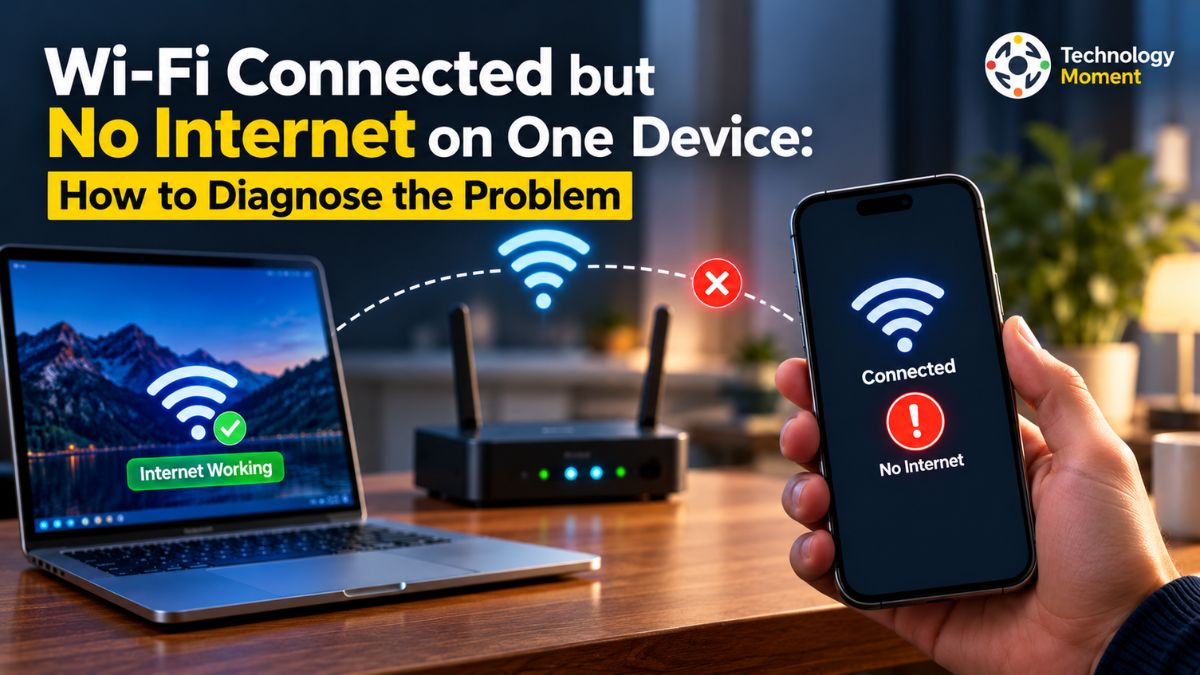
Have you ever connected your laptop or phone to WiFi Connected but No Internet on One Device, only to discover that websites will not load and apps cannot access the internet? If your other devices are working normally, the problem may not be your router or internet service. Instead, a setting, software conflict, or network configuration issue on that particular device could be preventing internet access.
The frustrating part is that your device may show a strong Wi-Fi signal and a connected status, even when you cannot browse the web, stream videos, or send messages. This is why understanding the difference between a Wi-Fi connection and an active internet connection is important before trying random fixes.
In this guide, Technology Moment helps you diagnose the problem step by step, starting with simple checks and moving to more advanced troubleshooting when necessary. You will learn how to determine whether the issue is limited to one device, test your connection on another network, and identify possible causes such as incorrect IP address settings, DNS problems, VPN interference, or outdated network drivers.
Whether you are using a Windows 11 laptop, an Android phone, an iPhone, or a Mac, the goal is to help you find the cause without making unnecessary changes to your network settings. We will also explain when a network reset may be useful and when it is better to contact your internet service provider or device manufacturer. At Technology Moment, we believe technology troubleshooting should be practical, understandable, and accessible to everyone. Follow the diagnostic steps below to narrow down the problem, choose the right solution, and get your device back online with greater confidence.
Why Is Wi-Fi Connected but There Is No Internet on One Device?
When Wi-Fi is connected, but there is no internet on one device, the problem can be confusing, especially when other phones, laptops, or computers on the same network work normally. Your device may display a connected status and show a strong wireless signal, yet websites refuse to load, apps remain offline, and downloads fail. This happens because connecting to a Wi-Fi network and accessing the internet are two different things. Wi-Fi connects your device to the local network, while internet access depends on several additional components working correctly.
One possible cause is an IP address configuration problem. Your router typically uses Dynamic Host Configuration Protocol (DHCP) to assign network settings to connected devices. If your device fails to obtain a valid IP address, it may connect to Wi-Fi without being able to communicate properly with the internet. An IP address beginning with 169.254 on a Windows computer can indicate that the device could not obtain an address from the router when automatic configuration is expected. Incorrect gateway settings or an IP address conflict can also interrupt connectivity.
The Domain Name System (DNS) translates website names into IP addresses that computers can reach. If your DNS server is unavailable, misconfigured, or responding incorrectly, your device may connect to Wi-Fi but fail to open websites. A corrupted or outdated DNS cache can also contribute to certain connection problems. In some cases, other applications may continue working while browser requests fail, making DNS troubleshooting a useful diagnostic step.
A virtual private network (VPN), proxy server, firewall, or security application can sometimes interfere with internet access on a single device. For example, a VPN may fail to establish its connection, or a proxy may direct requests to an unavailable server. Firewall rules can also block particular applications or network traffic. Temporarily disconnecting a VPN or checking proxy settings can help identify the cause, but avoid disabling essential security protection permanently.
On Windows laptops and desktop computers, outdated or malfunctioning network adapter drivers can affect connectivity. Saved Wi-Fi profiles may also contain outdated credentials or settings. Similarly, operating system updates, third-party networking software, or changes to TCP/IP configuration can cause unexpected internet connection issues. Sometimes, the problem affects only one browser, application, or website rather than the entire device. Browser extensions, app errors, parental controls, security filters, and restricted public Wi-Fi networks may explain the symptoms.
The key is to identify whether the failure affects one application, one device, or the entire network. Testing other devices and connecting the affected device to another Wi-Fi network can narrow down the cause before you change settings. Once you know where the problem originates, you can choose a suitable fix instead of unnecessarily resetting your router or changing multiple network configurations.
How to Diagnose WiFi Connected but No Internet on One Device
If Wi-Fi works on other devices but not yours, start by diagnosing the connection before attempting advanced repairs. A systematic approach helps you determine whether the issue comes from the device, the wireless network, or an internet service problem. These checks work as a starting point for Windows computers, Android phones, iPhones, and Macs, although the exact settings may differ by operating system.
Step 1: Check Whether Other Devices Have Internet Access
Connect another phone, laptop, or tablet to the same Wi-Fi network and open a few websites. If those devices work normally, the problem is more likely related to the affected device or its configuration. If every device has lost internet access, investigate the router, modem, or internet service provider instead.
Step 2: Test the Affected Device on Another Wi-Fi Network
Connect the affected device to a different trusted Wi-Fi network, such as a mobile hotspot. If internet access works there, the problem may involve compatibility, saved network settings, or restrictions on your original network. If the device cannot access the internet on multiple networks, investigate its operating system, VPN, proxy, security software, or network adapter. Remember that a mobile hotspot may have data limits, so check your mobile data usage during testing.
Step 3: Check Whether All Apps and Websites Are Affected
Open more than one website and test different applications. If only one website fails, the issue may be with that website or its DNS resolution. If one browser fails while another works, check browser extensions, proxy settings, and browser-specific security features. However, if every application reports that it is offline, investigate the device’s broader internet connection. This test helps distinguish an application problem from a device-wide connectivity issue.
Step 4: Temporarily Check VPN and Proxy Settings
A VPN connection or incorrectly configured proxy can prevent some or all internet traffic from reaching its destination. If you use a VPN, disconnect it temporarily and test a website again. Check your operating system’s proxy settings for unexpected manual configurations. If the connection starts working, investigate the VPN or proxy configuration rather than leaving security features disabled. On work-managed devices, contact your IT administrator before changing company security settings.
Step 5: Check the Device’s IP Address and Network Status
Inspect the network details to confirm that the device has a valid IP address, a default gateway, and DNS server information. On Windows, open Command Prompt and run ipconfig. Look for the wireless adapter’s IPv4 address, default gateway, and DNS servers. An address beginning with 169.254 can indicate a DHCP configuration problem when automatic addressing is enabled. Missing or unexpected network details may point toward an IP configuration issue, although the exact interpretation depends on your network setup.
Step 6: Run Built-In Network Diagnostics
Use your operating system’s network troubleshooting tool to identify common connectivity problems. Windows 11 users can start with the Network and Internet troubleshooter in the Get Help app. On Android, check the Wi-Fi connection and switch briefly between Wi-Fi and mobile data to compare results. On Apple devices, test the network on other devices and try another Wi-Fi network if available. Record any error messages before applying fixes.
After completing these checks, you should have a clearer idea of whether the problem is limited to one application, the device itself, or your original network. Use those findings to select the next troubleshooting step, beginning with simple actions such as reconnecting to Wi-Fi before moving to DNS changes or a network reset.
How to Fix Wi-Fi Connected but No Internet on One Device
If your Wi-Fi is connected but there is no internet on one device, while other devices work normally, the problem may be related to network settings, DNS configuration, software conflicts, or the device’s network adapter. Instead of resetting your router immediately, try the following solutions in order. Start with simple fixes and move to advanced troubleshooting only if the connection remains unavailable.
The first step is to restart the affected device. Temporary operating system errors or network service problems can prevent internet access even when the Wi-Fi connection appears normal. After restarting, turn Wi-Fi off, wait a few seconds, and turn it back on. Select your usual network and check whether websites and applications load correctly. If the connection returns, the issue may have been temporary rather than a problem with your router or internet service.
A saved Wi-Fi profile can sometimes contain outdated credentials or settings that interfere with connectivity. Open your device’s Wi-Fi settings, select the connected network, and choose the option to forget or remove it. Reconnect by selecting the network and entering its password again. This creates a fresh connection profile and may resolve certain authentication or configuration problems.
DNS server problems can prevent your device from opening websites even when it is connected to Wi-Fi. Similarly, an incorrect IP address or default gateway can interrupt communication with the internet. On Windows, open Command Prompt and run ipconfig to inspect the network configuration. If appropriate, use ipconfig /release followed by ipconfig /renew to request a new IP address, then run ipconfig /flushdns to clear the DNS cache. These commands may help resolve certain network configuration issues, but they will not fix every cause of lost connectivity.
A VPN connection, proxy server, or security application can interfere with internet traffic on an individual device. Temporarily disconnect your VPN and test the connection again. Check your proxy settings for unexpected manual configurations, especially if the problem started after installing software or changing network preferences. If internet access returns, review the relevant configuration instead of leaving essential security features disabled.
If Wi-Fi works on other devices but not your Windows laptop, an outdated or malfunctioning network adapter driver could be responsible. Open Device Manager, expand Network adapters, and check the wireless adapter for warnings. Look for an appropriate driver update through Windows Update or your computer manufacturer’s support website. If the problem began after a driver update, investigate whether a supported rollback is available.
If the previous fixes fail, consider a network reset. On Windows 11, open Settings, select Network & internet, then Advanced network settings and Network reset. This restores network adapters and settings to their defaults and may require you to configure VPN software or reconnect to saved networks. Review the consequences before proceeding.
After each change, test your connection using multiple websites and applications. If the device still cannot access the internet on different networks, investigate operating system problems, security restrictions, or possible hardware faults. This systematic approach helps identify the cause without making unnecessary changes to your home network.
How to Fix Wi-Fi Connected but No Internet on Different Devices
When Wi-Fi is connected but no internet appears on a phone, laptop, or computer, the correct solution depends on the operating system and the type of failure. Some problems involve general network configuration, while others are specific to Windows, Android, iPhone, or Mac settings. First, confirm whether the issue affects one device or several devices connected to the same network. Then follow the relevant troubleshooting steps for your platform.
How to Resolve Wi-Fi Connected but Internet Not Working in Windows 11
When your Windows 11 PC connects to a Wi-Fi network but fails to access the internet, start by launching the Get Help app and running the built-in network troubleshooter. Review the diagnostic results to identify any issues related to DNS, IP configuration, the default gateway, or the network adapter. If the connection still does not work, run Command Prompt with administrator privileges and execute the relevant commands to reset TCP/IP settings, renew your IP address, and clear the DNS cache.
Once completed, restart your computer and check whether internet access has been restored. If the issue persists, inspect your wireless adapter driver and update it using a reliable, trusted source. Use the Windows network reset option only after trying the simpler troubleshooting methods.
Troubleshoot Wi-Fi Connected but No Internet Access on Android Phones
When your Android phone shows a Wi-Fi connection but cannot browse the web or use online apps, access your device’s network settings and locate the wireless connection options, which may vary by manufacturer. Verify that the selected Wi-Fi network is working properly, then restart your device to eliminate temporary connectivity glitches. Turn off Wi-Fi and test mobile data to determine whether the problem affects only the wireless connection.
If other devices can access the internet through the same router, remove the saved Wi-Fi network from your phone and connect again by entering the correct password. Additionally, review your VPN settings, Private DNS configuration, and any network restrictions that might block internet access. Since settings and options vary between Android manufacturers and versions, refer to your device’s official support guide before modifying advanced network configurations.
Troubleshoot Wi-Fi Connected but No Internet Access on iPhone
When your iPhone connects to Wi-Fi but fails to load websites or use online apps, first open Settings and tap Wi-Fi to verify that your device is connected to the correct wireless network. Restart your iPhone and check internet access using a different website or app. If the connection remains unavailable, select the connected network, choose Forget This Network, and reconnect by entering the Wi-Fi password.
Temporarily disable any VPN or security software to see whether it is interfering with internet access. Try connecting your iPhone to another Wi-Fi network to determine whether the issue comes from the device or the original router. If none of these steps work, consider resetting Network Settings as a last resort. Keep in mind that this action erases saved Wi-Fi passwords and other network configurations, so you will need to reconnect to your networks afterward.
How to Troubleshoot Wi-Fi Connected but No Internet on Mac
If your Mac is connected to a Wi-Fi network but websites and online services are not loading, begin by restarting your Mac and confirming that the system date and time are set correctly. Navigate to Wi-Fi settings and review any network suggestions provided by macOS. Connect to a different Wi-Fi network to determine whether the issue comes from your current router or your Mac’s network settings. You can also use Apple’s built-in Wireless Diagnostics tool to detect potential wireless connectivity issues. If you recently added a VPN or third-party security application, temporarily check its configuration to see whether it is blocking internet traffic. Finally, install any pending macOS updates once you have access to a stable internet connection.
When the Same Problem Affects Every Device
Begin by examining the status lights on your network equipment and confirming that your internet service is operating normally. If necessary, power off the router and modem, unplug them for around 30 seconds, and reconnect them following the manufacturer’s recommended procedure. Wait until the devices finish starting up, then test the connection again. If internet access does not return, get in touch with your ISP for further assistance.
To troubleshoot network connectivity effectively, identify whether the problem affects a single device or the entire network before selecting a solution. Apply one troubleshooting step at a time and check the connection after each change. Avoid modifying complex network configurations unless they are necessary to resolve the issue. This systematic approach helps narrow down the source of the failure and improves the chances of restoring a stable internet connection on all affected devices.
When Should You Troubleshoot the Router Instead of the Device?
When your device connects to Wi-Fi but cannot access the internet, identifying whether the fault lies with the device or the router can help you troubleshoot efficiently without making unnecessary changes. If other devices can browse the web while yours cannot, begin by examining your device’s network configuration, DNS settings, VPN connection, and network adapter. On the other hand, if multiple phones, laptops, or computers experience the same problem on one Wi-Fi network, the cause may be related to the router, modem, or internet service provider.
Start by connecting at least two additional devices to the same Wi-Fi network and opening several websites. If none of them can reach the internet, check the indicator lights on your router and modem. A warning on the internet or WAN indicator, repeated unexpected restarts, or frequent connection drops may suggest a problem with the network equipment or internet service. However, the meaning of these indicators varies depending on the device model, so consult the manufacturer’s documentation when necessary.
When several devices are unable to access the internet, restarting the modem and router may help restore the connection. If they are separate units, unplug both devices and wait around 30 seconds. Reconnect the modem first and give it enough time to establish a stable connection before turning the router back on. This process may refresh the connection with your internet provider and resolve temporary network issues. Remember that restarting network equipment will briefly interrupt internet access for everyone connected to the Wi-Fi.
If other devices are working correctly, focus on troubleshooting the device experiencing the issue rather than modifying the router’s configuration. Connect it to another trusted Wi-Fi network to determine whether the problem persists, verify its IP address and DNS settings, and temporarily disable the VPN if appropriate. If the device still cannot access the internet across different networks, investigate its network adapter, operating system, or security software as possible sources of the problem.
Contact your ISP if every device remains offline after restarting the equipment, the router cannot establish an internet connection, or a service outage is suspected. If only one device fails across multiple networks, contact the device manufacturer or your IT administrator instead. Microsoft and Apple both recommend comparing connections across devices and networks to help isolate the source of Wi-Fi problems. Microsoft Support and Apple Support provide additional troubleshooting guidance.
How to Verify That Your Internet Connection Is Working Again
A device can remain connected to the local wireless network while DNS errors, software restrictions, or internet service problems prevent websites and applications from working. A few simple tests can confirm whether the connection has recovered. Open two or three websites from different domains and try applications that require an internet connection, such as email or a messaging service. If one website fails but others load normally, the issue may be specific to that website, browser, or DNS resolution. If all websites and applications remain offline, continue checking the device’s network configuration.
On Windows, open Settings, select Network & internet, and review the connection status. You can also run ipconfig in Command Prompt to inspect the wireless adapter’s IP address, default gateway, and DNS information. A valid configuration does not guarantee internet access, but missing or unexpected details can reveal an ongoing network problem.
If the original Wi-Fi network remains unreliable, connect your device to another trusted network or a mobile hotspot. If internet access works there, investigate the original router, network restrictions, or saved Wi-Fi profile. If the same problem occurs across multiple networks, device-specific software or configuration issues may remain.
Use your device normally for several minutes, reload websites, and repeat a few connection tests. If you changed VPN, proxy, DNS, or firewall settings, confirm that your intended security configuration is restored and that essential applications still work. Avoid repeating network resets if the connection is already stable.
If the device remains unable to access the internet, document any error messages and keep track of the troubleshooting methods that worked or failed. These details can help your internet service provider, device manufacturer, or network administrator diagnose the issue more efficiently. Windows users can also consult Microsoft’s Wi-Fi troubleshooting documentation for further guidance.
Frequently Asked Questions About Wi-Fi Connected but No Internet on a Single Device
Why Does Wi-Fi Work on Other Devices but Not on Mine?
This problem may result from incorrect IP settings, DNS configuration errors, outdated network drivers, or interference caused by a VPN. Start by disconnecting and reconnecting to the wireless network, then check whether your device can access the internet through another Wi-Fi connection. If the problem persists on different networks, review your device’s network settings and security applications before attempting to reset your router.
How Can I Resolve Wi-Fi Connected but No Internet on One Device?
Begin by restarting your device, disabling and re-enabling Wi-Fi, and reconnecting to your wireless network. If internet access does not return, examine your VPN and proxy configurations, verify your IP address settings, and check for DNS-related issues. Consider more extensive solutions, such as resetting network settings, only when basic troubleshooting methods have not resolved the problem.
Can DNS Configuration Cause Wi-Fi to Connect Without Internet Access?
Yes. An unavailable or incorrectly configured DNS server can prevent your device from translating website names into network addresses. Other internet services may behave differently depending on their configuration. Check your DNS settings and try flushing the DNS cache on Windows before considering further changes.
Will Resetting Network Settings Delete Saved Wi-Fi Passwords?
It depends on your operating system, but a network reset can remove saved Wi-Fi networks and passwords, VPN configurations, and other network settings. Record necessary details beforehand. Try reconnecting and other basic troubleshooting steps first, and reset network settings only when simpler solutions do not work.