A cluttered digital workspace can make even simple tasks feel more complicated than they need to be. Scattered files, an overflowing downloads folder, dozens of open browser tabs, and constant notifications can make it harder to find information and stay focused. Over time, these small distractions can interrupt your workflow and turn everyday computer use into a frustrating experience. The good news is that creating a cleaner digital environment does not require expensive software or hours of work. With a few practical digital decluttering tips, you can organize your files, simplify your screen, and make your workspace easier to manage.
Digital decluttering is about keeping the files, applications, browser tabs, and digital tools you actually need while removing unnecessary clutter. It also means developing simple habits that prevent digital mess from building up again. Whether you work remotely, study online, manage a business, or use your computer for everyday tasks, a more organized digital space can help you approach your work with greater clarity. At Technology Moment, we share practical technology guides, helpful tutorials, and actionable tips to make everyday digital tasks easier to understand and manage. Our goal is to help readers make smarter use of technology through clear, accessible information that works for different experience levels.
In this guide, you will discover how to organize your computer desktop, clean up your downloads folder, manage browser tabs, reduce unnecessary notifications, and remove unused digital distractions. You will also learn how to build a simple decluttering routine that keeps your workspace organized over time. Start with one small change, follow the steps that suit your needs, and create a digital workspace that supports a more focused and productive day.
Why Is Organizing Your Digital Life Important, and What Does It Involve?
Digital decluttering is the process of organizing your digital environment by removing unnecessary files, applications, browser tabs, notifications, and other distractions. Just as a physical desk becomes difficult to use when covered with paperwork, a computer can become harder to navigate when important documents are mixed with outdated downloads, unused shortcuts, and forgotten files. Following practical digital decluttering tips can help you create a cleaner workspace and make everyday tasks easier to manage.
One of the main benefits of digital organization is that it makes information easier to find. When files have clear names and belong in logical folders, you spend less time searching through documents and more time completing useful work. Similarly, closing irrelevant browser tabs and limiting unnecessary notifications can help you maintain attention on the task in front of you. These small changes can support a more organized and productive workflow without requiring complicated software.
Digital clutter can also develop gradually. You might save a document for a temporary project, install an application for a single task, or leave a webpage open because you plan to read it later. Over time, these items accumulate and make your digital workspace harder to maintain. Digital decluttering helps you decide which resources are useful, which should be organized elsewhere, and which can be safely removed.
The best approach is to start with one area rather than attempting to clean everything at once. Review your desktop, organize your downloads, simplify your browser, and adjust your notification settings. A few consistent improvements can make your digital environment easier to navigate, less distracting, and better suited to focused work.
1. Start by Decluttering Your Computer Desktop
Your computer desktop is often the first place where digital clutter becomes visible. Screenshots, temporary documents, application shortcuts, and files from completed projects can gradually fill the screen. A crowded desktop makes it harder to identify the items you need quickly. One of the simplest computer organization tips is to treat your desktop as a workspace for current tasks rather than a permanent storage location.
Begin by reviewing every visible file and shortcut. Decide whether each item is still needed, belongs in another folder, or can be deleted. Move important documents into appropriate locations, such as Documents, Projects, Work, or Personal. If you regularly handle different types of assignments, create a few broad categories that reflect your actual workflow. Avoid building too many nested folders, because an overly complicated folder organization system can make finding information difficult.
Next, use descriptive file names that explain what each document contains. For example, a file named “Website Content Plan” is easier to recognize than one called “Document 7.” Adding a project name or relevant date can make files even easier to identify. Consistent file naming conventions also improve your ability to locate documents through your computer’s search function.
You can further simplify desktop organization by removing shortcuts for applications you rarely use and keeping only frequently accessed tools visible. If you are unsure where a file belongs, place it in a temporary “To Organize” folder and review it later rather than deleting it immediately. It is to build a practical digital organization system that makes your computer easier to use. Spend a few minutes reviewing your desktop regularly, and move completed project files to their permanent locations. These habits help prevent desktop clutter from returning and make your digital workspace more manageable.
2. Clean Up Your Downloads Folder and Digital Files
The Downloads folder can quickly become a collection of documents, images, PDF files, software installers, and duplicate downloads. Because files often arrive there automatically, it is easy to forget what you have saved and why you needed it. Regular download folder cleanup helps you identify useful resources, remove unnecessary items, and maintain a more reliable file organization system.
Start by opening your Downloads folder and sorting its contents by date, file type, or name. Reviewing files in groups makes the process easier than opening every item individually. Look for outdated installers, duplicate images, documents you have already saved elsewhere, and temporary files from completed tasks. Before deleting anything, confirm that it is genuinely unnecessary. Important receipts, work documents, financial records, and personal files may need to be retained even when they are old.
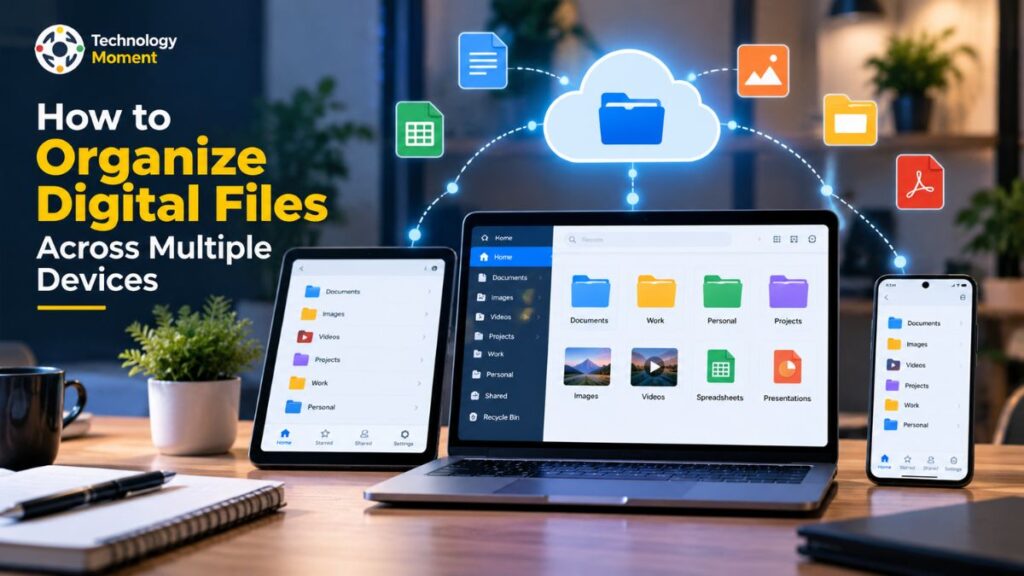
Next, move files you want to keep into clearly named folders. For example, place work documents in a Work folder, study materials in Education, images in Pictures, and project resources in their corresponding project folders. If you use cloud storage, maintain a consistent structure across your computer and online files so you can locate important information without searching multiple locations.
Good file management also depends on naming documents clearly. Instead of keeping several files with generic names, use meaningful descriptions that help you understand their contents. If you download multiple versions of the same document, identify the latest valid version before removing redundant copies.
For future downloads, consider changing your browser settings to ask where files should be saved, if that option is available. This encourages you to organize new files as you download them rather than allowing them to accumulate. You can also schedule a short weekly review to clean up the Downloads folder and relocate important documents. These digital decluttering tips make it easier to maintain an organized computer without spending hours sorting files. A simple, repeatable system is usually more useful than an elaborate structure that becomes difficult to maintain.
3. Organize Browser Tabs, Bookmarks and Extensions
A web browser can become cluttered just as easily as a computer desktop. You might keep multiple research pages open, save links you intend to revisit, or install browser extensions for tasks you rarely perform. Although each item may seem useful individually, too many open tabs and unnecessary tools can make your browsing experience harder to manage. Browser tab management helps you keep the resources you need without allowing temporary tasks to become permanent clutter.
Begin by reviewing your open tabs. Ask yourself whether each page is necessary for your current task. Keep essential work tabs open, close pages you no longer need, and save useful resources before closing them. If you want to return to an article later, add it to your bookmarks or use your browser’s reading list, where available. This approach helps you avoid keeping dozens of tabs open simply because you are worried about losing information.
Next, organize your browser bookmarks. Remove outdated links, check for duplicates, and group related websites into a few meaningful folders. For example, you could create folders for Research, Work Tools, Learning, and Personal. Use short, descriptive names so you can identify the right link quickly. A simple structure is generally easier to maintain than multiple layers of folders.
Browser extensions also deserve a regular review. Open your browser’s extensions settings and check which tools you actually use. Remove extensions you no longer need, but verify their purpose before uninstalling them. Keep essential tools that support your work, accessibility, security, or other important requirements. If you manage several projects, consider using browser profiles or tab groups when your browser supports them. These features can help separate work activities and personal browsing without mixing every task into one window.
The objective is not to keep your browser completely empty. It is to make useful information accessible while reducing unnecessary digital distractions. Review your tabs and bookmarks regularly, save important links intentionally, and remove tools that no longer serve a purpose. With a consistent browser tab management routine, your browser can become a more organized and productive part of your digital workspace.
4. Reduce Notifications and Digital Distractions
Constant alerts from email, messaging apps, social media, and websites can interrupt your workflow throughout the day. Even when a notification takes only a few seconds to check, switching between tasks can make it harder to maintain concentration. Effective notification management is therefore an important part of digital decluttering tips, especially for people who work remotely, study online, or manage multiple projects on a computer. The goal is not to disconnect from everything but to control which notifications deserve your attention.
Start by reviewing the notification settings on your computer, smartphone, and web browser. Identify applications that frequently send promotional messages, news updates, shopping offers, or social media alerts that do not require an immediate response. Turn off unnecessary notifications while keeping important alerts, such as urgent work messages, security warnings, and calendar reminders. Most modern devices also provide Focus or Do Not Disturb modes that can silence interruptions during selected periods.
Another useful strategy is to establish specific times for checking email and messages. Instead of opening your inbox whenever a new alert appears, review it at planned intervals that suit your responsibilities. For example, you might check messages at the beginning of the workday, after completing an important task, and before finishing work. Adjust this routine if your role requires frequent communication or rapid responses.
Digital distractions can also come from notification badges, autoplay content, and websites that encourage repeated checking. Disable unnecessary badges, unsubscribe from promotional emails you no longer read, and block website notifications that provide little value. If you use social media for professional purposes, consider separating work-related activities from casual browsing.
Creating a focused work environment also means setting realistic digital boundaries. You do not need to respond to every message immediately, provided you meet your responsibilities and communication expectations. At Technology Moment, we encourage practical technology habits that help readers use their devices more intentionally. By reducing unnecessary alerts and managing interruptions, you can create a calmer digital workspace and give important tasks more consistent attention.
5. Remove Unused Apps and Digital Tools
Over time, computers and smartphones often accumulate applications that are no longer useful. You might install a tool for a temporary project, download several apps that perform similar functions, or keep software you have not opened in months. This unnecessary collection can make your digital environment harder to navigate and complicate everyday computer use. Reviewing unused applications is a practical way to simplify app management and support a cleaner digital workspace.
Begin by opening the installed applications list on your computer or smartphone. Review the tools you recognize and consider when you last used each one. Ask whether the application still supports a current responsibility, solves a recurring problem, or provides a feature you genuinely need. Apps that no longer serve a purpose may be candidates for removal, while occasionally used tools can remain installed if they are important for specific tasks.
Before uninstalling anything, check whether it stores important documents, project data, saved settings, or other information you may need later. Back up essential data and confirm that you can access it independently of the application. Be particularly careful with system utilities, security software, device drivers, and applications whose purpose you do not understand. Removing essential components can cause problems, so avoid deleting software simply because its name looks unfamiliar.
Next, review browser extensions and overlapping digital tools. If several applications provide the same function, decide whether one reliable option is sufficient. For example, you may not need multiple screenshot tools or separate task managers if one already meets your requirements. Also review startup applications and background programs, where your operating system provides these settings, and disable nonessential items when appropriate.
Move occasional-use applications out of the way without deleting them unnecessarily. This makes essential tools easier to find while reducing visual clutter. It means choosing tools deliberately and keeping your setup manageable. A periodic review of installed software, unused applications, and browser extensions helps maintain a practical digital organization system that supports your everyday workflow.
6. Create a More Organized Digital Workspace
A well-organized digital workspace brings your files, applications, browser tools, and daily tasks together in a way that makes work easier to manage. Cleaning individual folders is helpful, but a consistent organization system prevents clutter from returning. Whether you work from home, study online, or manage a busy schedule, digital workspace organization should reflect the way you actually use your computer rather than follow an unnecessarily complicated system.
Start by deciding which tools and resources you use most frequently. Keep essential applications, current projects, and important documents easy to access. You might organize work files into folders such as Active Projects, Documents, Resources, and Archive. Within these folders, create additional categories only when they make information easier to find. A simple folder organization system is generally easier to maintain than a complicated structure with numerous levels.
Next, arrange your screen to support your current activities. Close unnecessary application windows, remove redundant desktop shortcuts, and keep only relevant browser tabs open. If your operating system supports virtual desktops or multiple workspaces, consider using separate spaces for different projects. For example, one workspace might contain writing tools and research pages, while another holds communication apps and administrative tasks. This can help separate activities without requiring additional software.
Cloud storage can also support a more organized digital environment. Keep important documents in clearly named folders and use a consistent structure across your computer and cloud accounts. Before moving or deleting files, confirm that the correct versions are available and that important information is backed up. Avoid saving multiple copies in different locations without a clear reason, as this can create confusion later.
Consider simplifying your everyday workflow as well. Use a calendar for deadlines, a task manager for actionable items, and a notes application for information you need to revisit. Choose tools that complement one another instead of adopting multiple applications for the same purpose. You should be able to identify where a file belongs, where a task is recorded, and how to find the resources needed for your next activity. A distraction-free workspace does not need to look identical for everyone. Review your organization system regularly, adjust it when your needs change, and build habits that keep your digital workspace clean, practical, and productive.
7. Build a Simple Digital Decluttering Routine
Keeping your digital workspace organized becomes much easier when digital decluttering is part of your regular schedule. A one-time cleanup can remove existing clutter, but files, browser tabs, notifications, and unused applications gradually accumulate again. Creating a simple digital decluttering routine helps you maintain an organized computer without repeatedly spending hours cleaning everything from scratch. The key is to choose small tasks that fit naturally into your daily workflow.
Start with a five-minute daily cleanup. Before finishing work, move important documents from your desktop into their appropriate folders, close browser tabs you no longer need, and save useful information in a location where you can find it later. Review newly downloaded files and rename anything important. These small actions support better desktop organization and prevent temporary files from becoming permanent clutter. You can also close unnecessary applications and prepare the digital workspace for your next working session.
Next, schedule a weekly digital decluttering session. Set aside around 15 minutes to review your downloads folder, organize recent documents, remove unnecessary screenshots, and check your browser bookmarks. Review your email inbox if it is part of your daily workflow, and unsubscribe from promotional messages that no longer interest you. A short weekly review can help you maintain a consistent file organization system without creating an overwhelming workload.
Once a month, perform a more detailed digital cleanup. Review installed applications, browser extensions, cloud storage folders, and notification settings. Remove software you no longer need, but verify its purpose before uninstalling it. Check that important files are backed up and that your folders still reflect your current projects. If you use multiple devices, review them individually so that clutter does not simply move from one device to another.
You can make this process easier by keeping a digital decluttering checklist with a few recurring tasks. Avoid adding unnecessary steps that make the routine difficult to follow. At Technology Moment, we recommend practical technology habits that are easy to maintain. By spending a little time on digital organization each day, you can keep your workspace manageable, reduce unnecessary distractions, and support a more productive workflow over time.
Common Digital Decluttering Mistakes to Avoid
Digital decluttering can improve the way you manage your computer, but a few common mistakes can make the process unnecessarily complicated. One frequent mistake is deleting files too quickly. An old document, downloaded attachment, or duplicate-looking file may still contain important information. Before removing anything, confirm that you no longer need it and check whether a reliable backup exists. Pay particular attention to financial records, work documents, personal photographs, and files associated with ongoing projects. If you are uncertain, move the item into a temporary review folder rather than permanently deleting it.
Another common mistake is creating too many folders and categories. Although file organization is important, a complicated system can make documents harder to locate. You do not need a separate folder for every small task. Start with a few broad categories, such as Work, Personal, Projects, and Reference, then introduce subfolders only when they solve a genuine problem. Clear file names and consistent storage locations often provide more value than an elaborate organizational structure.
Some people also install additional productivity apps to solve every organizational problem. However, too many overlapping tools can create another layer of digital clutter. Before downloading a new application, consider whether an existing tool already meets your needs. Review unused apps and browser extensions periodically, and keep only those that provide a useful function. Digital minimalism is about choosing technology intentionally, not collecting more tools in the hope of becoming productive.
Trying to clean everything in one session is another mistake. A large digital cleanup can become tiring, especially when you have years of accumulated documents, screenshots, and bookmarks. Divide the work into smaller tasks and complete one area at a time. Start with the desktop, continue with downloads, and then review browser tabs and notifications.
Finally, avoid treating digital decluttering as a one-time project. Without a maintenance routine, clutter will gradually return. Schedule short daily or weekly reviews, organize new files when you download them, and close browser tabs when you finish a task. These realistic habits help you maintain an organized digital workspace without demanding constant attention.
Frequently Asked Questions About Digital Decluttering
What Is Digital Decluttering?
Digital decluttering means organizing your digital environment by removing unnecessary files, applications, browser tabs, notifications, and other distractions. It helps you find important information more easily and maintain a manageable computer workspace. The process can include desktop organization, downloads folder cleanup, bookmark management, and reviewing unused apps. Regular digital decluttering also helps prevent unnecessary clutter from accumulating, making everyday computer tasks easier to manage.
How Do I Declutter My Digital Workspace?
Start by reviewing your computer desktop and moving important files into clearly named folders. Next, clean your downloads folder, close unnecessary browser tabs, organize bookmarks, and disable nonessential notifications. Review unused applications and extensions before removing them. Back up important documents before deleting files. Finally, establish a short weekly cleanup routine to keep your digital workspace organized without repeating a major cleanup.
How Often Should I Declutter My Computer?
A practical approach is to spend five minutes each day organizing new files and closing unnecessary browser tabs. Set aside around 15 minutes weekly to review downloads, bookmarks, and recent documents. Once a month, check installed applications, cloud storage, and notification settings. Adjust the schedule to suit your workload and the amount of digital clutter you generate.
How Do I Keep My Desktop Clutter-Free?
Keep your desktop for current projects and frequently used shortcuts rather than permanent file storage. Move completed documents into appropriate folders, remove shortcuts you rarely use, and choose descriptive file names. Avoid creating unnecessary folders or leaving temporary downloads on the desktop. A brief review at the end of each working day can help prevent clutter from accumulating again.
How Can I Manage Too Many Browser Tabs?
Review open tabs and close pages that no longer support your current task. Save useful websites in clearly named bookmark folders or a reading list so you can revisit them later. Consider tab groups or separate browser profiles if your browser supports these features. Regularly remove outdated bookmarks and unnecessary extensions to maintain a simpler browsing experience.
What Should I Delete When Decluttering My Computer?
Look for unnecessary installers, duplicate downloads, outdated temporary files, and documents you have confirmed are no longer needed. Before deleting anything, check its contents and verify that important information is backed up. Do not remove unfamiliar system files, essential applications, or records you may need later. When uncertain, move a file to a temporary review folder instead of permanently deleting it.